Create Blueprint

For spine and leaf, collapsed (spineless), or AI topologies create a Datacenter blueprint. For all other topologies create a Freeform blueprint.

Create Datacenter Blueprint

When you add a device to a blue print, AOS will monitor and raise liveness anomalies as needed.

To create a Datacenter blueprint in the GUI:
  1. From the left navigation menu, click Blueprints, then click Create Blueprint.
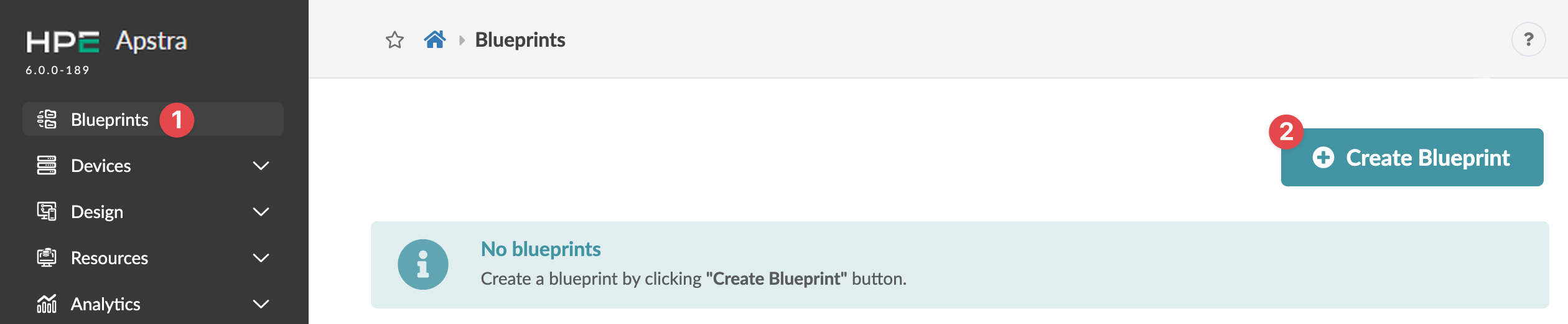
    HPE Apstra platform interface showing the Blueprints section with no blueprints created and a Create Blueprint button for adding new blueprints.
    The Create Blueprint dialog opens.
  2. Enter a unique name and leave Datacenter selected for Reference Design.
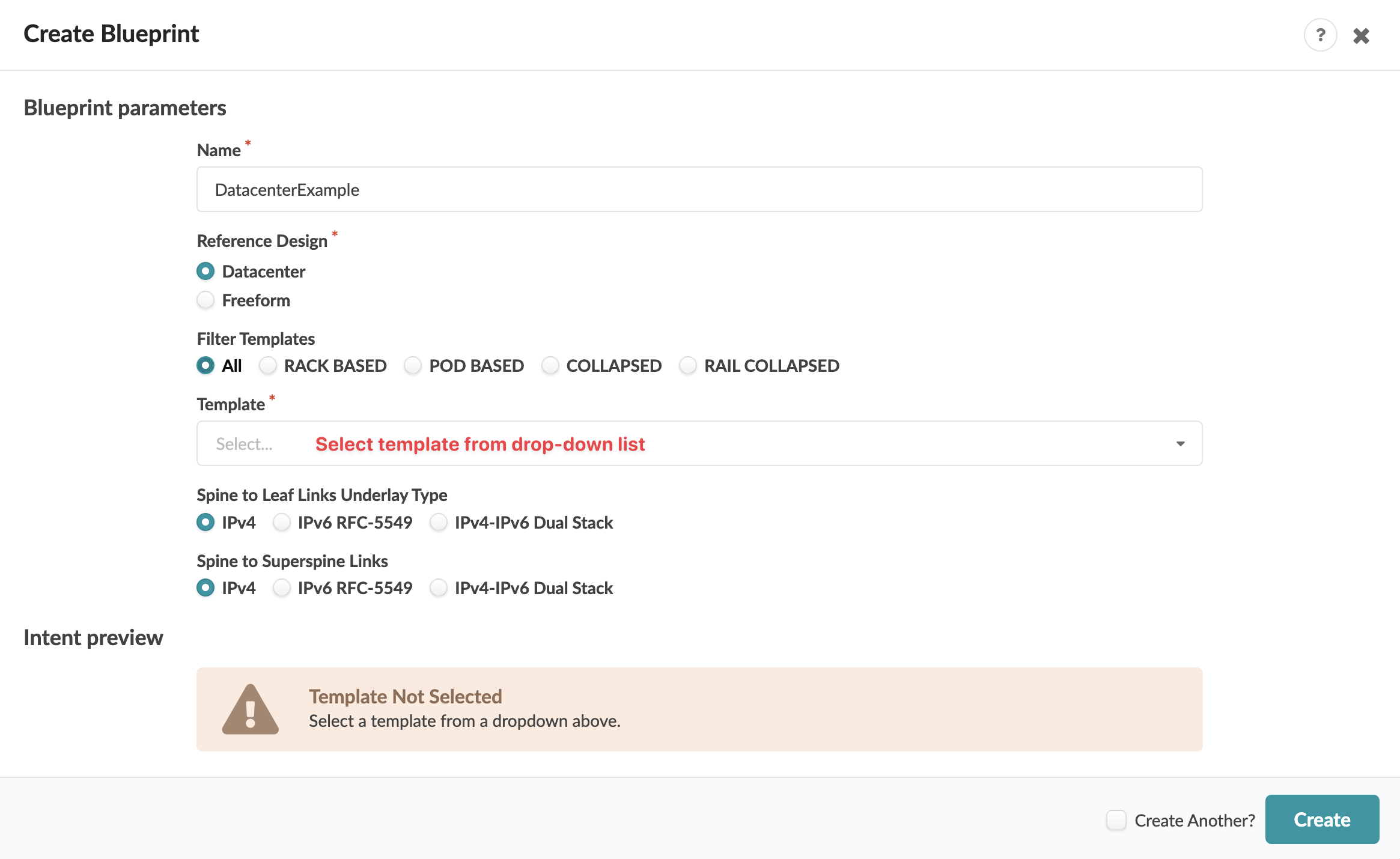
    User interface for creating a network blueprint with fields for name, reference design, filter templates, template selection, spine to leaf links underlay type, spine to superspine links, intent preview warning for missing template, and action buttons to create the blueprint.
  3. Select a template from the Template drop-down list.
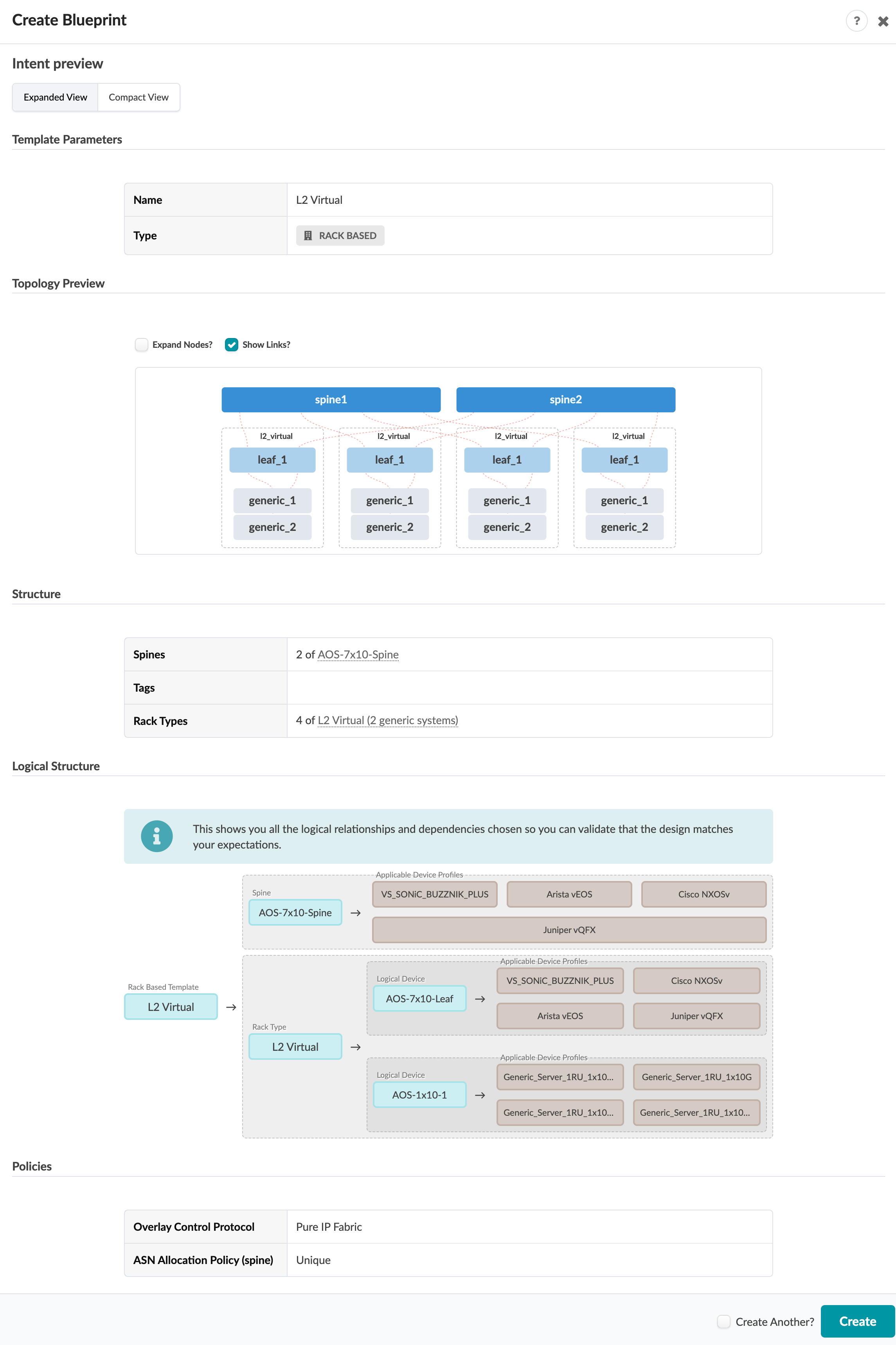
    A preview shows template parameters, topology preview, structure, logical structure, and policies. (The example shows the L2 Virtual template.)
  4. Click Create.

The blueprint is created and you're returned to the Blueprints page where you'll see a summary of your new blueprint
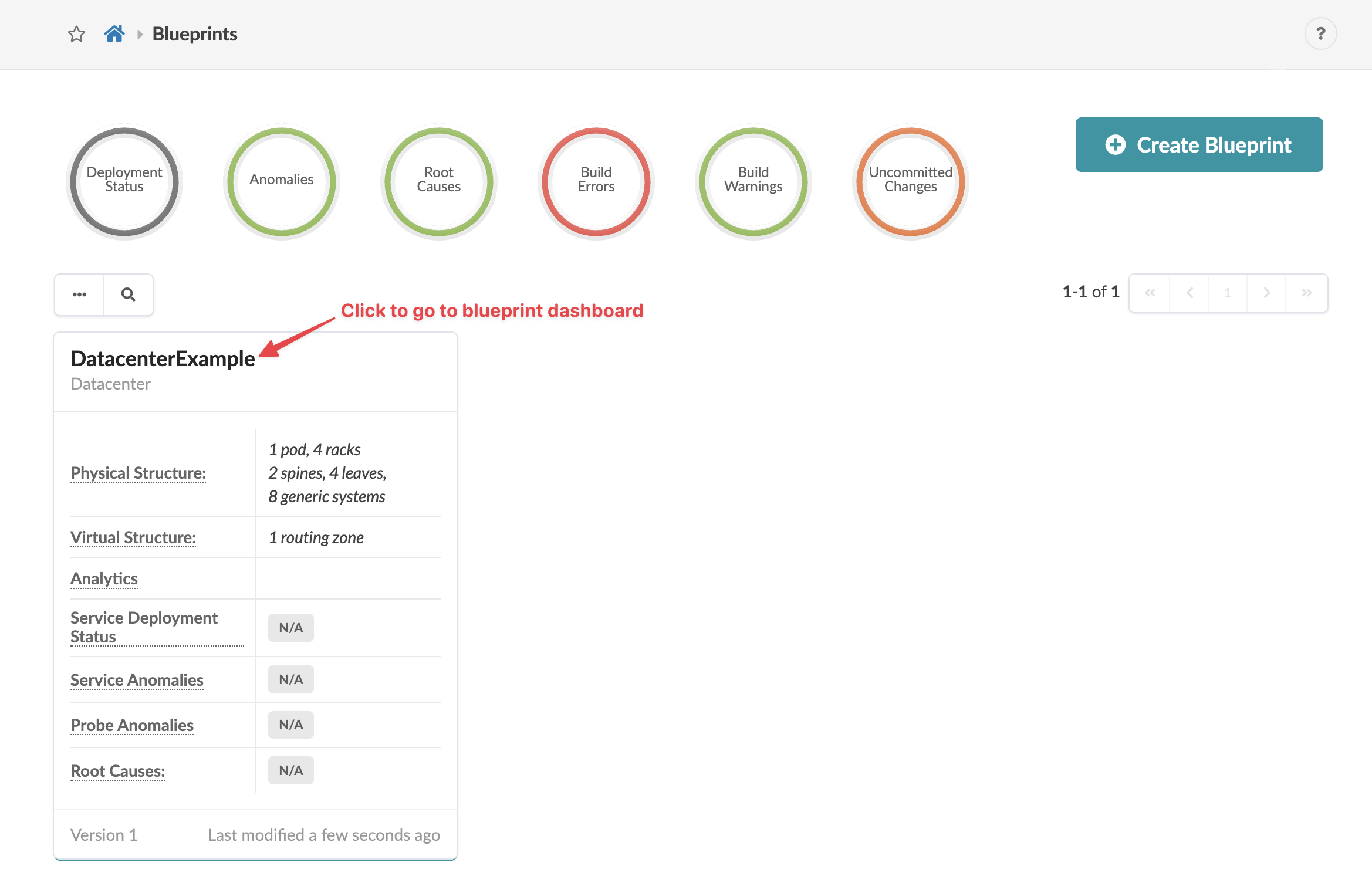
Dashboard interface for managing blueprints with top navigation statuses, a blueprint table listing DatacenterExample's physical and virtual structures, analytics, deployment statuses, anomalies, and action buttons for creating or viewing blueprints. Pagination indicates 1-1 of 1.

Next Steps: Build the Physical environment by assigning ASNs and IP Addresses , interface maps (device profiles) and system IDs.

Create Freeform Blueprint

To create a Freeform blueprint in the GUI:
  1. From the left navigation menu, click Blueprints, then click Create Blueprint.
    HPE Apstra platform interface showing the Blueprints section with no blueprints created and a Create Blueprint button for adding new blueprints.
    The Create Blueprint dialog opens.
  2. Enter a unique blueprint name and select Freeform for Reference Design.
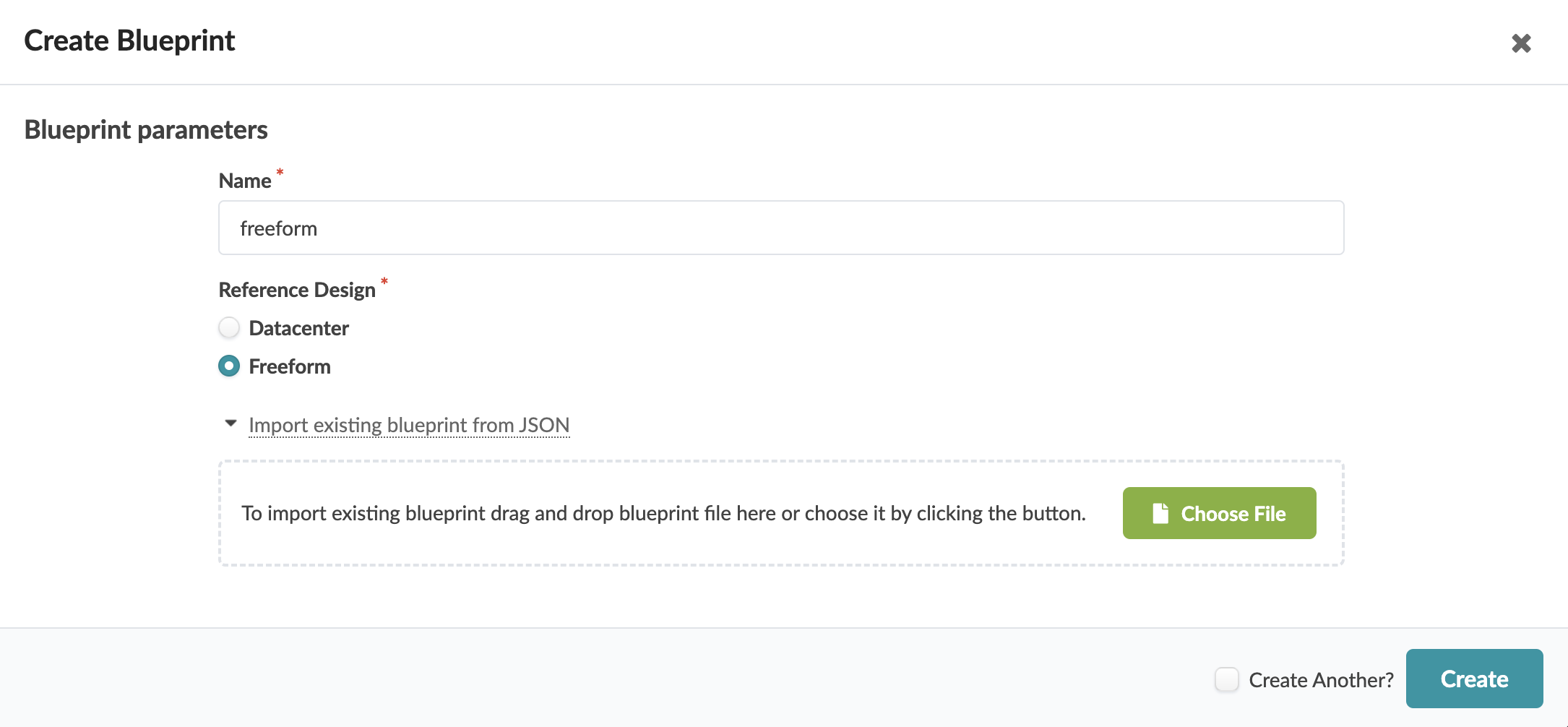
    User interface for creating a blueprint with fields for name input, reference design selection, JSON file import, checkbox for additional blueprints, and buttons for file selection and creation.
  3. If you've previously exported a Freeform blueprint, you can use it as a template for a new one. Click Import existing blueprint from JSON. Then either click Choose File and navigate to the downloaded file, or drag and drop the file into the dialog window. Otherwise, continue to the next step.
  4. Click Create.

The blueprint is created and you're return to the Blueprints page where you'll see a summary of your new blueprint.
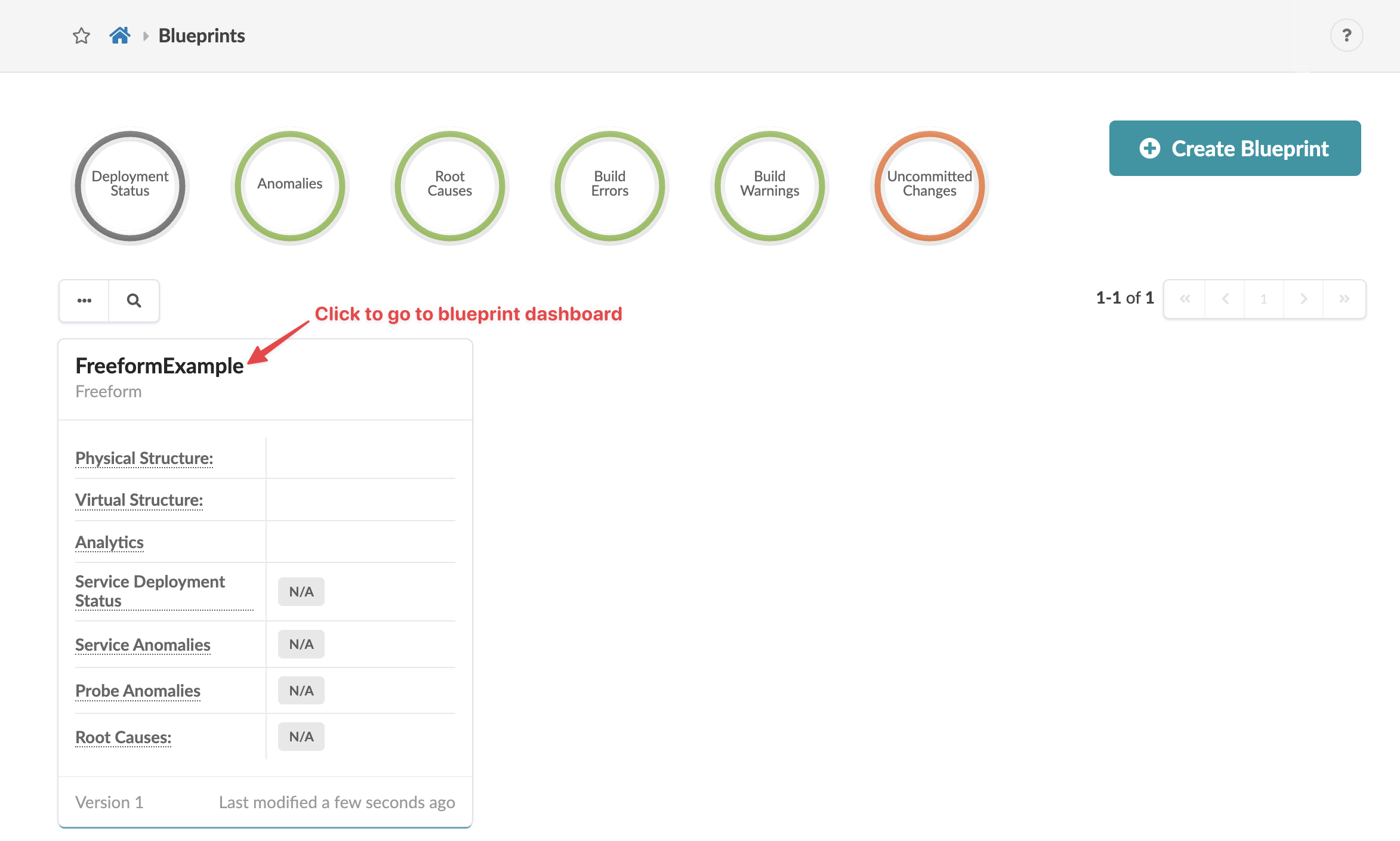
Dashboard for managing blueprints with statuses and a highlighted uncommitted changes indicator. Button to create a new blueprint.

Next Steps: