Reboot Agent

Reboot device system agents using the GUI.

You can reboot device agents directly from the GUI (as of HPE Networking Apstra Data Center Director version 6.1) instead of using the CLI.

Reboot One Device Agent

To reboot one device agent using the GUI:
  1. From the left navigation menu, navigate to Devices >Managed Devices, click the three dots in the Actions column (right side) for the device that you want to reboot, then in the Agent menu, click the Reboot button.
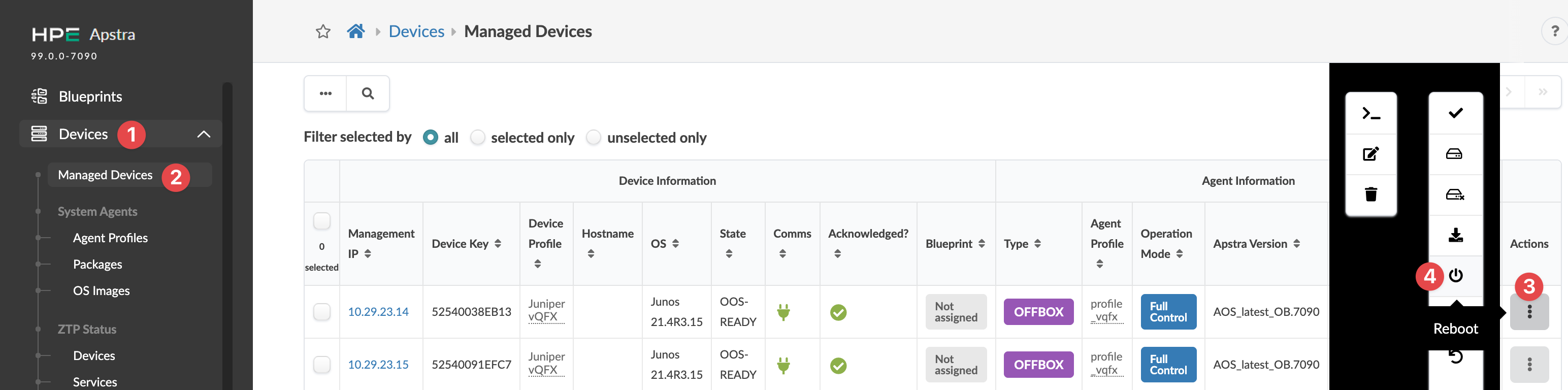
    HPE Apstra Managed Devices interface showing device details like Management IP, Hostname, OS, State, Communications status, and actions menu with a Reboot option.
    The Reboot dialog opens.
  2. Click Reboot.

    The dialog closes and the agent reboot process begins. System agent reboots may take as long as 10 - 15 minutes. During that time, the agent Job State shows as IN PROGRESS.

    To show/hide task details during reboot click Active Jobs (bottom left).
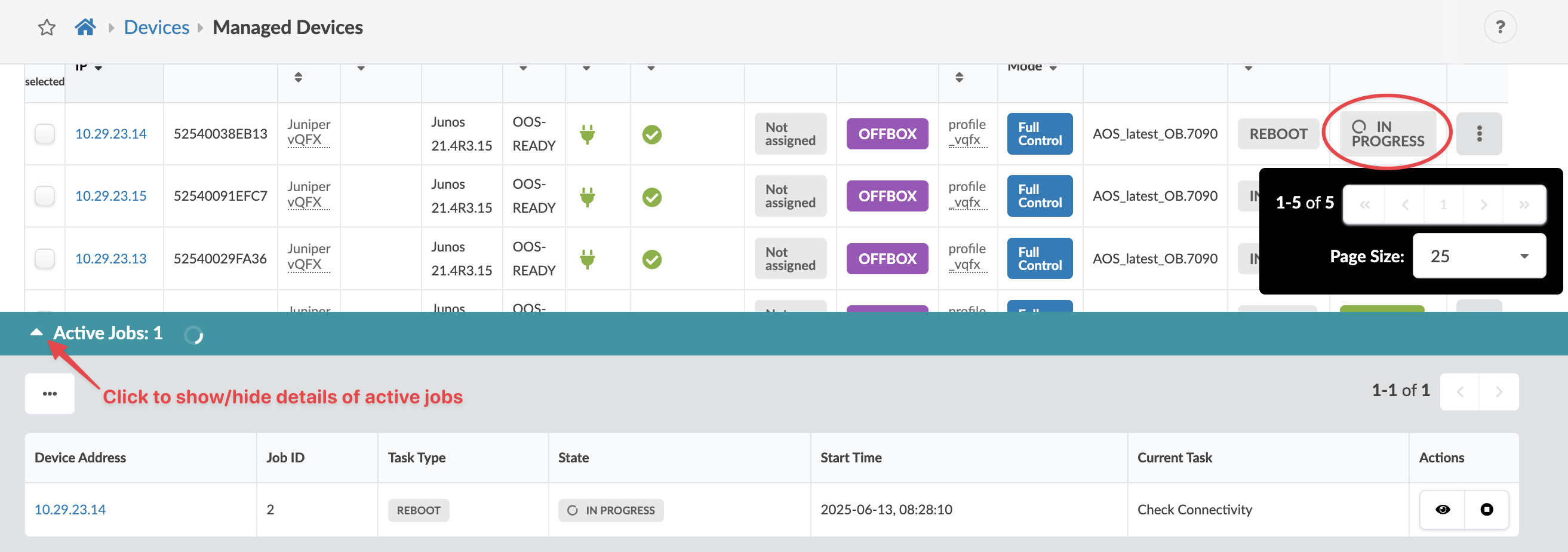
    User interface for managing network devices with a table of device details, active job progress, and navigation controls for pages.

When the reboot is complete the state changes to SUCCESS and the Last Job Type for that agent shows as REBOOT.

Table displaying network device details, including Device Information such as Management IP 10.29.23.14, Device Key 52540038EB13, Device Profile Juniper vQFX, OS Junos 21.4R3.15, State OOS-READY, active communication, acknowledged status, and unassigned blueprint. Agent Information includes Type OFFBOX, Agent Profile profile_vqfx, Operation Mode Full Control, Apstra Version AOS_latest_OB.7090, Last Job Type REBOOT, and Job State SUCCESS. Action buttons are available on the right.

Reboot One or More Device Agents

To reboot one or more device agents using the GUI:
  1. From the left navigation menu, navigate to Devices > Managed Devices, select the check boxes in the table for the device(s) to reboot, then click the Reboot button in the Agent menu that appears above the table
    .
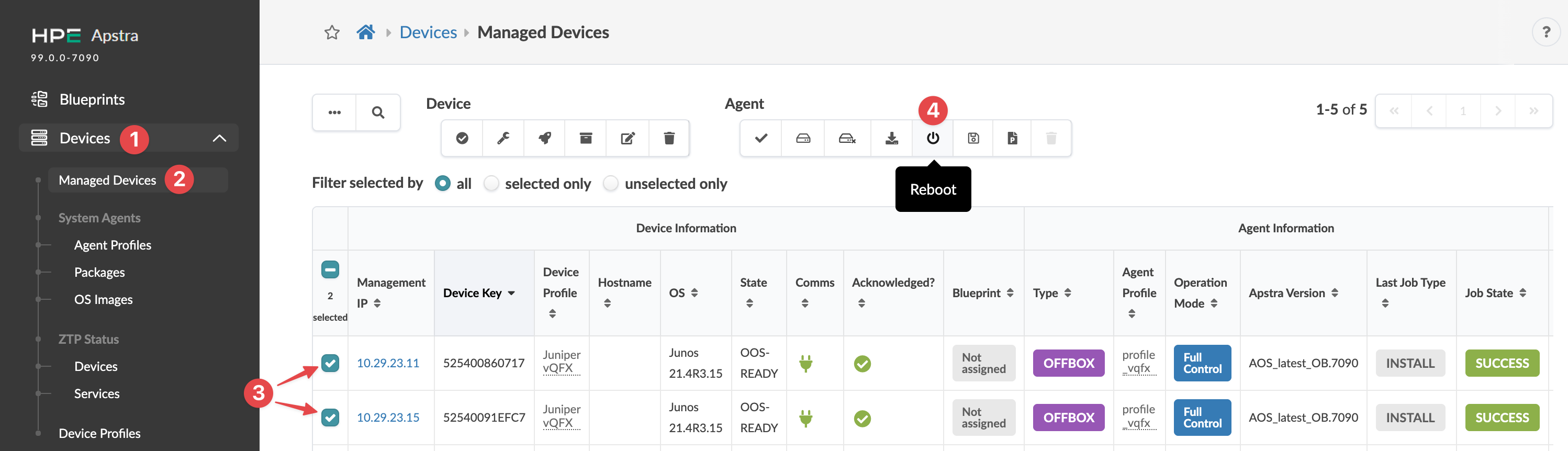
    HPE Apstra interface showing the Managed Devices section under Devices menu with a table listing device details like IP address, hostname, OS, and state. Two devices are selected, and actions like reboot and edit are available in the toolbar.

    The Reboot selected elements dialog opens showing selected agent details.
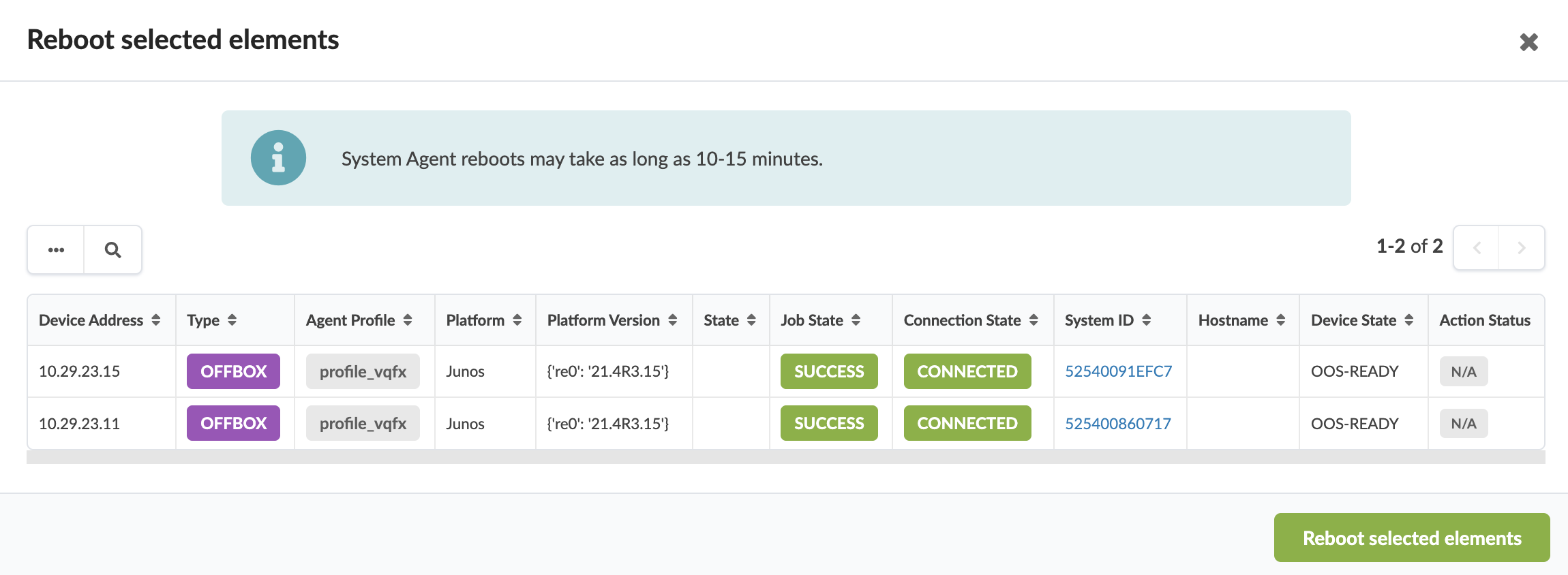
    User interface for rebooting network elements with device details, system agent reboot time estimate of 10-15 minutes, and a Reboot selected elements button.

  2. Click Reboot selected elements, then click Close to close the dialog.

    The agent reboot process begins. System agent reboots may take as long as 10 - 15 minutes. During that time, the agent Job State shows as IN PROGRESS.

    To show/hide task details during reboot click Active Jobs (bottom left).

When the reboot is complete the state changes to SUCCESS and the last job type for that agent shows as REBOOT.