Update Agent

You can update one agent at a time to change its device address, agent profile, packages, and open-options, or you can update multiple agents simultaneously to assign an agent profile.

Update One Agent

  1. From the left navigation menu, navigate to Devices >Managed Devices, click the three dots in the Actions column (right side) for the device that you want to update, then click the Edit button in the Agent menu.
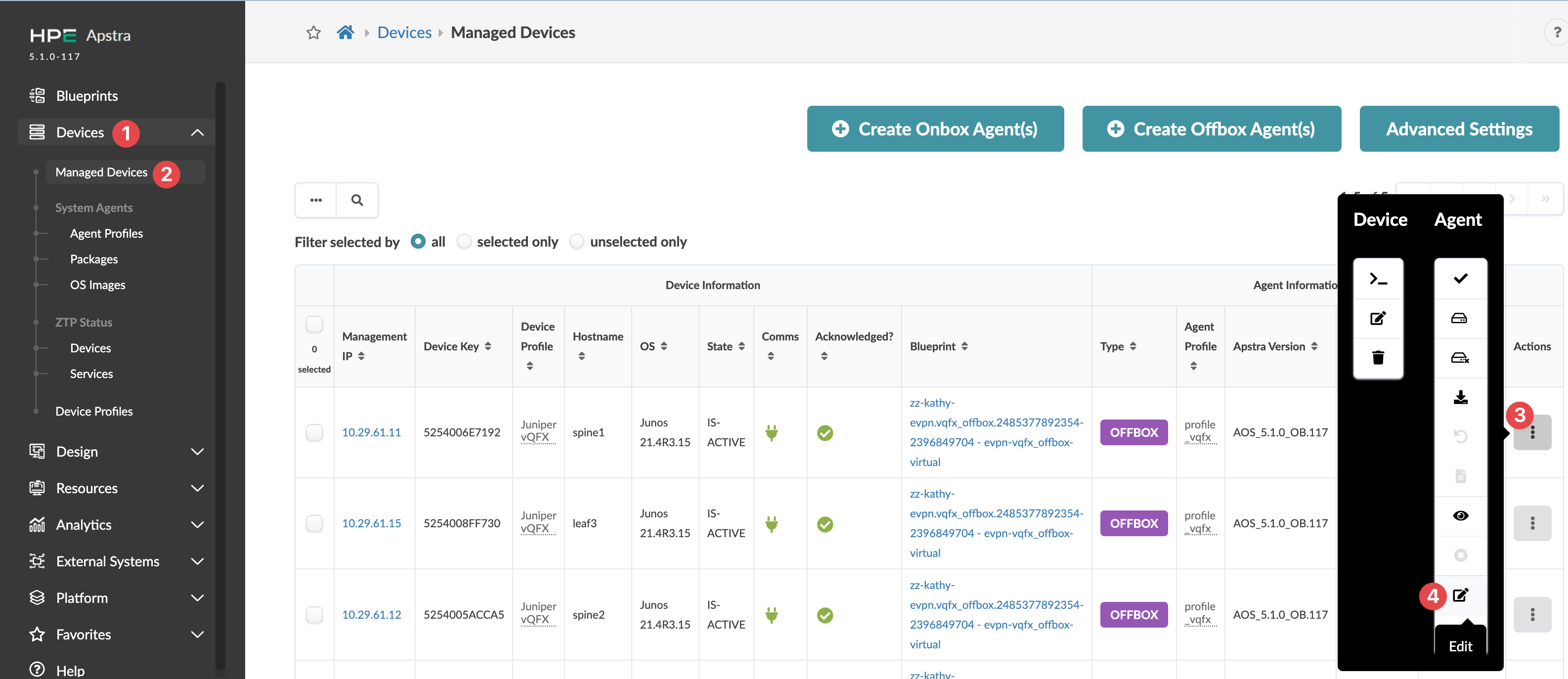
    Screenshot of Juniper Apstra interface showing Managed Devices section with devices listed in a table. Key columns include Management IP, Device Key, Device Profile, Hostname, OS, State, Comms, Acknowledged, Blueprint, Type, Agent Profile, and Apstra Version. Actions menu on each row, Edit option highlighted. Top buttons for creating new agents and accessing Advanced Settings.
    The Edit Onbox (or Offbox) System Agent(s) dialog opens.
  2. Make your changes (device address, platform, username, password, agent profile, packages, open-options, as applicable).
    CAUTION:

    Changing a user requires completely re-onboarding the device. Changing the password involves several steps that are not straightforward (changing the password on the device, device agents, and pristine config). If you need to change a password, we recommend contacting Juniper Support.

  3. Click Update to update the agent and return to the table view.

Assign / Change Agent Profile on Multiple Agents

  1. From the left navigation menu, navigate to Devices >Managed Devices and select one or more check boxes for the device(s) to update.
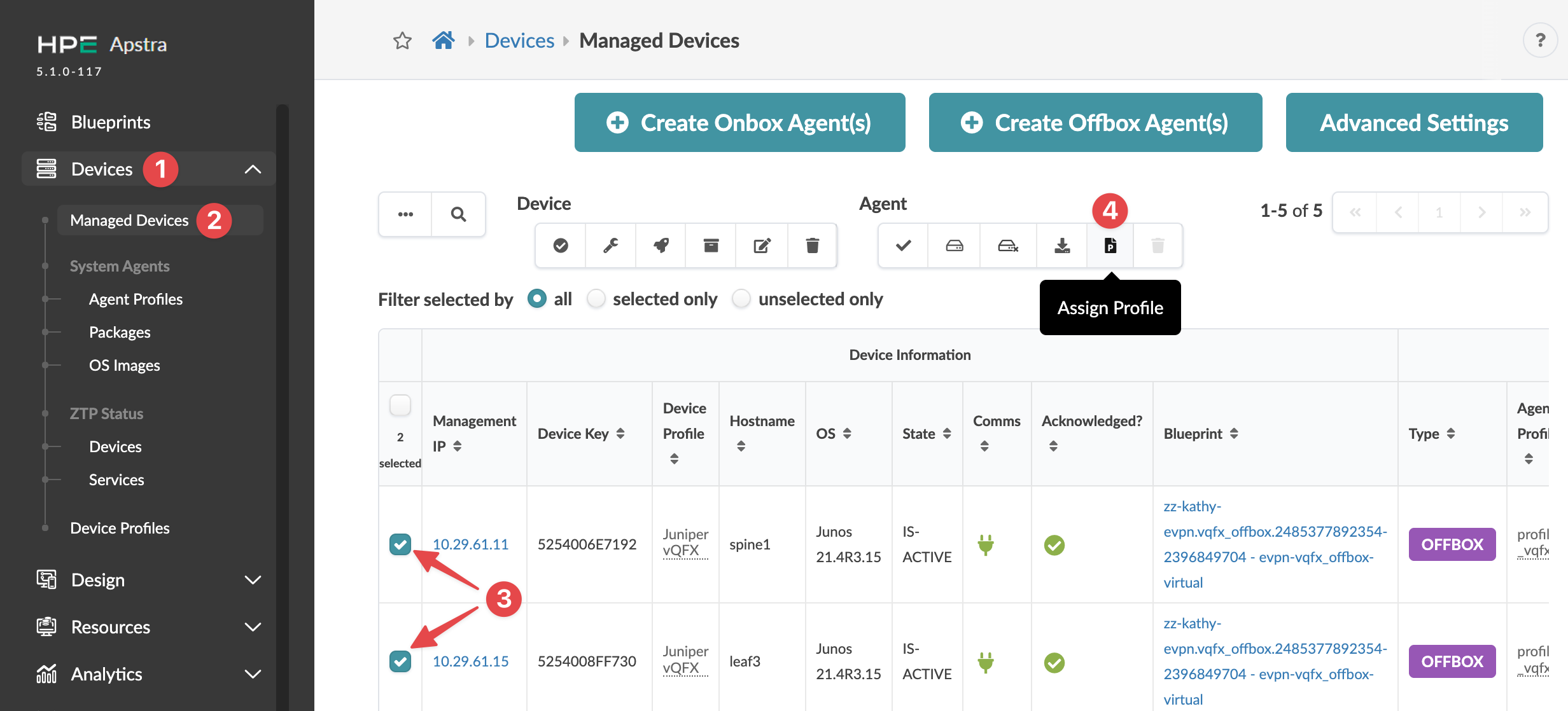
    HPE Apstra interface showing the Managed Devices section with a table listing devices by Management IP, Device Key, and other attributes. Two devices are selected, and Assign Profile button is highlighted.
  2. Click the Assign Profile button (in the menu that appears above the table after making a selection).
    The Assign System Agent Profile dialog opens.
  3. Make your changes (agent profile, clear existing packages, clear open options).
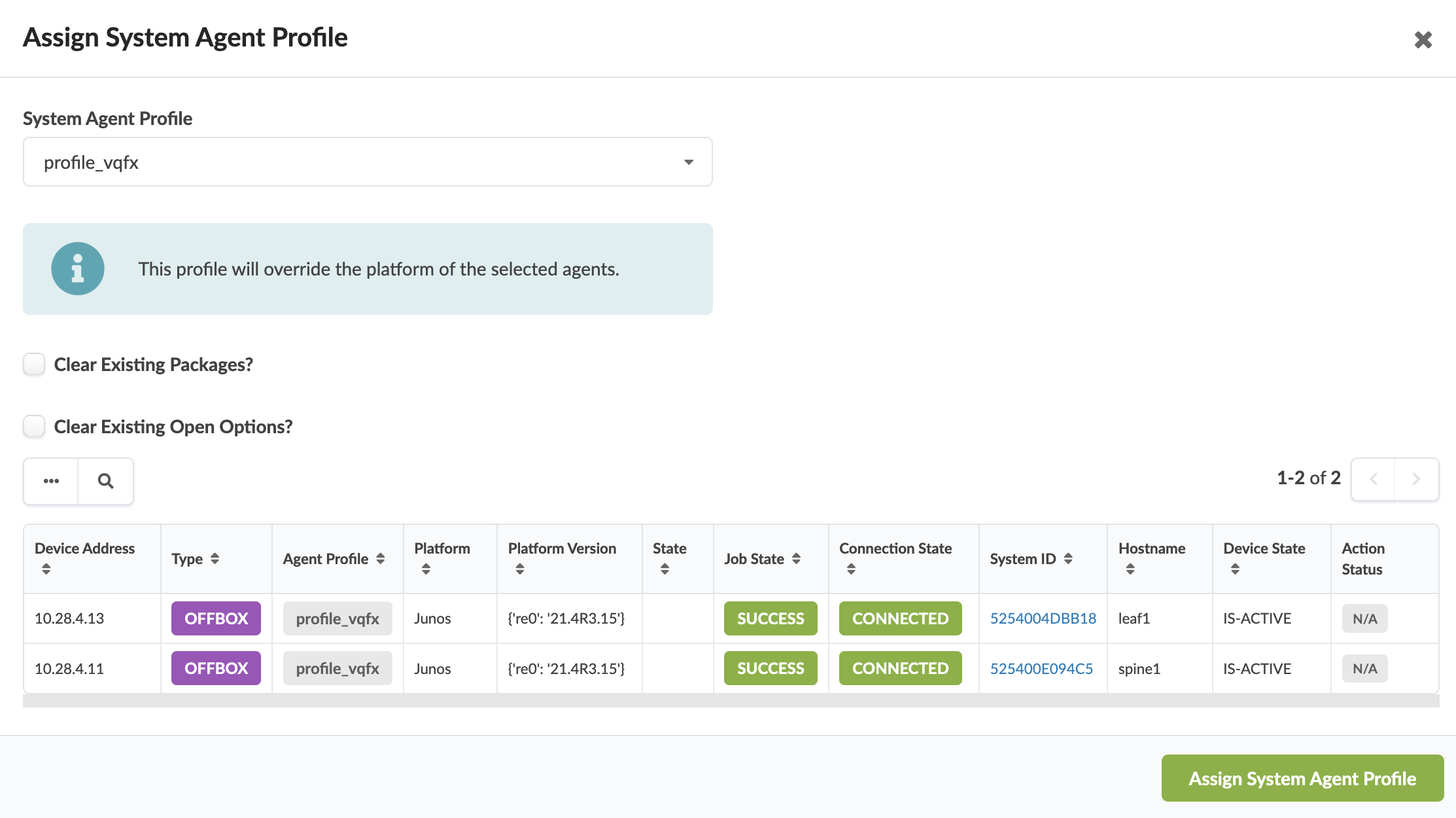
    Assign System Agent Profile interface with dropdown for profile selection, message on platform override, options to clear configurations, device table with details like IP, type, platform, and connection state. Button to apply profile.
  4. Click Assign System Agent Profile to save your changes and return to the table view.