Import Virtual Network
You can import multiple virtual networks (as a CSV file) into
your blueprint. (Tip: First export virtual networks so you'll have the schema set up for you in the CSV
file.)
-
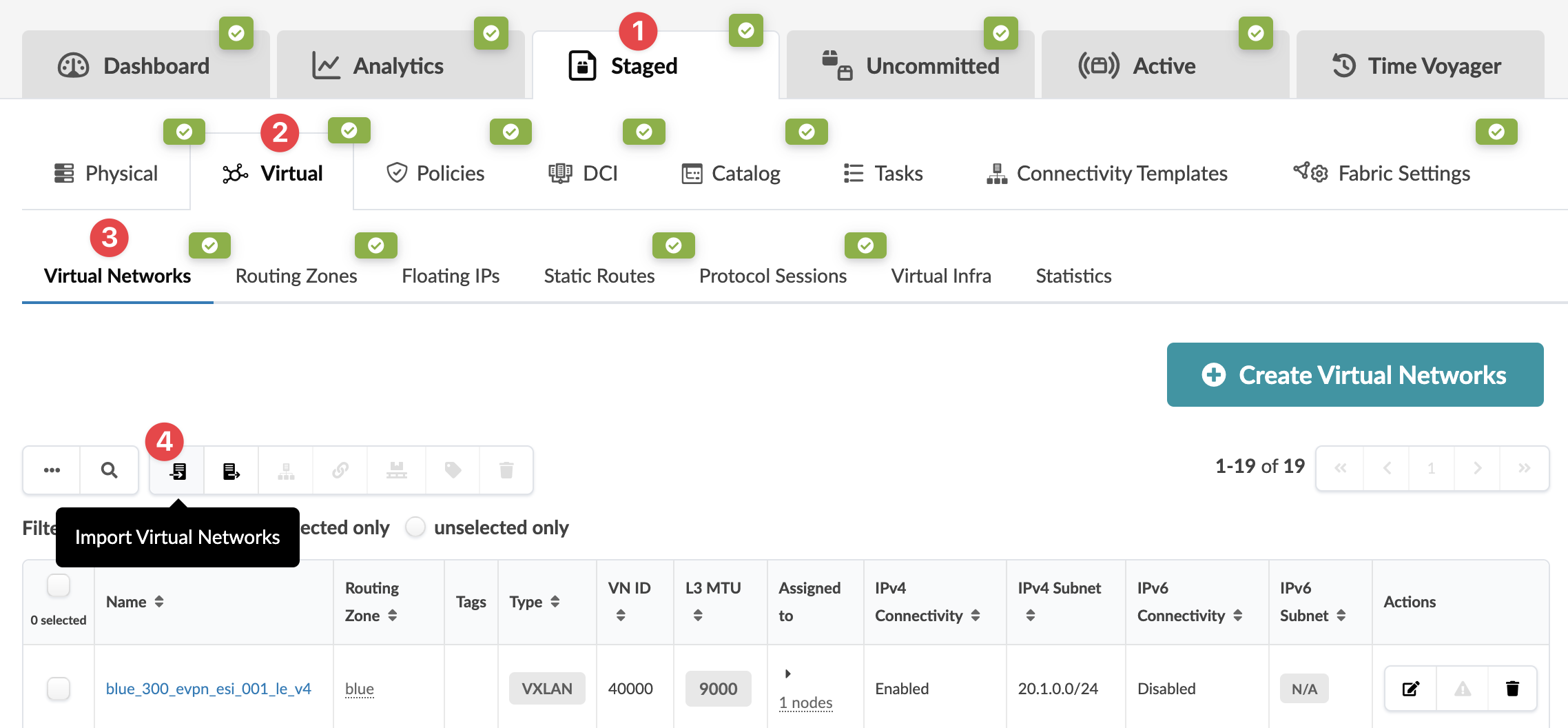
From the blueprint, navigate to Staged > Virtual > Virtual
Networks and click the Import virtual networks
button.
-
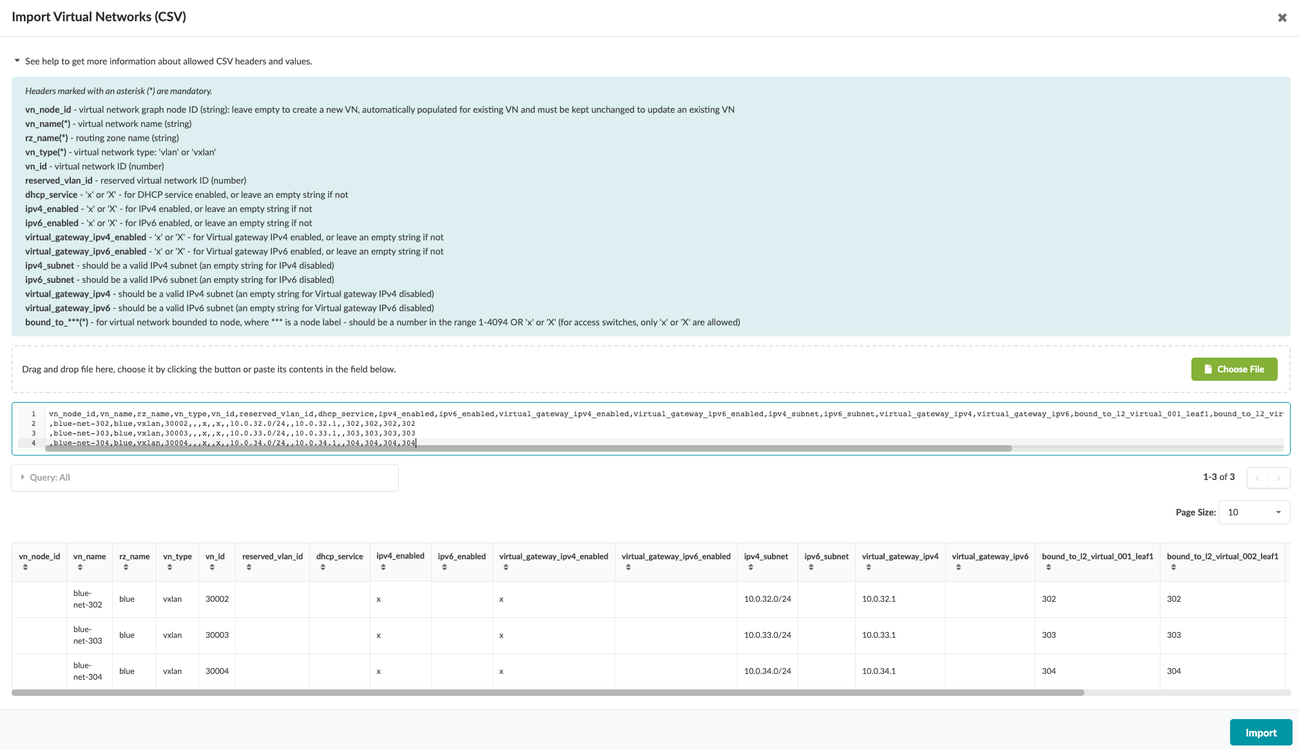
Either click Choose File and navigate to the file on your
computer, drag and drop the file onto the dialog window, or as shown in the screenshot
below, directly paste CSV file contents. Virtual network details are displayed for your
review.
When you're ready to activate your changes, go to the Uncommitted tab to review and commit (or discard) your changes.