Delete Pod

When you delete a pod, all of its devices are removed from the blueprint; this could be highly impactful. Before deleting a pod that has live traffic on it, you may want to take its devices out-of-service by draining them. For more information, see the Drain Device Traffic page.

  1. From the blueprint, navigate to Staged > Physical > Pods to go to the Pods view.
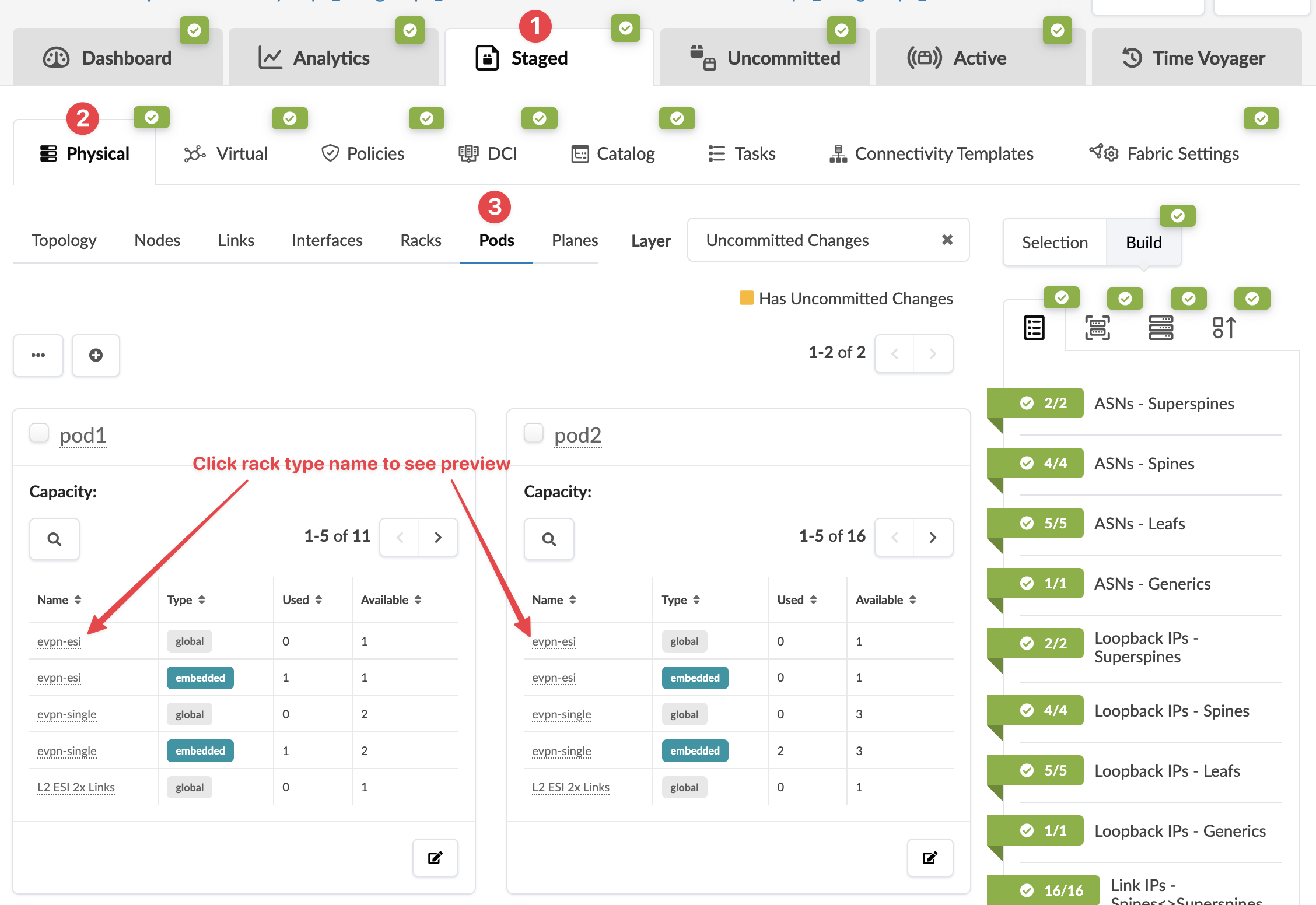
    Network management interface showing Staged section with Physical tab and Pods sub-tab active. Displays pod1 and pod2 with rack types and capacities. Right section shows status of network components like ASNs Superspines with checkmarks.
  2. Select the check box(es) for the pod(s) to delete. (You must keep at least one pod.)
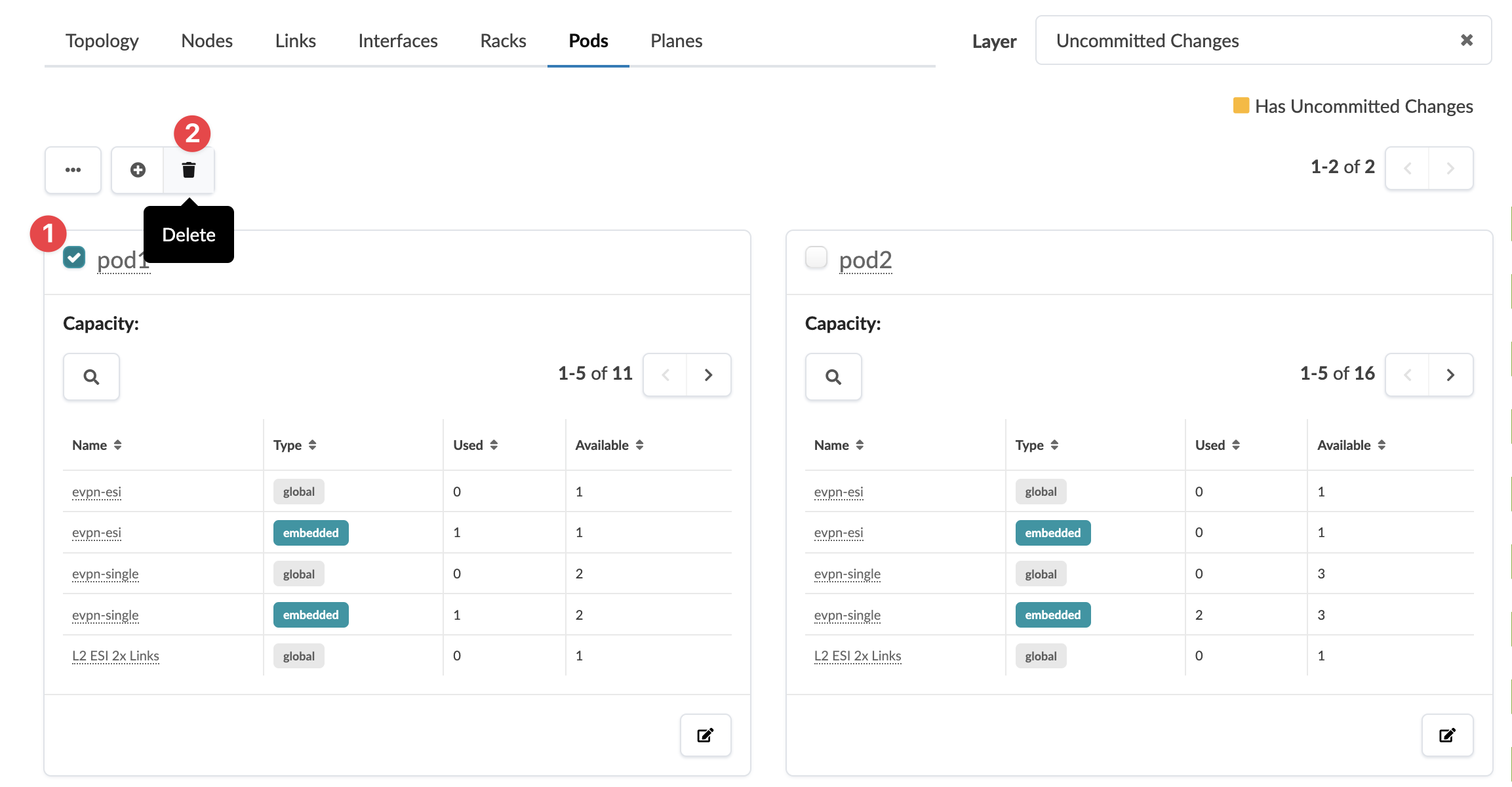
    User interface for network management focusing on Pods. Pod1 is selected for deletion. Shows capacity details and uncommitted changes.
    The Delete button appears.
  3. Click the Delete button (trash can) for the pod(s) to delete.
  4. Click Delete Pod to stage the deletion and return to the table view.
  5. Commit the changes to your blueprint. Configuration on any running devices is erased and the devices are ready to be decommissioned.