Add Pod (5-Stage Only)

You can add pods to 5-stage topologies, but not to 3-stage topologies.
  1. From the blueprint, navigate to Staged > Physical > Pods, and click the Add Pods button (+) (center-left). (This button is disabled on 3-stage topologies.)
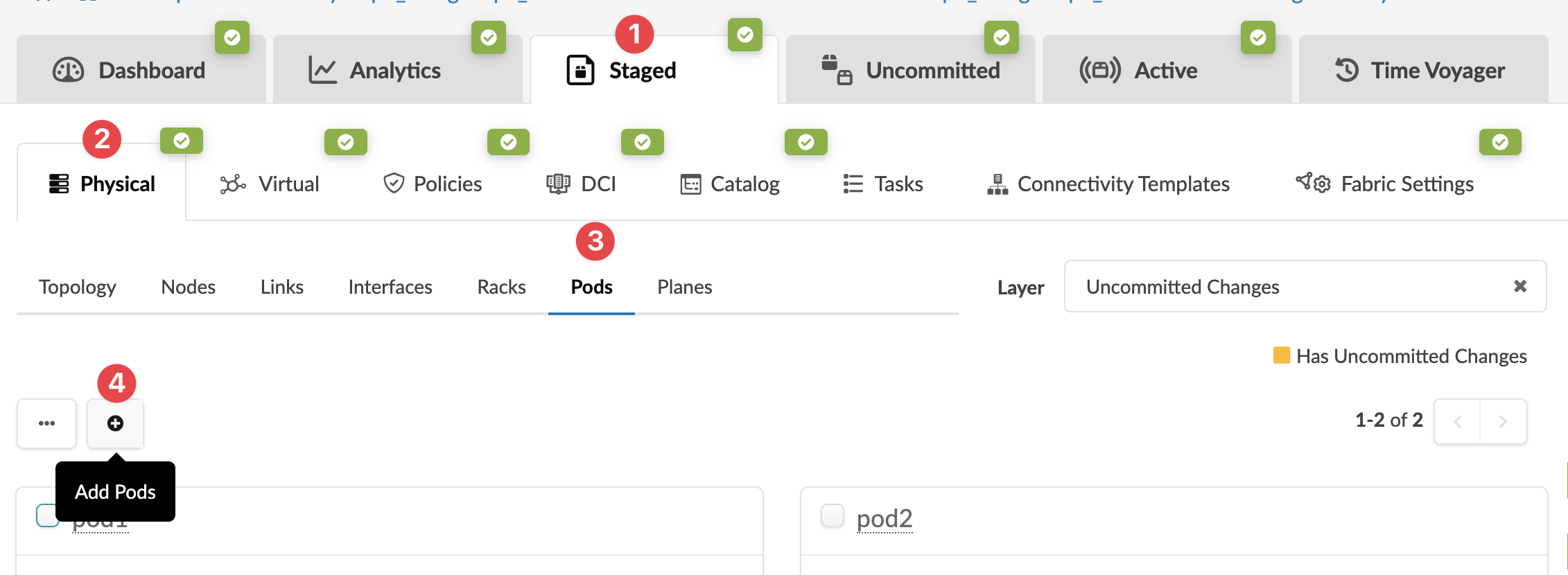
    User interface of network management software showing tabs for Dashboard, Analytics, Staged, Uncommitted, Active, and Time Voyager. Focus on Pods tab under Physical section with options for Topology, Nodes, Links, Interfaces, Racks, Pods, and Planes. Add Pods button available. Pods list displays pod1 and pod2 with checkboxes. Layer filter set to Uncommitted Changes.
    The Add Pods dialog opens.
  2. From the Pod Type drop-down list, select a pod type to preview and validate. To go to a different preview, select a different pod type.
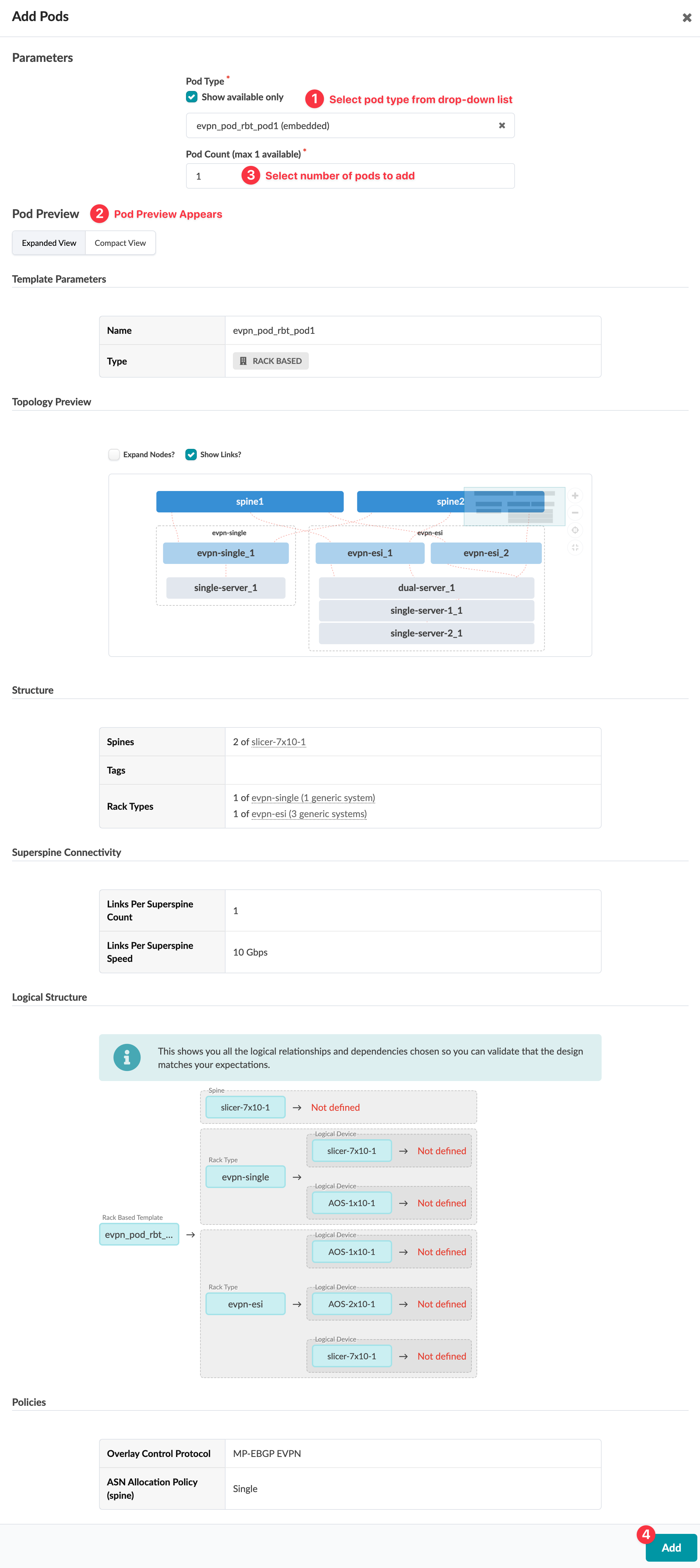
    User interface screenshot of a network design tool for adding pods. It includes pod type and count selection, pod preview with topology views, template parameters, and structure details. The interface shows spine and rack details, superspine connectivity, logical structure diagram, policies, and an 'Add' button to finalize the pod addition.
  3. Enter the number of pods to add.
  4. Click Add to stage the pod addition and return to the table view.
  5. Commit the changes to your blueprint to complete the fabric expansion.