Update Password Complexity Requirements
When you update password complexity requirements, existing passwords are not affected. The updated requirements apply to passwords that are created or changed going forward.
-
From the left navigation menu, navigate to Platform > Security
> Password Complexity Parameters and click the
Edit button (top-right).
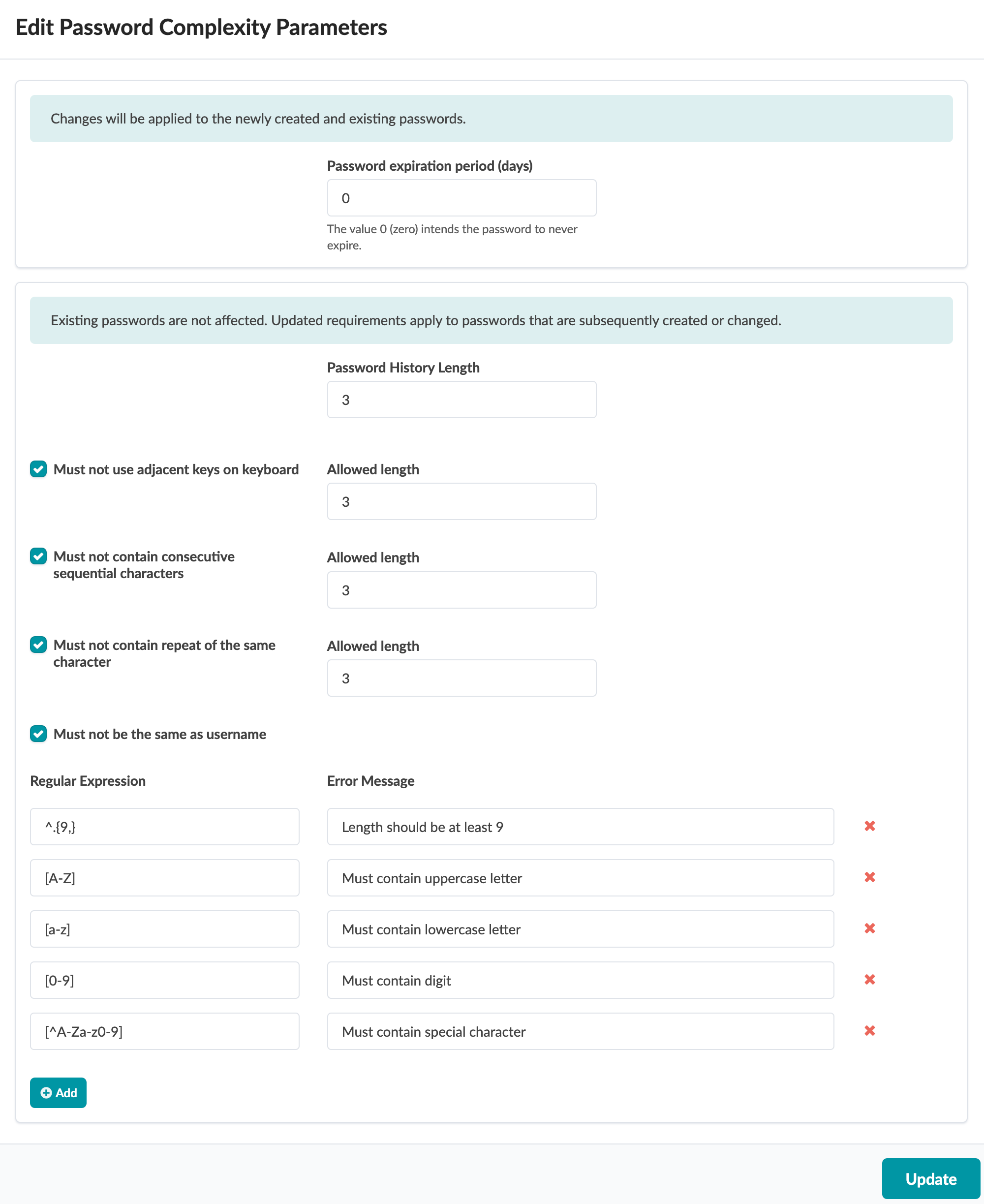
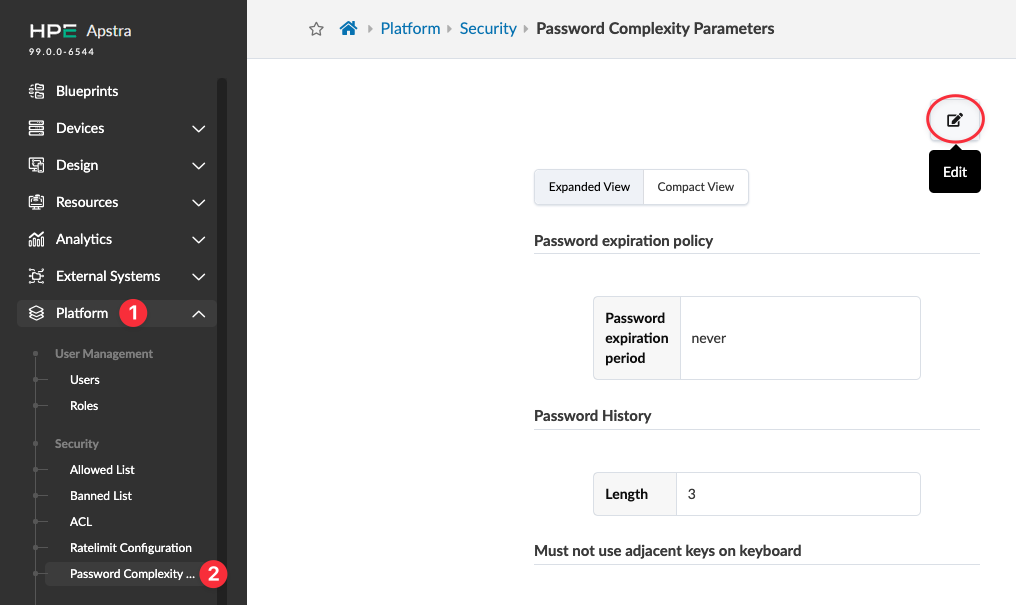 The Edit Password Complexity Parameters dialog opens.
 -
Add, change and/or delete requirements, as applicable.
-
Password expiration policy - To set the password to expire in a specific number of days enter the number of days.
-
Password History Length - User is not allowed to re-use a certain number of previous passwords (including the current one). For example, if you don't want the user to use their previous two passwords, you would enter 3 in this field.
-
Must not use adjacent keys on keyboard
-
Must not contain consecutive sequential characters
-
Must not contain repeat of the same character
-
Must not be the same as username
-
Length should be at least 9 (default)
-
Must contain uppercase letter
-
Must contain lowercase letter
-
Must contain digit
-
Must contain special character
For regular expressions:
- To add a rule, click Add and enter a regular expression and error message.
- To change a rule, change values as appropriate and update the error message.
- To delete a rule, click the red X to the right of the rule to delete.
-
The changes are completed and you're returned to the Password Complexity Parameters page.
When you create or update passwords going forward, the new requirements will take effect.