Reset HPE Networking Apstra Data Center Director Server VM Password

If you lose your admin password for the Apstra DC Director server VM, and you still have console access to the Apstra server VM, you can reset your password.

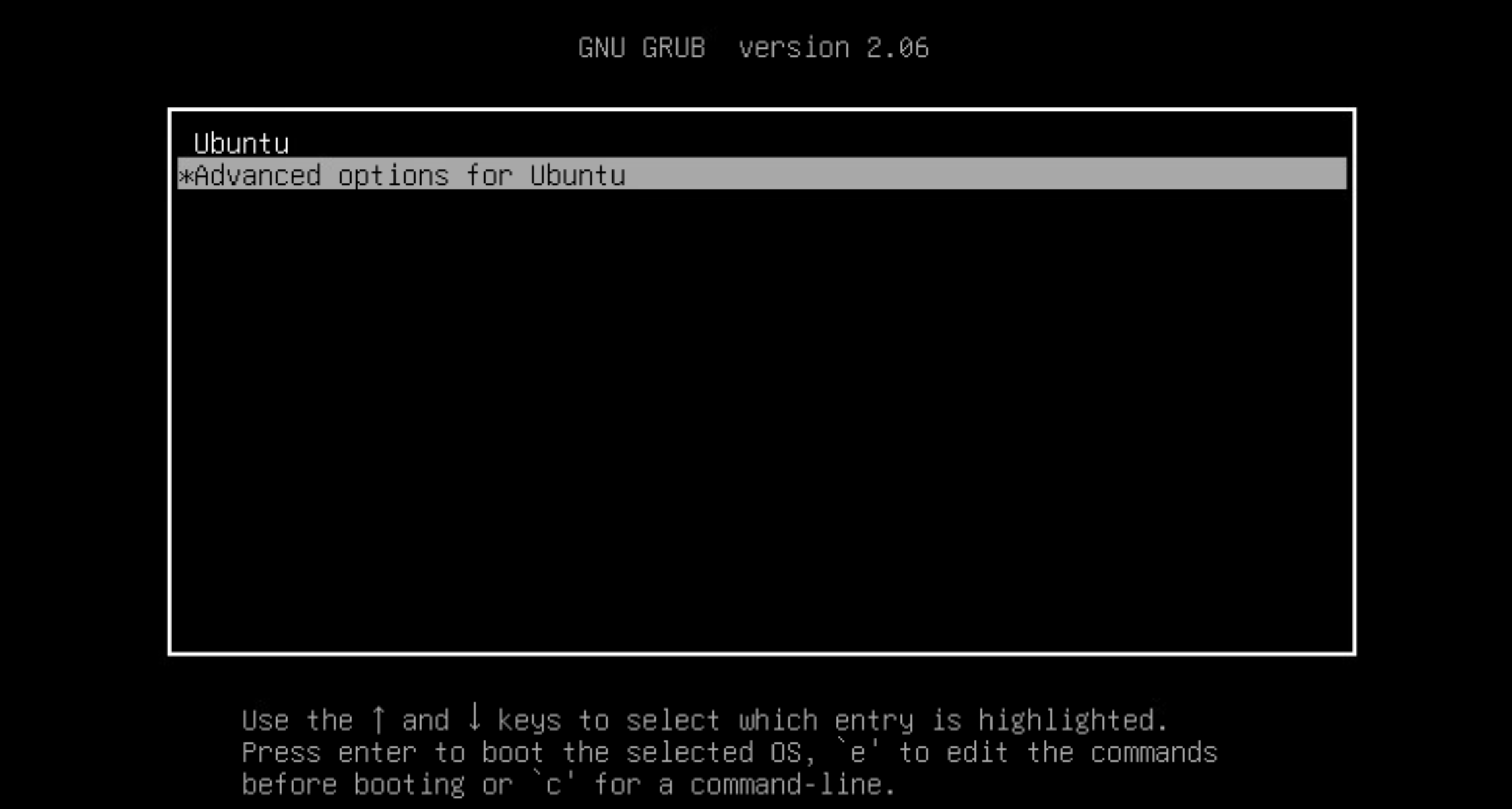
  1. Attach to the Apstra DC Director server console and send a "reset" signal to the VM. To access the GRUB menu, immediately press the esc or shift key in the console on reboot.
  2. Select Advanced options for Ubuntu.
    GNU GRUB menu version 2.06 with options Ubuntu and Advanced options for Ubuntu. Instructions for navigation and boot commands.
  3. Enter username admin and password apstra.

    Command-line interface prompting for username and password with admin entered as the username.
  4. At the next GRUB menu, select the first (recovery mode) option.
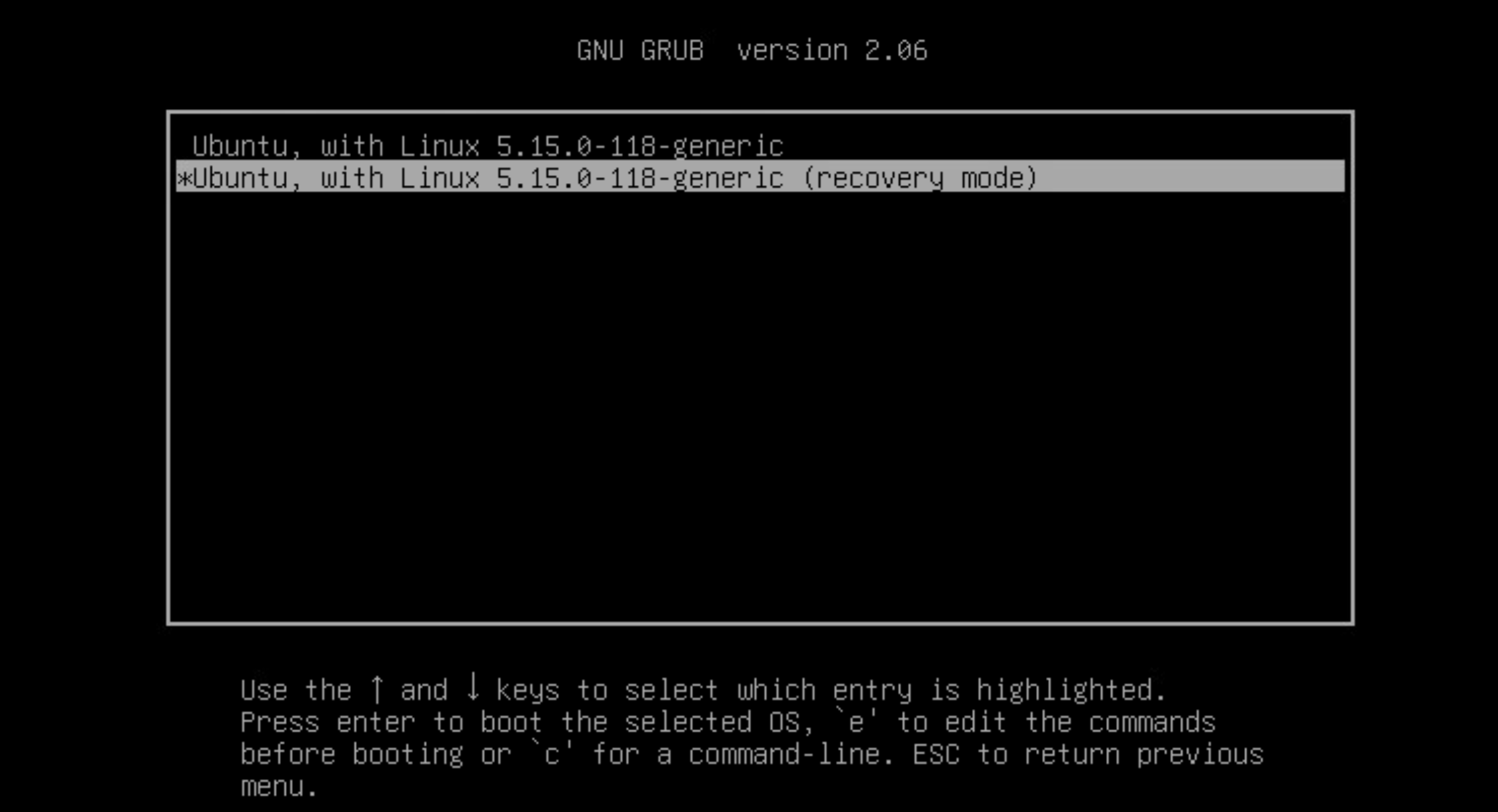
    GNU GRUB 2.06 menu screen with options to boot Ubuntu 5.15.0-118-generic standard or recovery mode.
    The Recovery Menu appears.
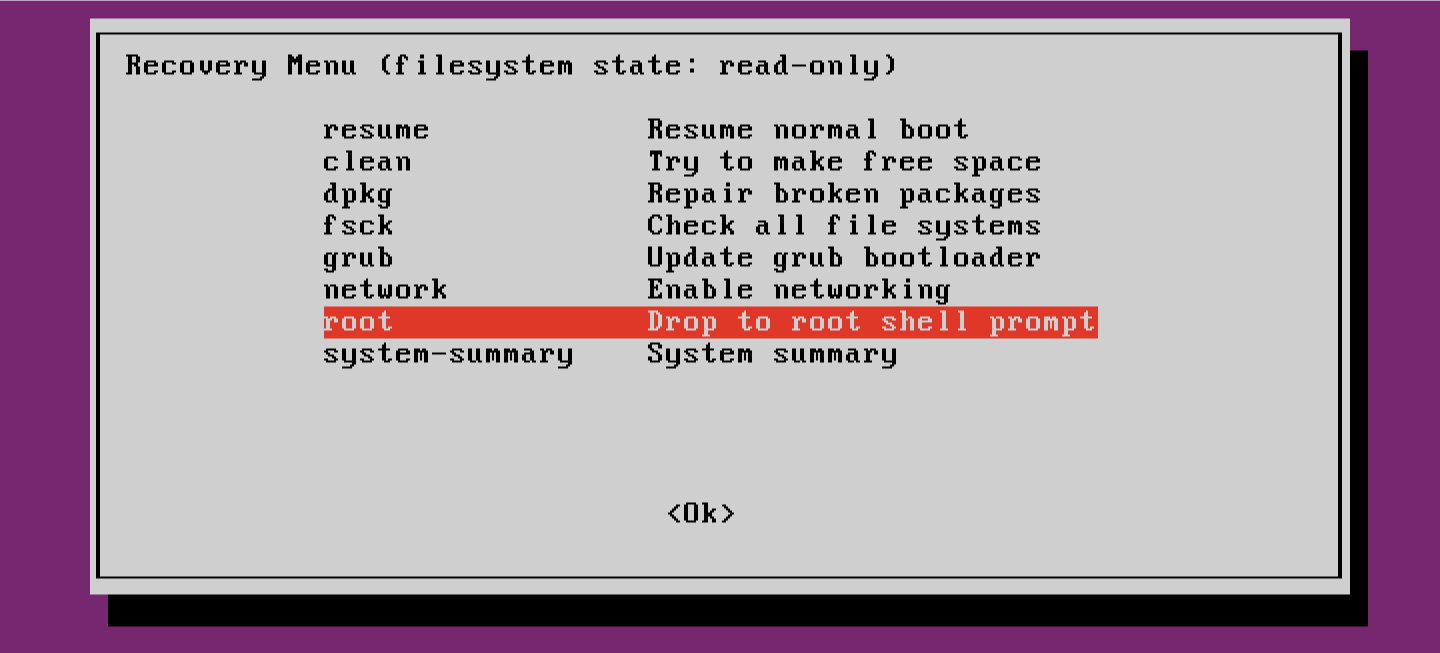
  5. Select root and press Enter.
    Linux recovery menu with options: resume, clean, dpkg, fsck, grub, network, root, system-summary. Root is highlighted for troubleshooting.
    A root shell prompt appears.
  6. Run the command mount -o rw,remount /.
    Linux terminal screen during boot in maintenance mode. Prompt: Press Enter for maintenance or Control-D to continue. Logged in as root@aos-server.
  7. Run the command passwd admin , then enter the new password for admin and enter it again.

    Terminal screen in maintenance mode showing prompt to press Enter for maintenance or Control-D to continue. Commands executed: remount root with read-write permissions and change admin password.
  8. Run the command sync.
    Root user on aos-server updates password, runs sync command to write memory data to disk, and reboots the system.
  9. Run the command reboot to reboot the Apstra server VM. (Your deployed fabric is not affected.)
After reboot, you can log in to the HPE Networking Apstra Data Center Director server VM Linux CLI as user admin with the new password.