Login Message
You can create a custom login message that displays before a user authenticates to the system through the HPE Networking Apstra Data Center Director GUI.
With the login banner feature you gain a powerful communication tool that keeps your users informed and engaged. Stay ahead of potential issues by proactively sharing critical updates, announcements, or policies. Enhance security and compliance by prominently displaying acceptable use guidelines and legal disclaimers. Minimize operational disruptions by notifying users of maintenance schedules or service outages. The login banner streamlines communication, ensuring a well-informed and compliant user base.
To set up login messages you, as a user, must be assigned a role with Write Login Message permission. The administrator and user roles have this permission by default. Custom roles can be created with this permission as well.
To add a login message:
-
From the left navigation menu of the GUI, navigate to Platform > Security >
Login Message and check the Activate Login message check
box.
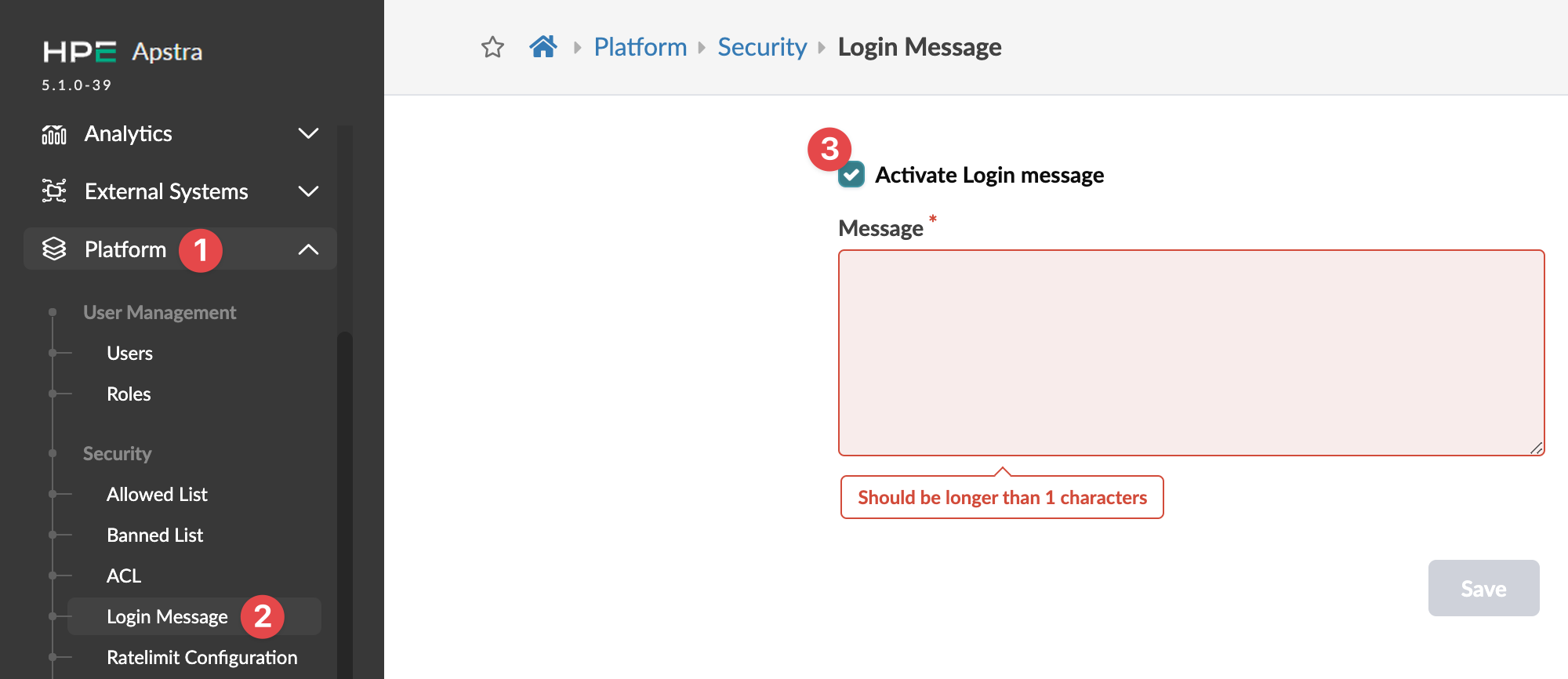 The Message box becomes editable.
 -
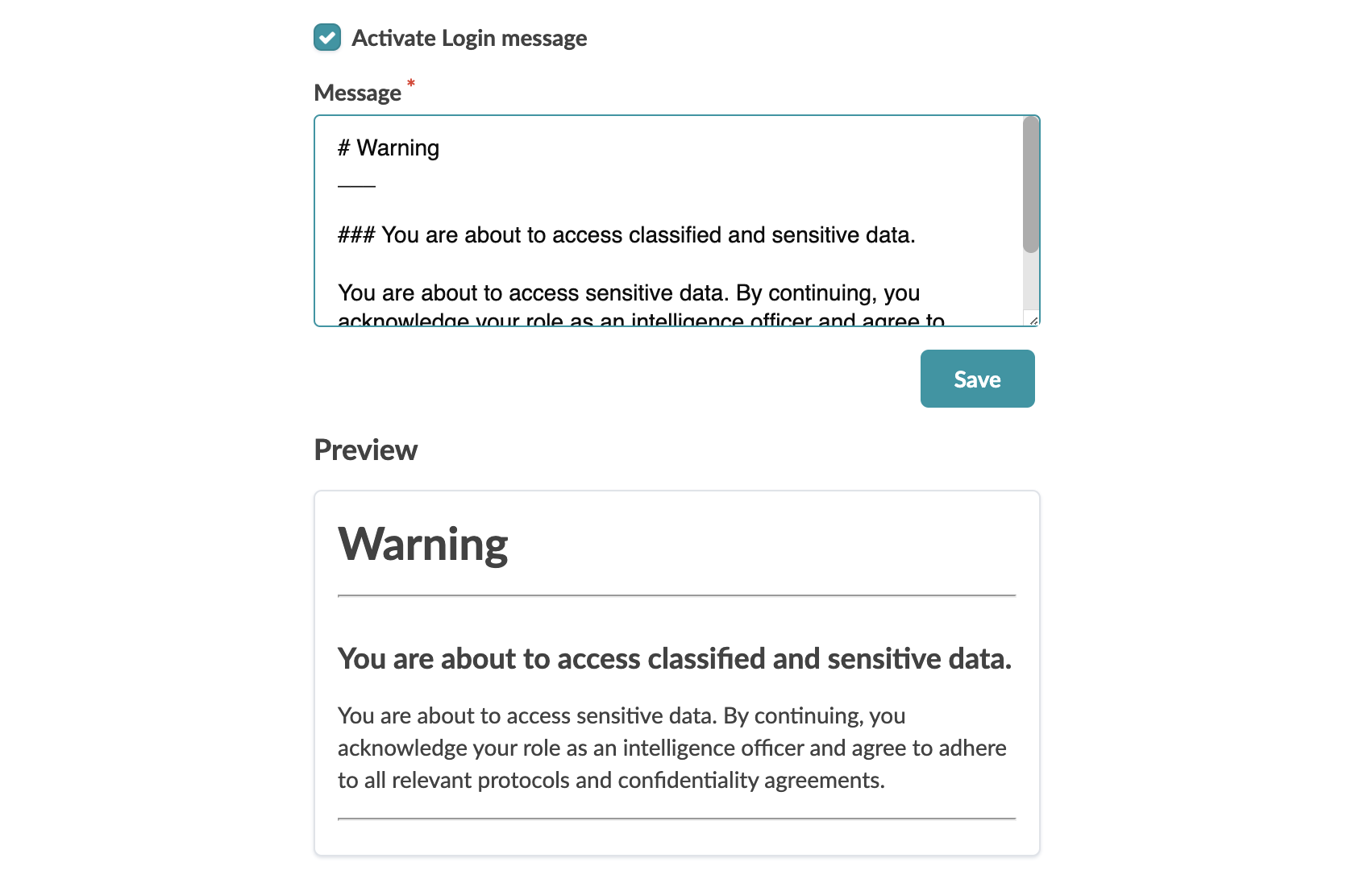
Enter the message you want to appear when users log in to the GUI.
You can use Markdown markup language to style your message as shown below.