Add Links to External Generic System

To add links to external generic systems using the GUI:
  1. From the blueprint, navigate to Staged > Physical > Topology and select a node that can connect to an external generic system.
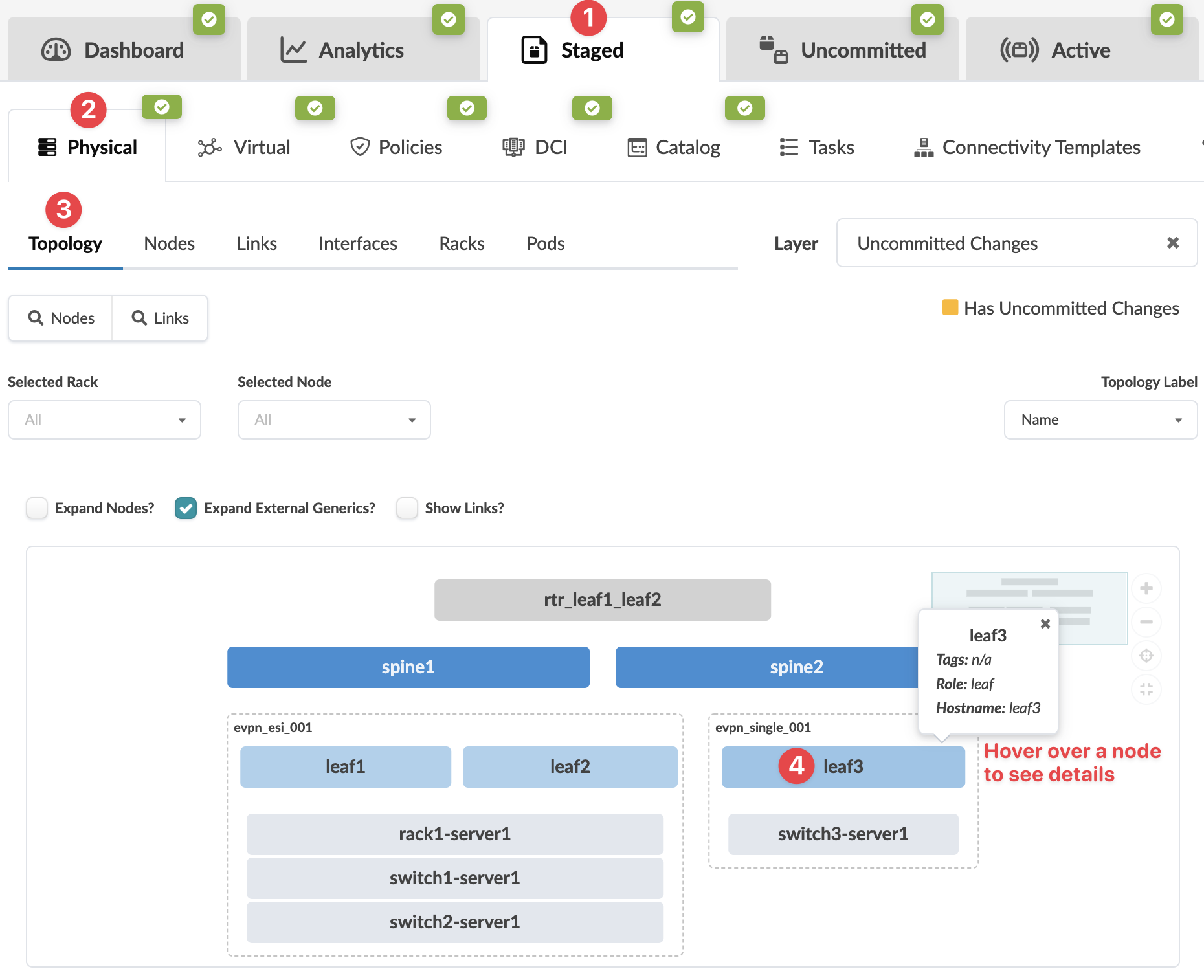
    Network management interface showing a topology view with nodes like spine1 and leaf3. Tabs for Dashboard, Analytics, and more. Uncommitted changes layer visible.
    The Topology selection view appears.
  2. Select the node check box to see the operations available for that node (and that you have permissions for).
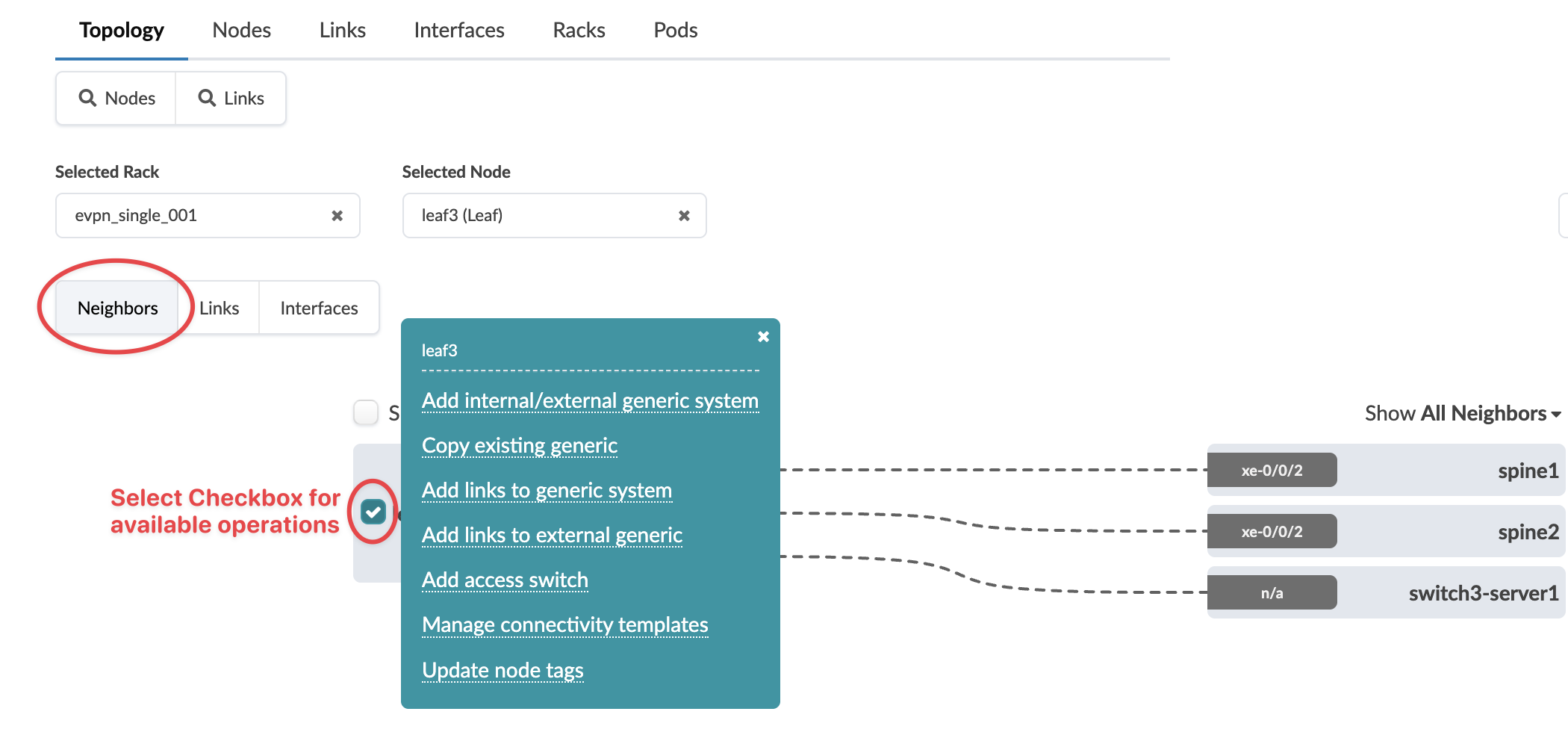
    Network topology management interface showing selected rack evpn_single_001 and node leaf3. Neighbors tab displays connections: leaf3 to spine1 and spine2 via xe-0/0/2, and to switch3-server1 via n/a. Options for managing network elements and filtering neighbors are visible.
    Note:

    You can also get to the selection page from the Nodes view. From the blueprint, navigate to Staged > Physical > Nodes, click the node name in the table, then click the node name that appears at the top of the Selection panel (on the right side of the page).

  3. Click Add links to external generic.
    The Create Links dialog opens.
  4. Select an available port and transformation, then select the external generic system to link to from the drop-down menu .
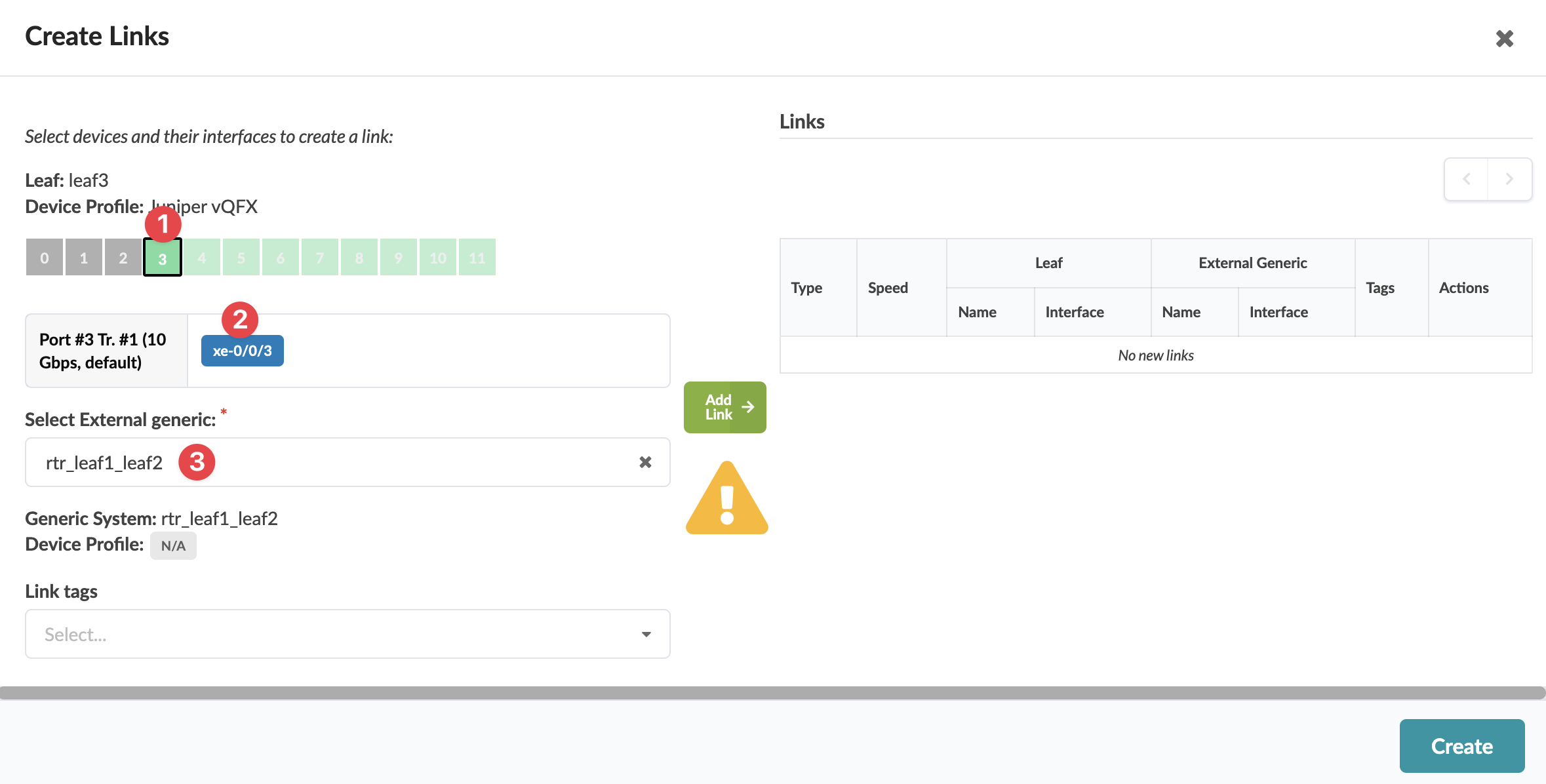
    User interface for creating network links, showing device leaf3 with profile Juniper vQFX, port 3 details like speed 10 Gbps and name xe-0/0/3, linked to external system rtr_leaf1_leaf2. Warnings and actions include yellow warning icon, Add Link and Create buttons. Links table displays No new links.
    The gray Add Link button turns green.
  5. Click Add Link.
    The link is added to the link table.
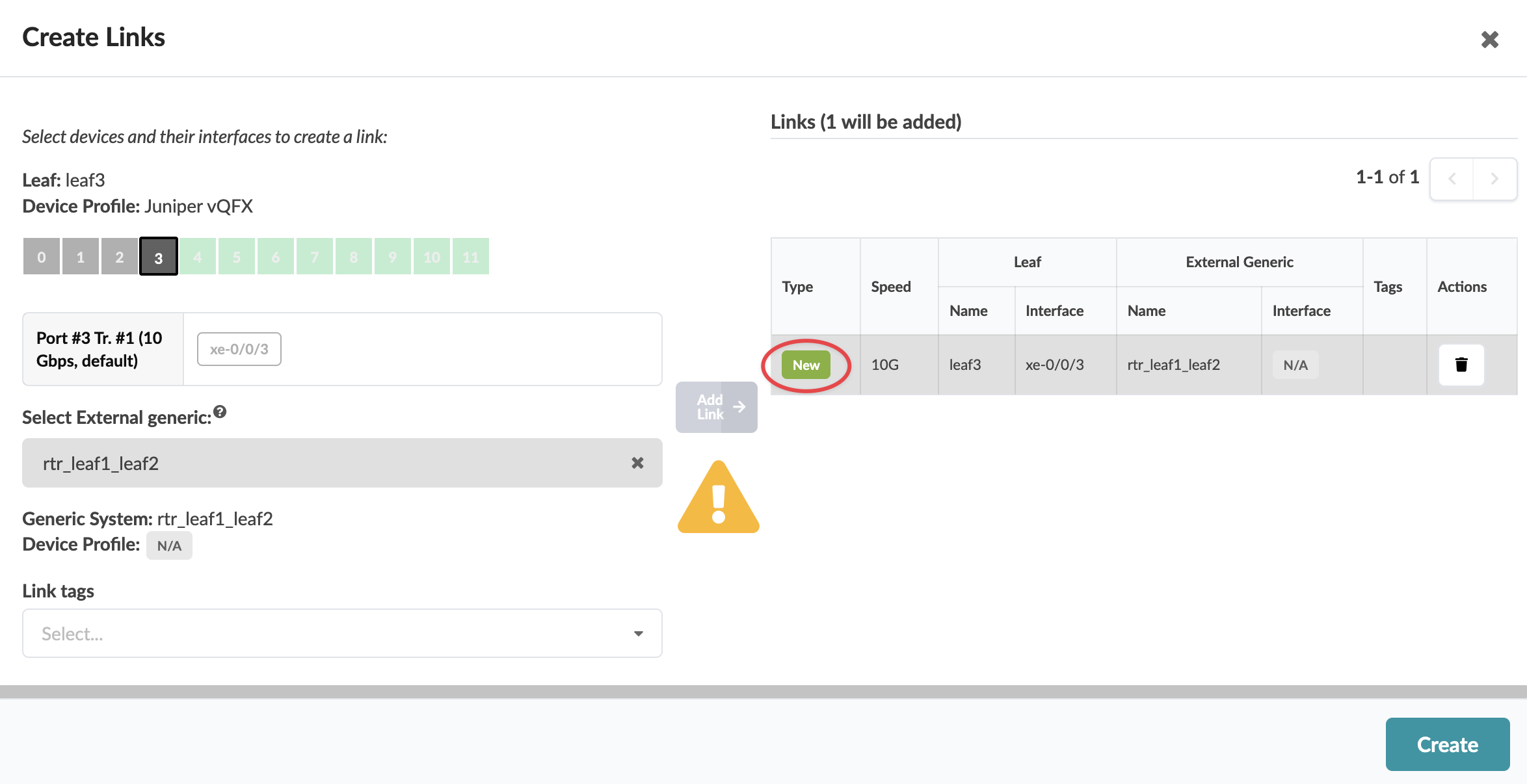
  6. Click Create
    Create Links interface showing link setup: leaf device leaf3 with Juniper vQFX, port xe-0/0/3 at 10 Gbps, external system rtr_leaf1_leaf2, warning icon present.

The new link is staged and you're returned to the Topology view.
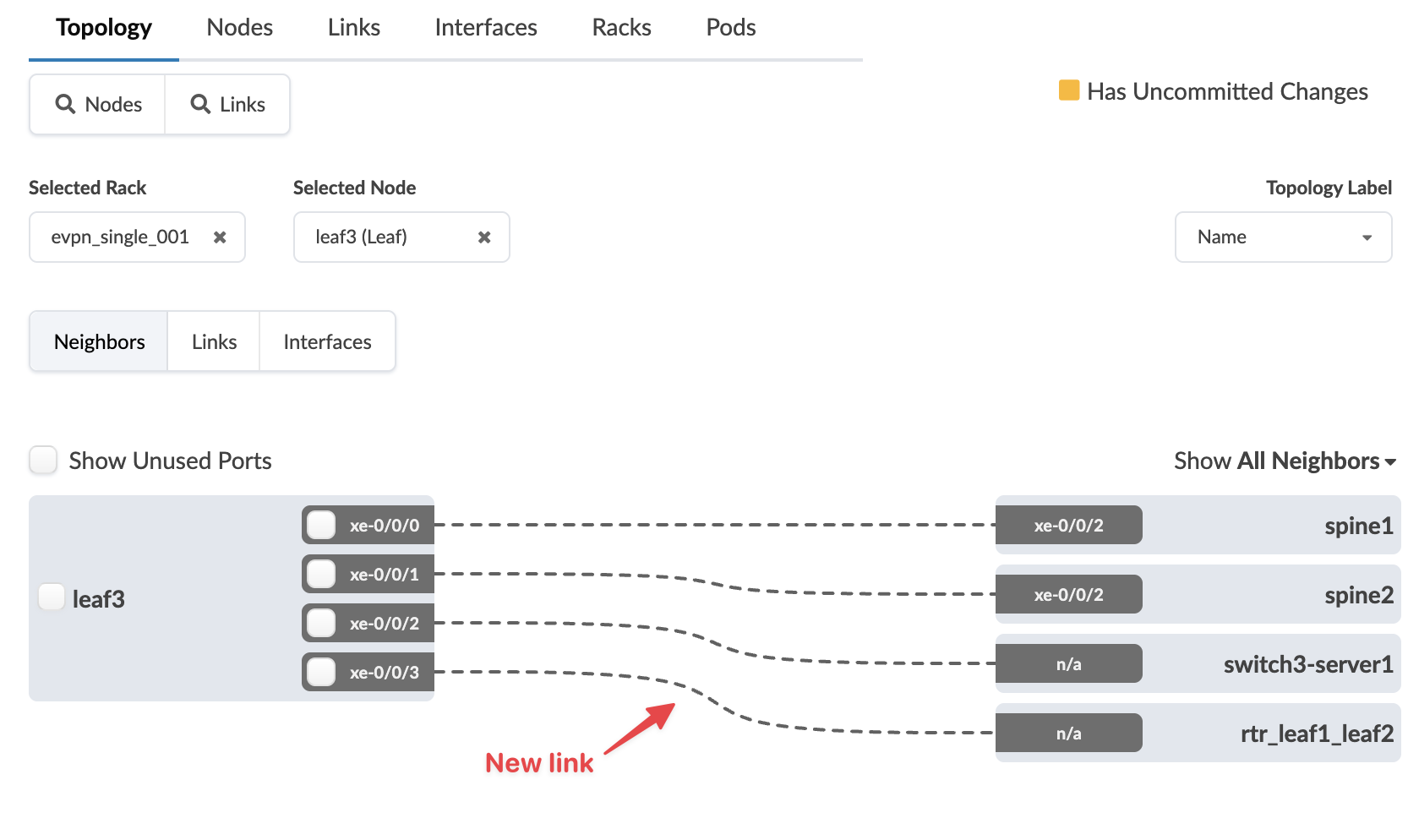
Network topology interface with selected rack evpn_single_001 and node leaf3 Leaf. Shows connections from leaf3 to spine1, spine2, switch3-server1, and rtr_leaf1_leaf2 with port labels like xe-0/0/0. New link highlighted by red arrow. Option to show unused ports. Note on uncommitted changes.

When you're ready to activate your changes, go to the Uncommitted tab to review and commit (or discard) your changes.