Delete Link (Freeform)
-
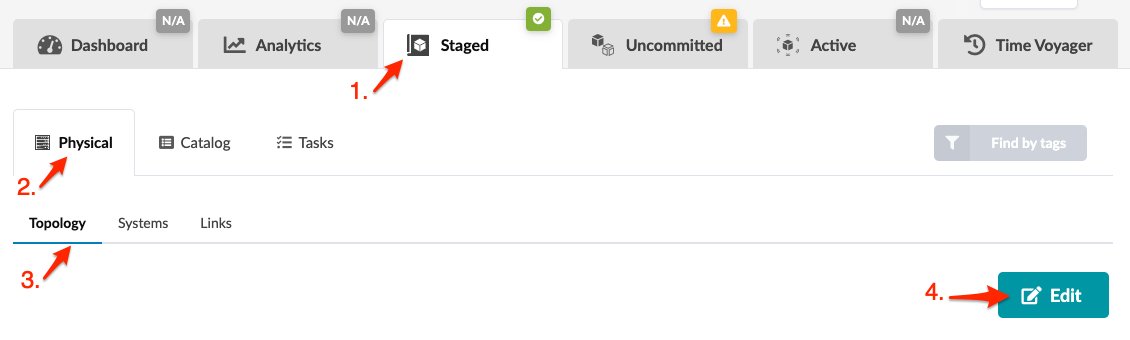
From the blueprint, navigate to Staged > Physical >
Topology and click Edit.
-
In the topology editor select the two systems where the link is that you want to
delete. You can select them in a couple of different ways:
-
Click and drag across the two systems.
-
Hold down the alt key (cmd key on a Mac) while clicking the two systems.
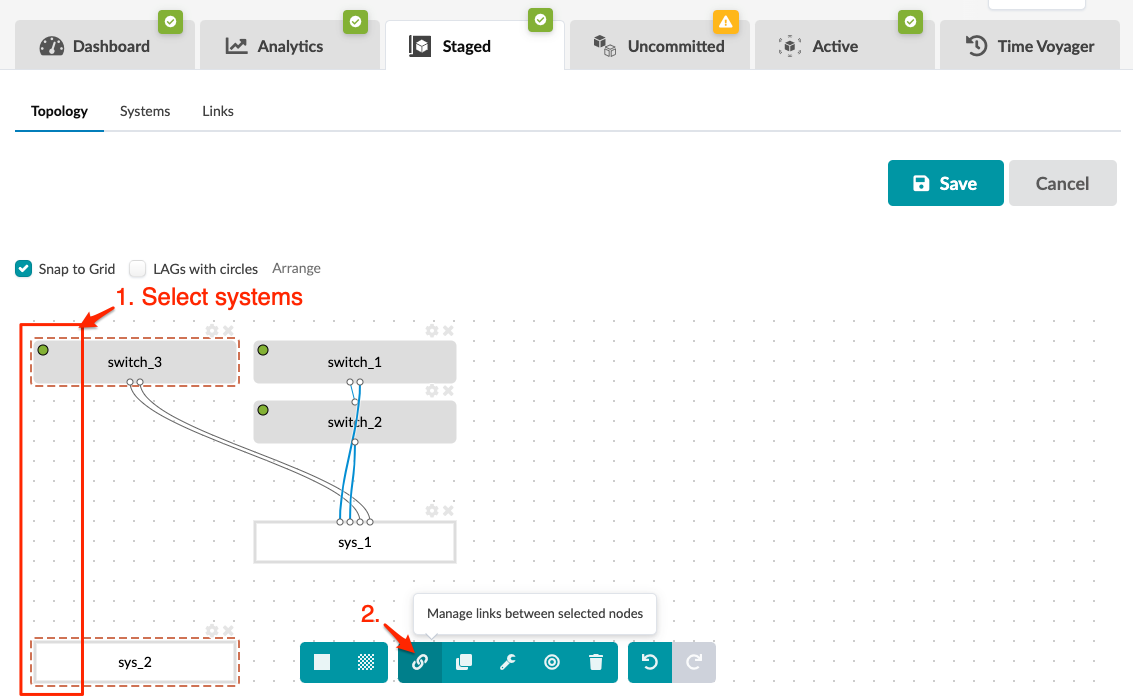 When you select two systems additional tasks become available in the context-aware menu at the bottom.
 -
-
Click the Manage links between selected nodes button.
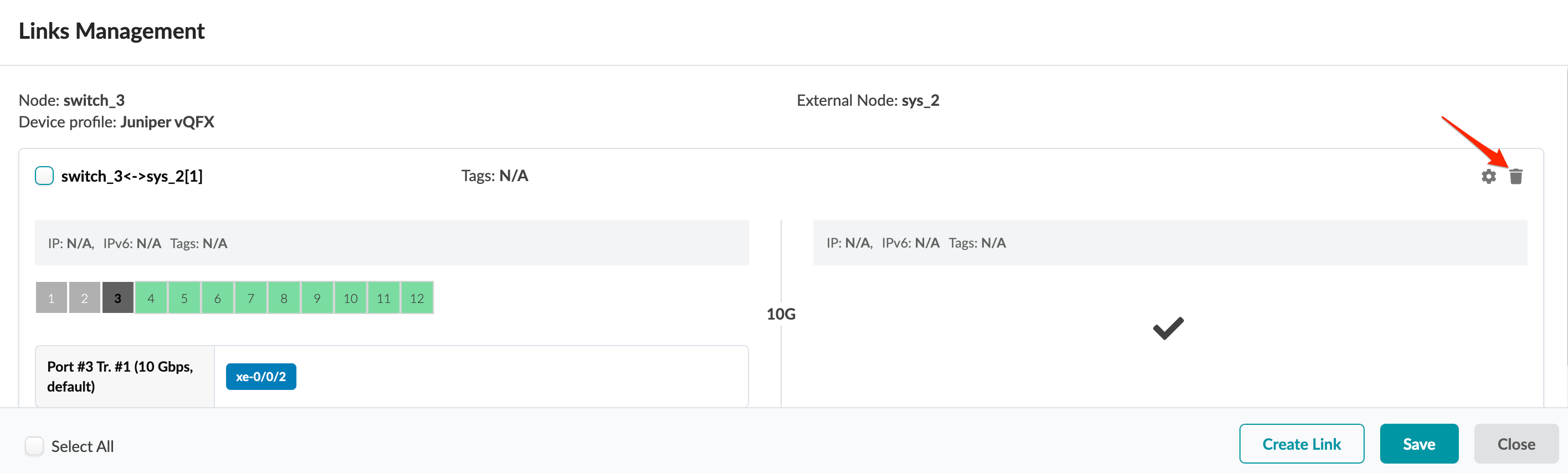
The Links Management dialog opens showing the two node names (and
device profiles, as applicable).
When you're ready to activate your changes, commit them from the Uncommitted tab.