Create Link in LAG
You can add a link between a LAG and a generic system.
To create a link in a LAG using the GUI:
-
From the blueprint, navigate to Staged > Physical >
Topology and select a leaf that is part of a LAG. (Alternatively, you can
click the leaf name from the Nodes table at Staged > Physical > Nodes.)
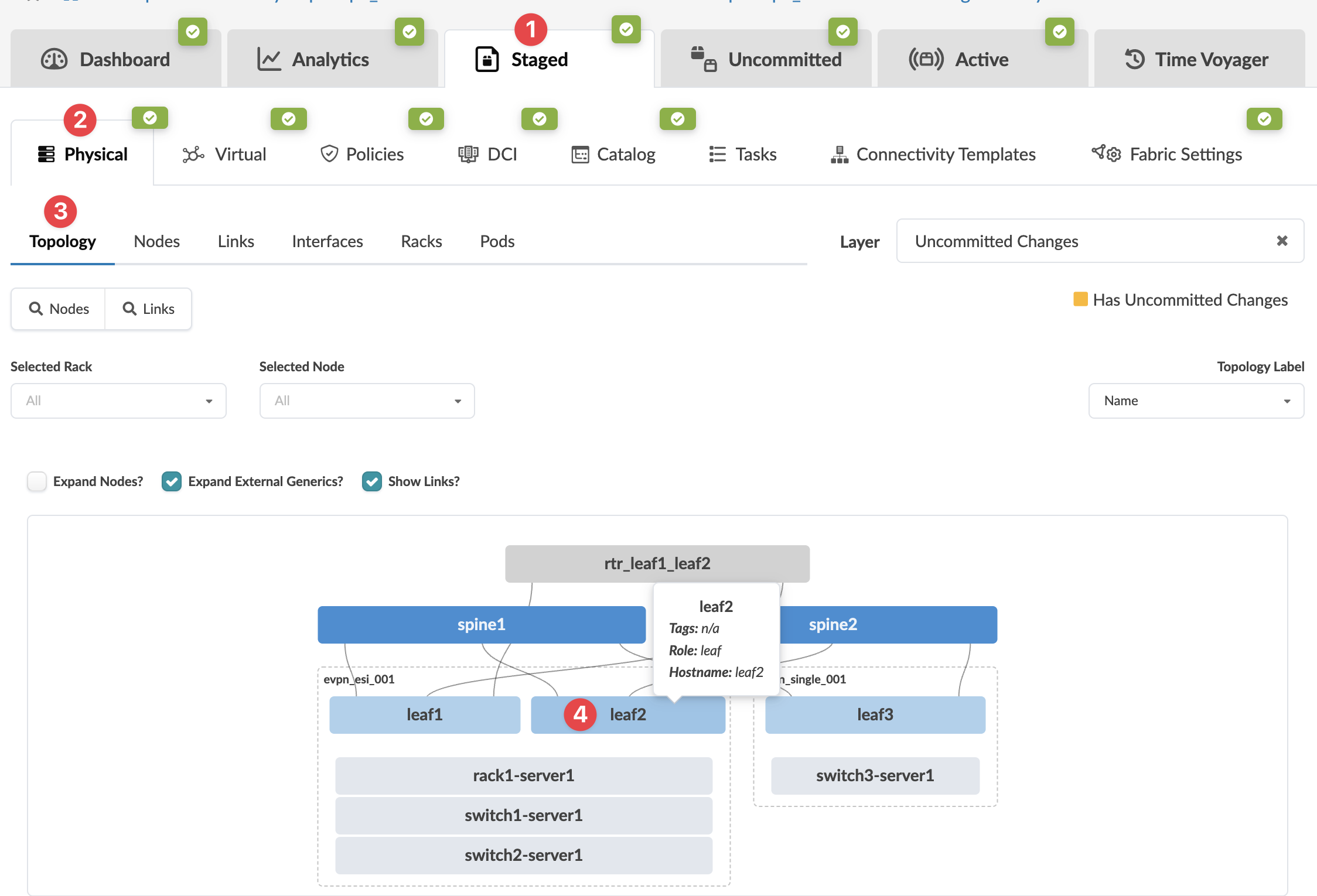 The Topology selection view appears.
 -
Check the Show Unused Ports check box, select a LAG interface
and one of the unused port interfaces, then click Create link in
LAG.
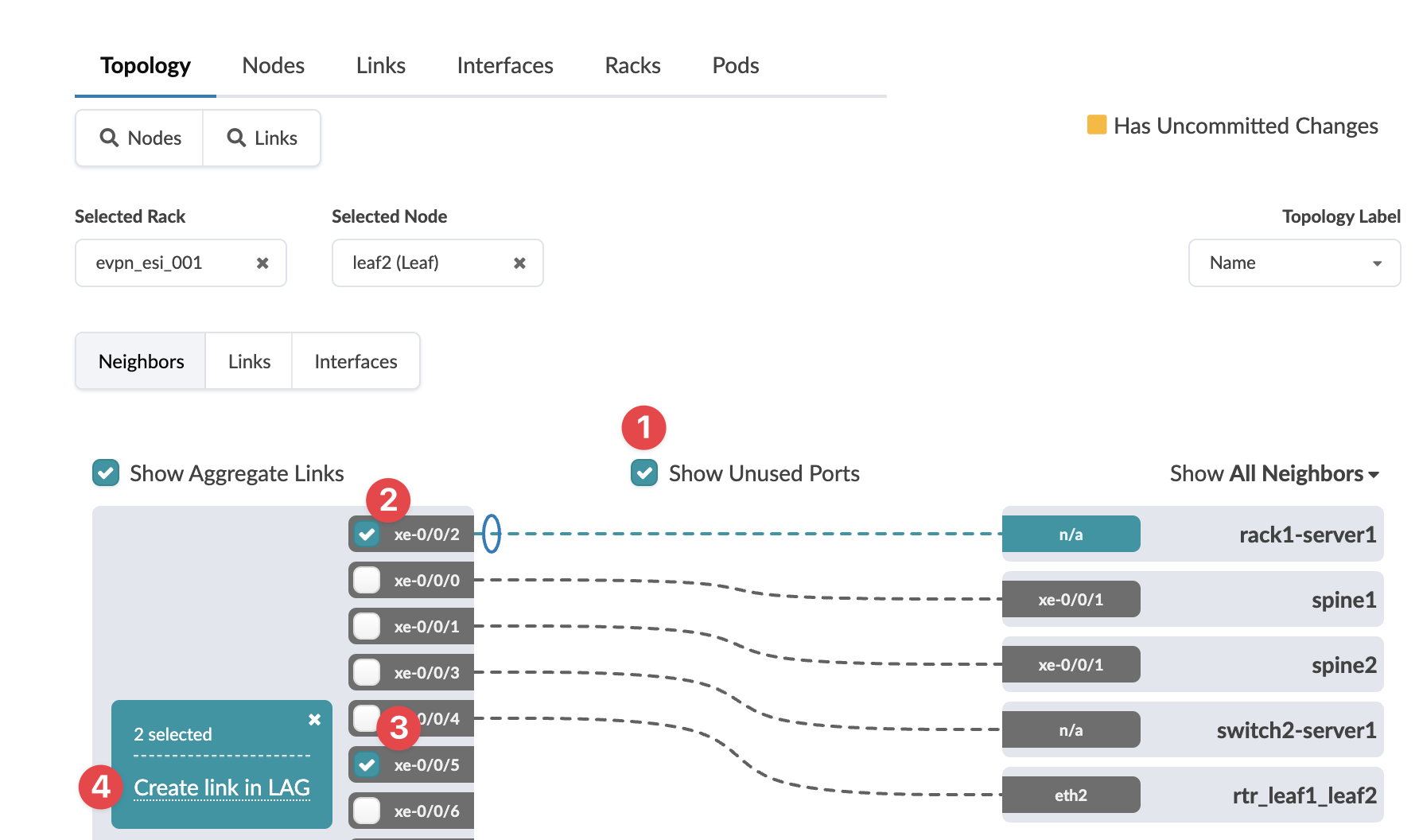 The Create Links dialog opens.
 -
Select available ports and transformations, as applicable. From the drop-down list,
select the generic system to link to.
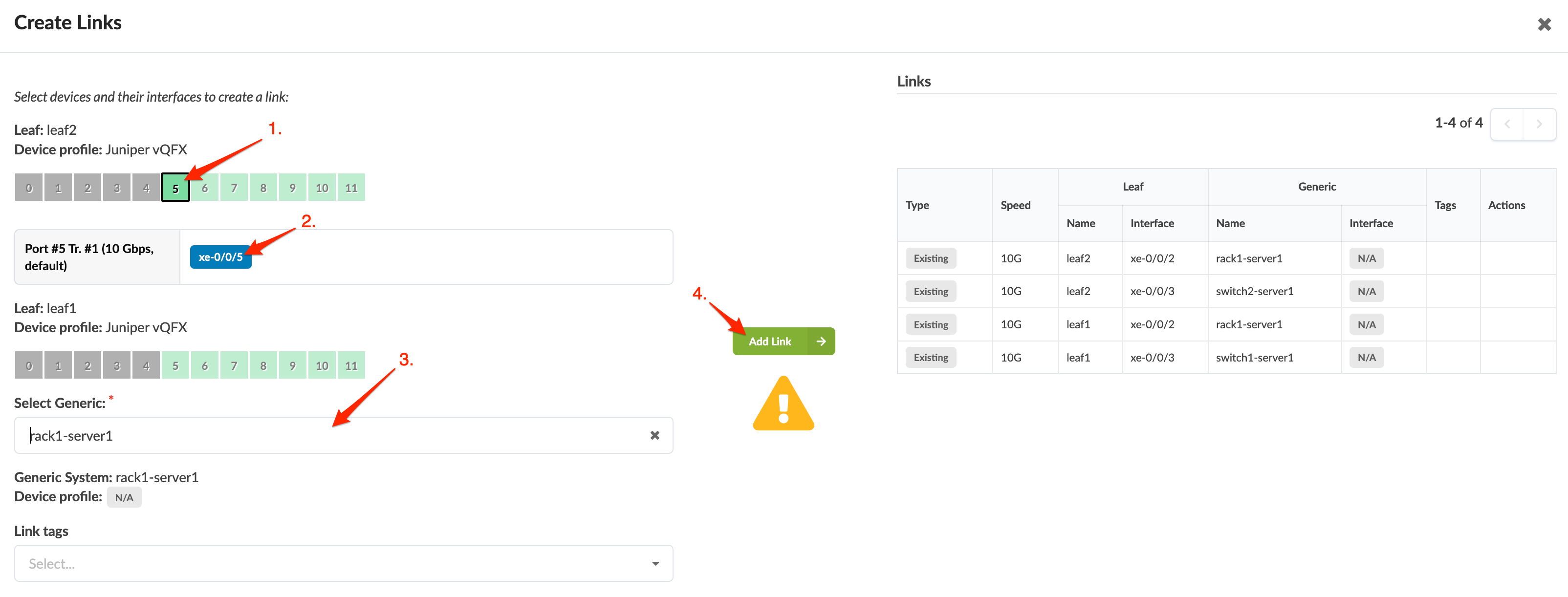 The gray Add Link button turns green.
The new link is staged and you're returned to the
Topology view.
When you're ready to activate your changes, go to the Uncommitted tab to review and commit (or discard) your changes.