Execute CLI Show Command (Devices)
While in the HPE Networking Apstra Data Center Director environment, you may need device information that's obtained via CLI commands. Traditionally, you need to log in to a machine with access to the device management network, open a terminal, find device IP addresses, SSH to each of them, then run the required CLI commands. You can bypass these steps and run show commands for Juniper devices directly from the Apstra DC Director GUI. You can execute CLI commands from within the staged or active blueprint, or from the Managed Devices page. The steps below are for the devices page.
To execute the CLI Show Command on Junos devices in the Apstra DC Director GUI:
-
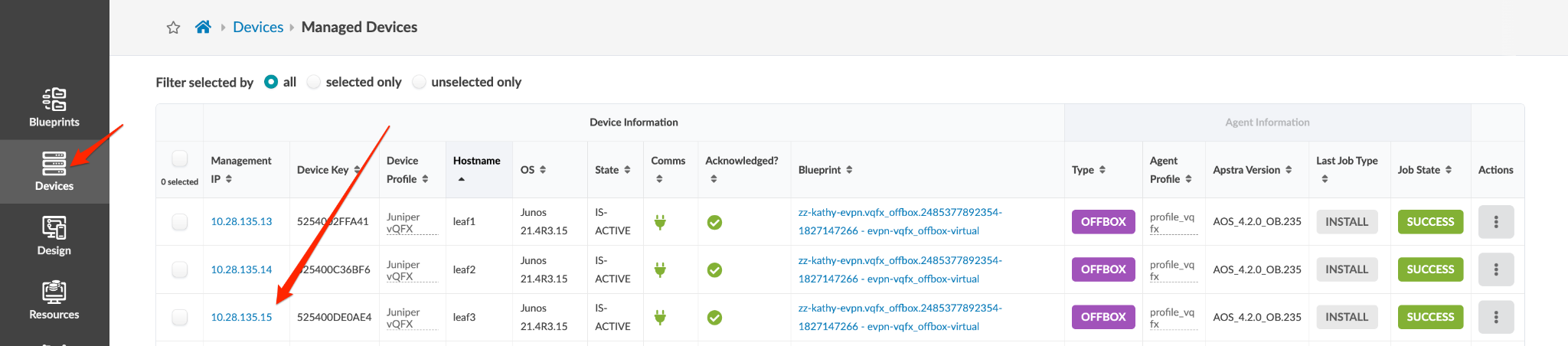
From the left navigation menu, navigate to Devices > Managed
Devices and click the management IP for the device.
-
On the device detail page that appears, click the Execute CLI
Command button.

-
In the dialog that opens type
show, then press the space bar. Available commands appear that you can scroll through to select, or you can start typing the command and it will auto-fill. In our example we're looking for BGP neighbors. We typedshow, space, thenb, which filtered the commands to only include those with the letter b. We selectedbgp, then pressed the space bar to show available arguments for bgp. We typednto show commands including the letter n. We'll selectneighborto complete the command.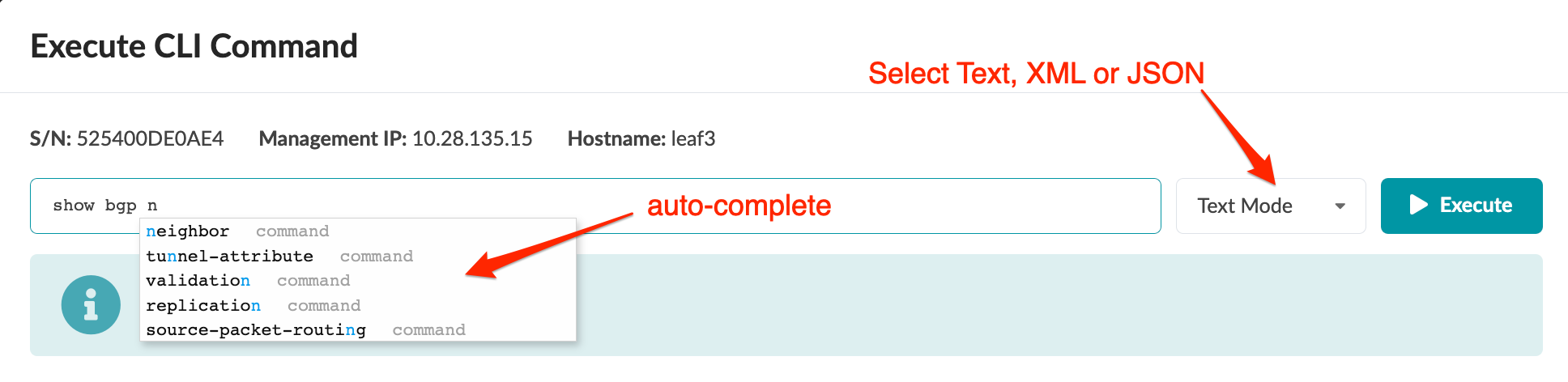
-
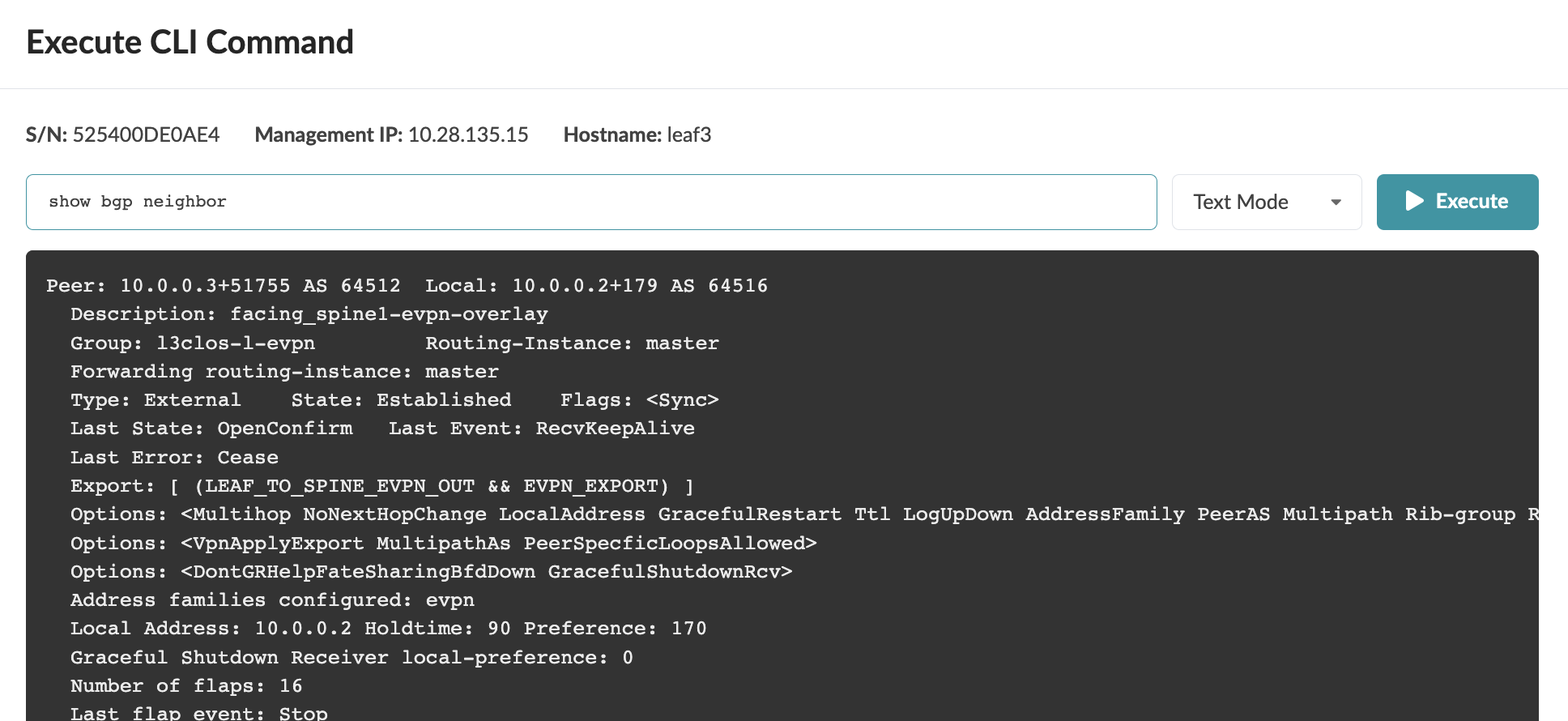
Click Execute to return show command results. We used
Text Mode for our example.