Enable DCQCN in your AI Fabric

To enable DCQCN in your AI fabric (new in version 6.0), import a property set, then import a configlet:

  1. From within your blueprint, navigate to Staged > Catalog > Property Sets.
  2. Click Import Property Set.
    The Import Property Set from Global Catalog window displays.
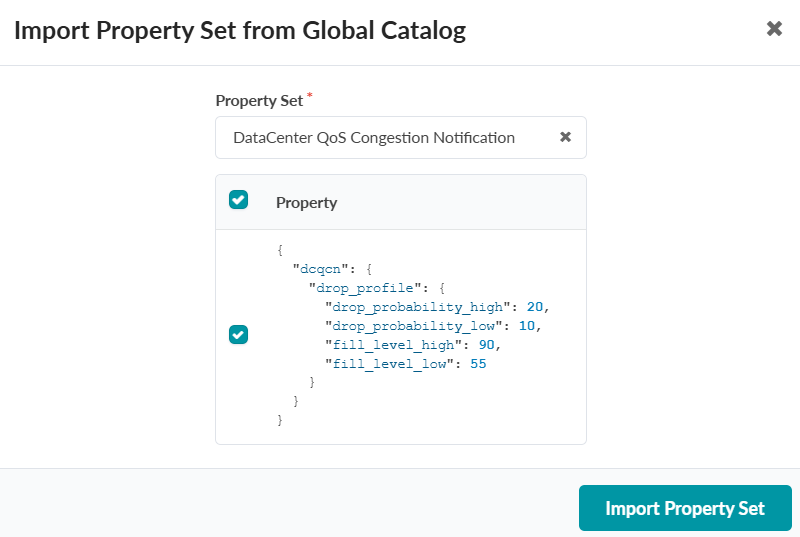
    User interface for importing DataCenter QoS Congestion Notification property set with JSON configuration including dcqcn settings and Import Property Set button.
  3. Select the "DataCenter QoS Congestion Notification" property set from the Property Set dropdown.
  4. Click Import Property Set.

    The property set displays in the list.

  5. Select the Configlets tab.
  6. Select Import Configlet.
    The Import Configlet window displays.
  7. Select the DataCenter QoS Congestion Notification configlet from the dropdown.
  8. In the Configlet Scope section, define the target devices.
    • For specific device roles, select "Role" and choose appropriate values (e.g., "spine")

    • For specific devices, select "Name" and choose the target devices (e.g., "ai_stripe_001_leaf8")
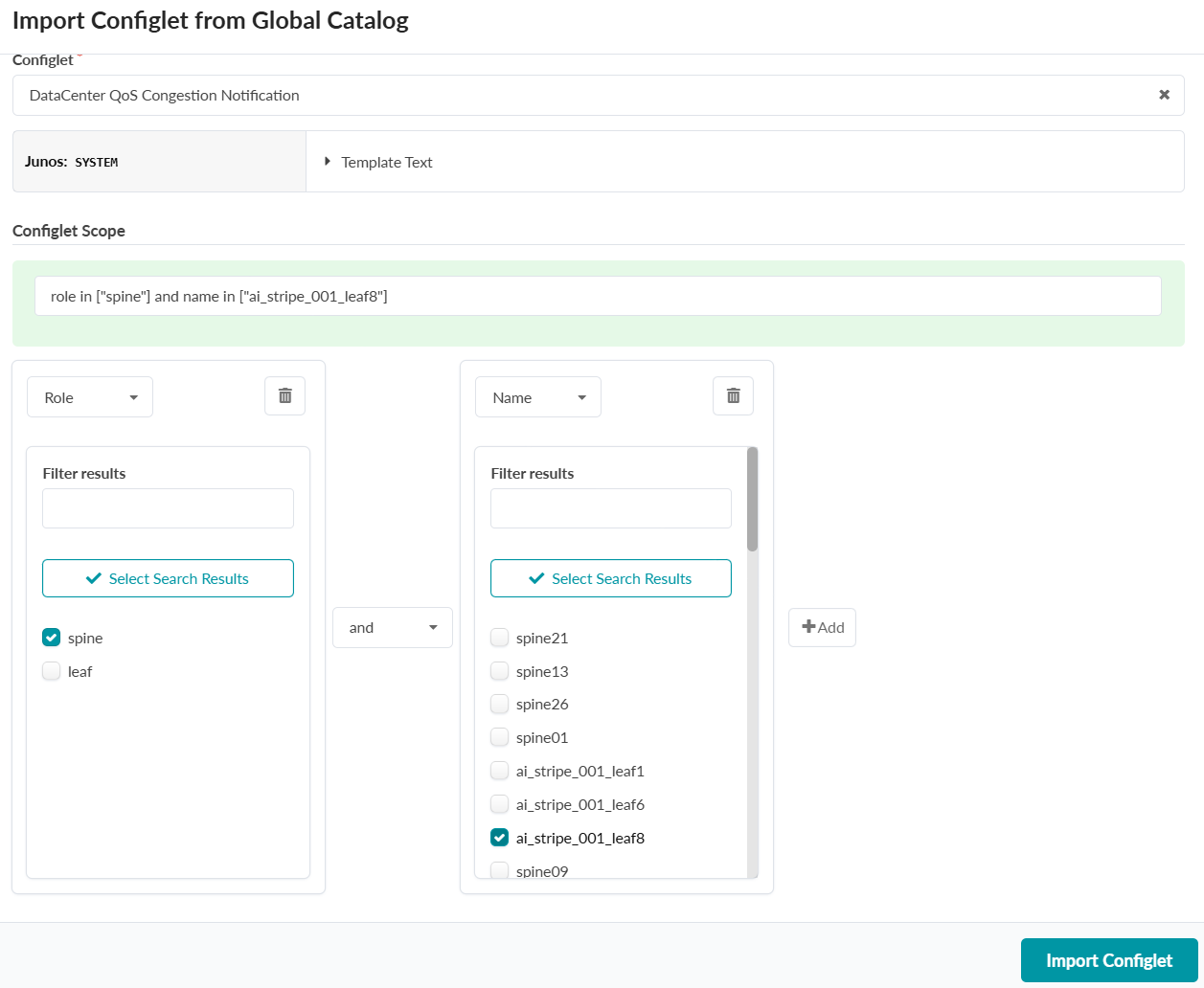

    Import interface for DataCenter QoS Congestion Notification Configlet with filters: role is spine, name is ai_stripe_001_leaf8.
  9. Click Import Configlet.