Create Monolithic Device Profile

Device profiles contain extensive hardware model details. Make sure the profile accurately describes all hardware characteristics. For assistance, contact Juniper Support.

  1. From the left navigation menu, navigate to Devices > Device Profiles and click Create Device Profile.
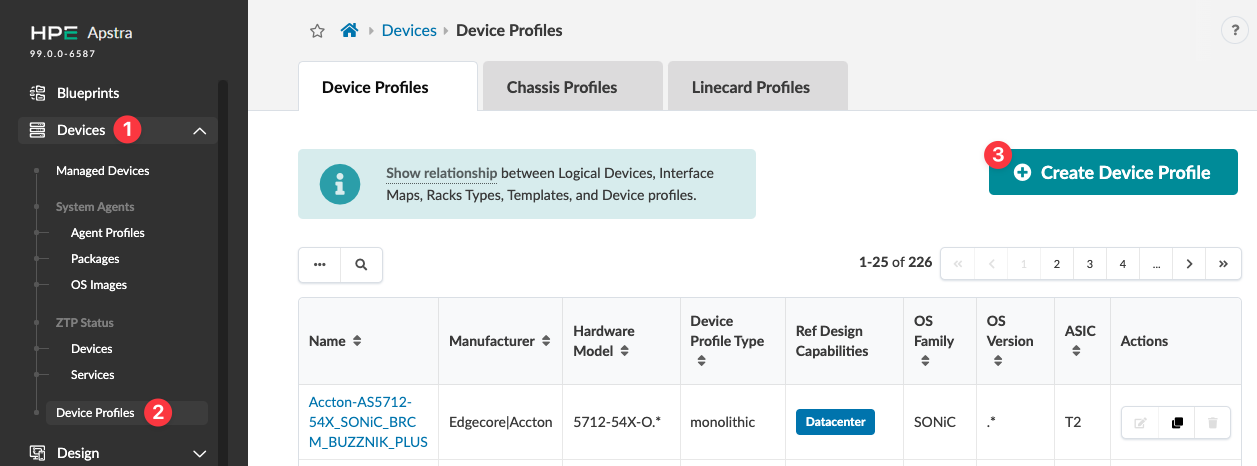
    Juniper Apstra interface showing Device Profiles section with navigation menu sidebar. Highlights include a Create Device Profile button and a table listing device profiles by name, manufacturer, hardware model, and more. Pagination shows 1-25 of 226 entries.
    The Create Device Profile dialog opens on the Summary section.
  2. Enter the relevant information in the Summary section.
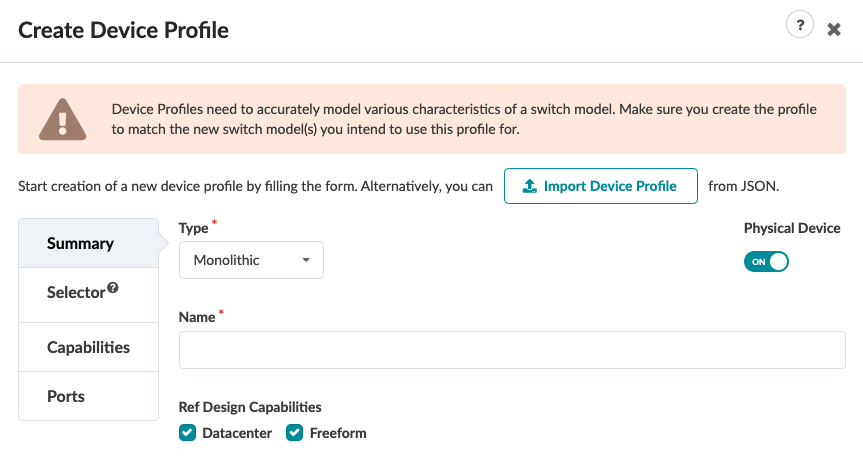
    Create Device Profile interface with a warning on switch model accuracy. Monolithic type selected. Name field, Physical Device toggle on. Tabs for Summary, Selector, Capabilities, and Ports. Ref Design Capabilities with Datacenter and Freeform checked. Options to fill form or import from JSON.
    1. If you've created a JSON payload, click Import Device Profile and select the file to import it. Otherwise, continue to the next step.

    2. Leave the Type as Monolithic.

    3. If you're not using a physical device, toggle off Physical Device.

    4. Enter a unique device profile name.

    5. Select the relevant check box(es) for Ref Design Capabilities (new in Apstra version 5.0.0).

  3. Click Selector in the left panel.
    The Selector section of the Create Device Profile dialog opens.
  4. Enter the relevant information in the Selector section.
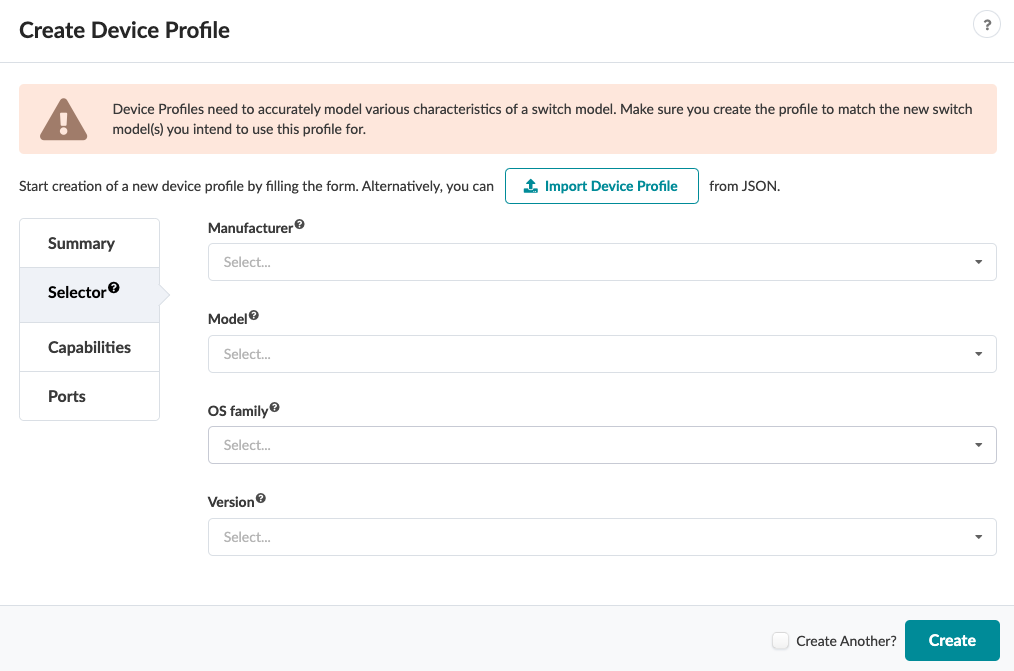
    User interface for creating a device profile with fields for Manufacturer, Model, OS family, and Version. Warning to model switch characteristics accurately. Option to import from JSON. Navigation menu with Summary, Selector, Capabilities, and Ports. "Create Another?" checkbox and "Create" button at the bottom.
    1. Select the manufacturer from the Manufacturer drop-down list.

    2. Select the model number from the Model drop-down list.

    3. Select the OS family from the OS family drop-down list.

    4. Select the OS version from the Version drop-down list.

  5. Click Capabilities in the left panel.
    The Capabilities section of the Create Device Profile dialog opens.
  6. Enter the relevant information in the Capabilities section. For details, see the Capabilities section of What are Device Profiles.
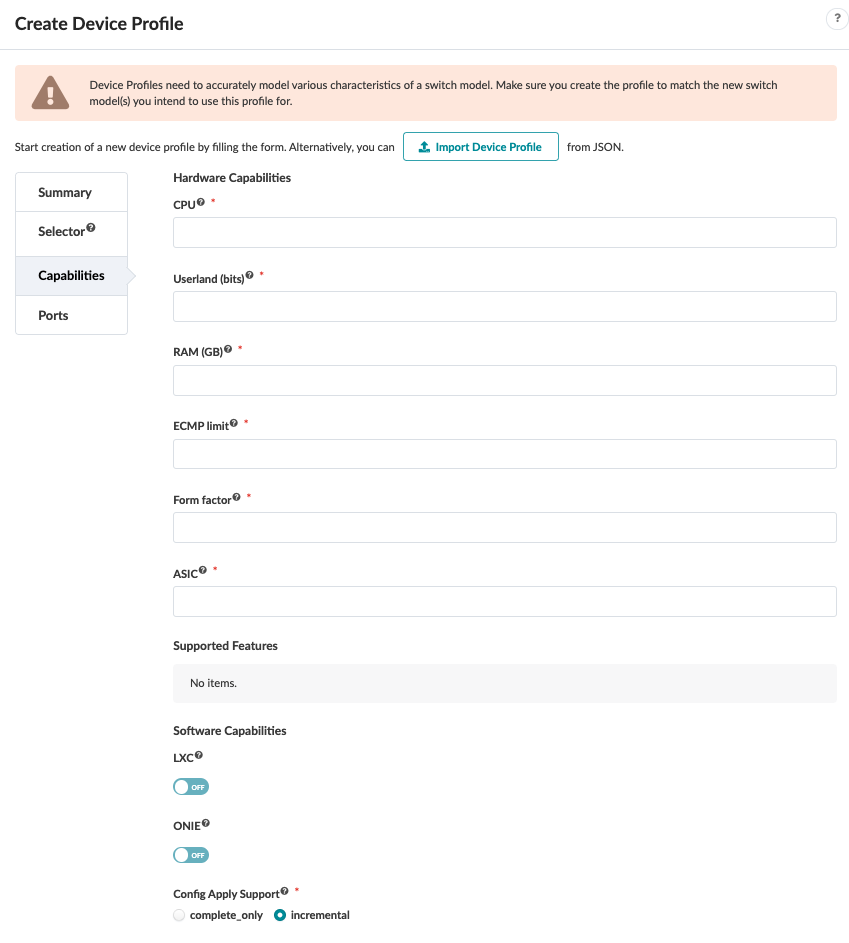
    User interface for creating a device profile with fields for hardware and software capabilities. Key sections include Hardware Capabilities with options like CPU, RAM, ECMP limit, and ASIC, Supported Features showing no items, Software Capabilities with toggles for LXC and ONIE set to off, and Config Apply Support with complete_only and incremental options. Includes a JSON file import feature and a warning about accurate modeling. Navigation menu features tabs for Summary, Selector, Capabilities, and Ports.
  7. Click Ports in the left panel.
    The Ports section of the Create Device Profile dialog opens.
  8. Click Add Panel, then enter the relevant information in the Ports section. For details, see the Ports section of What are Device Profiles.
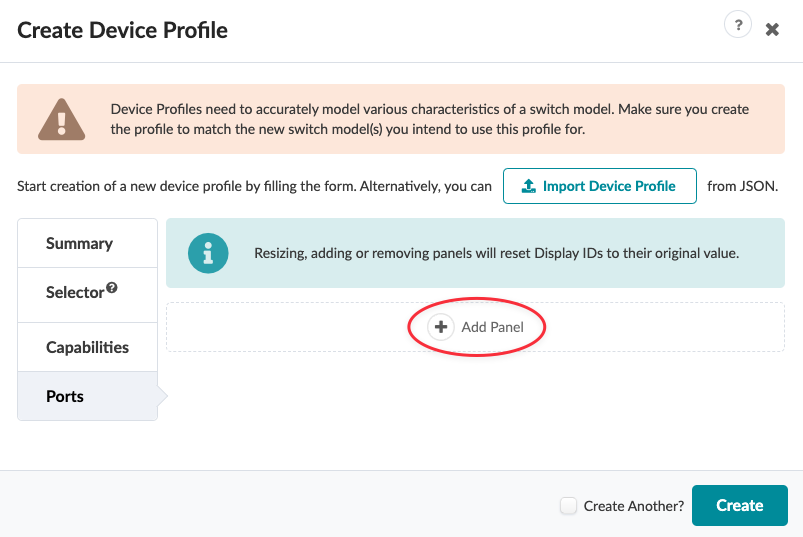
    User interface for creating a network switch profile with warning on accurate modeling. Import Device Profile button for JSON, tabs for configuration, Add Panel button with reset note, and Create button with Create Another checkbox.
  9. Click Create to create the device profile and return to the Device Profiles table view.