Export Blueprint Analytics Dashboard

You can export an analytics dashboard from one blueprint, then import it into other blueprints.

To export a blueprint analytics dashboard using the GUI:
  1. From the blueprint, navigate to Analytics > Dashboard and click the Export button (top-right of dashboard) for the dashboard to export.
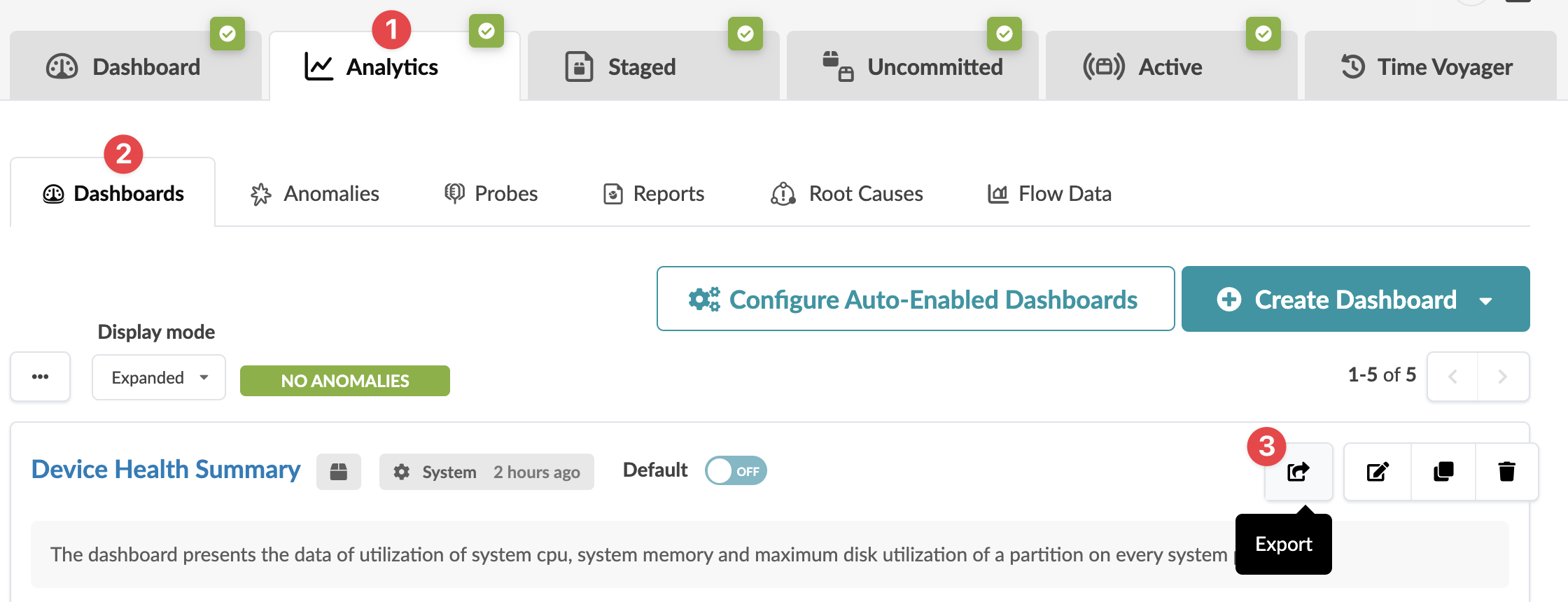
    Dashboard interface showing tabs for functionalities like Dashboard, Analytics, Staged, Uncommitted, Active, and Time Voyager. Dashboards tab is selected with options for Anomalies, Probes, Reports, Root Causes, and Flow Data. A list includes Device Health Summary showing CPU, memory, and disk utilization. Actions include configuring dashboards, creating new ones, and exporting data with the Export button highlighted. Status shows NO ANOMALIES with last update 2 hours ago.
    The Export "dashboard_name" dialog opens.
  2. Click Copy to copy the contents, or click Save As File to download the file.
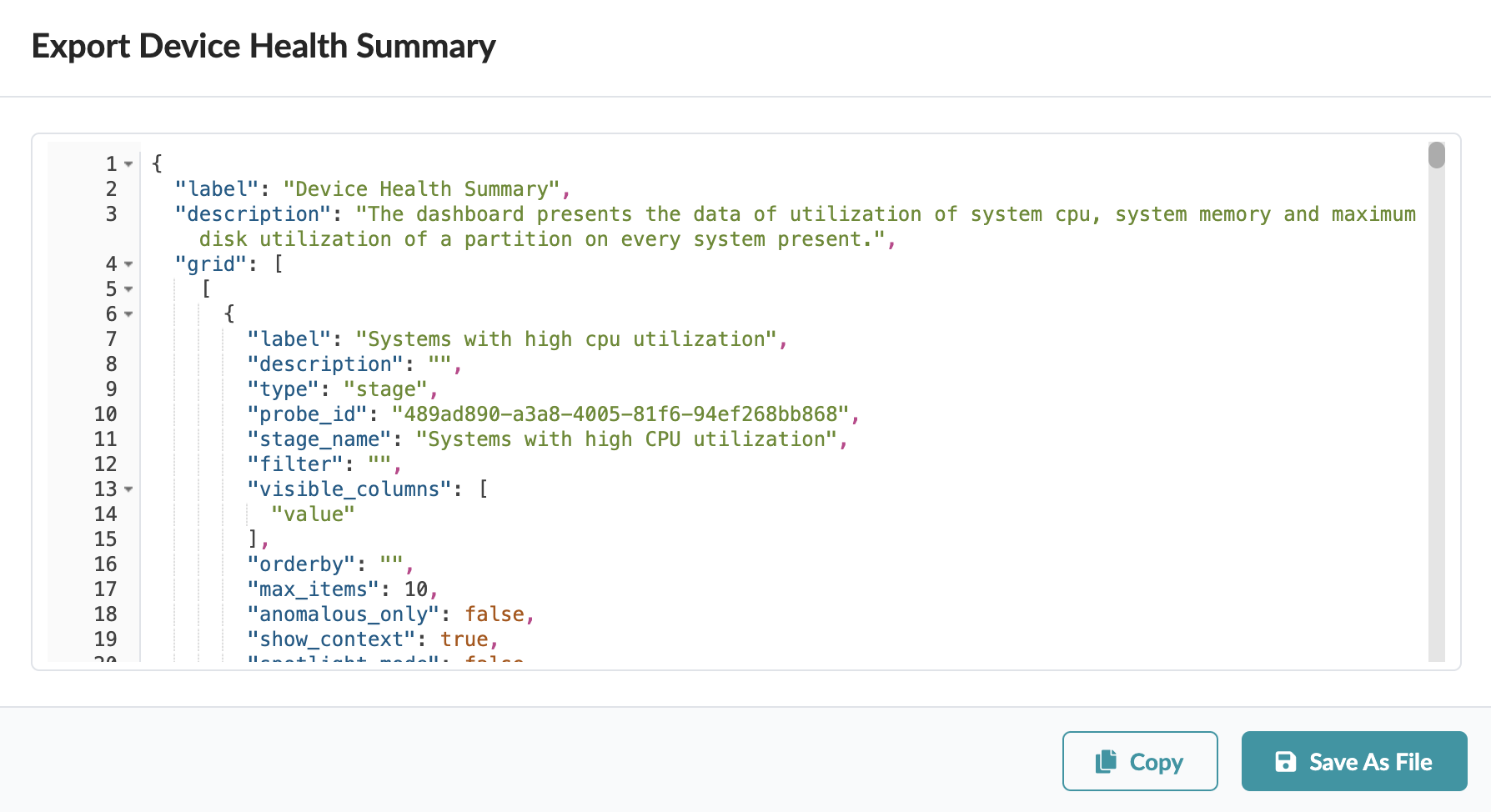
    JSON configuration for Device Health Summary export showing dashboard details on system CPU utilization, memory usage, and disk utilization, with options to copy or save the JSON file.
  3. When you've copied or downloaded the dashboard, close the dialog to return to the Analytics Dashboards view.
You can import exported dashboard into other blueprints.