Update Connectivity Template

  1. Either from the table view (Staged > Connectivity Templates) or the details view, click the Edit button for the connectivity template to update.
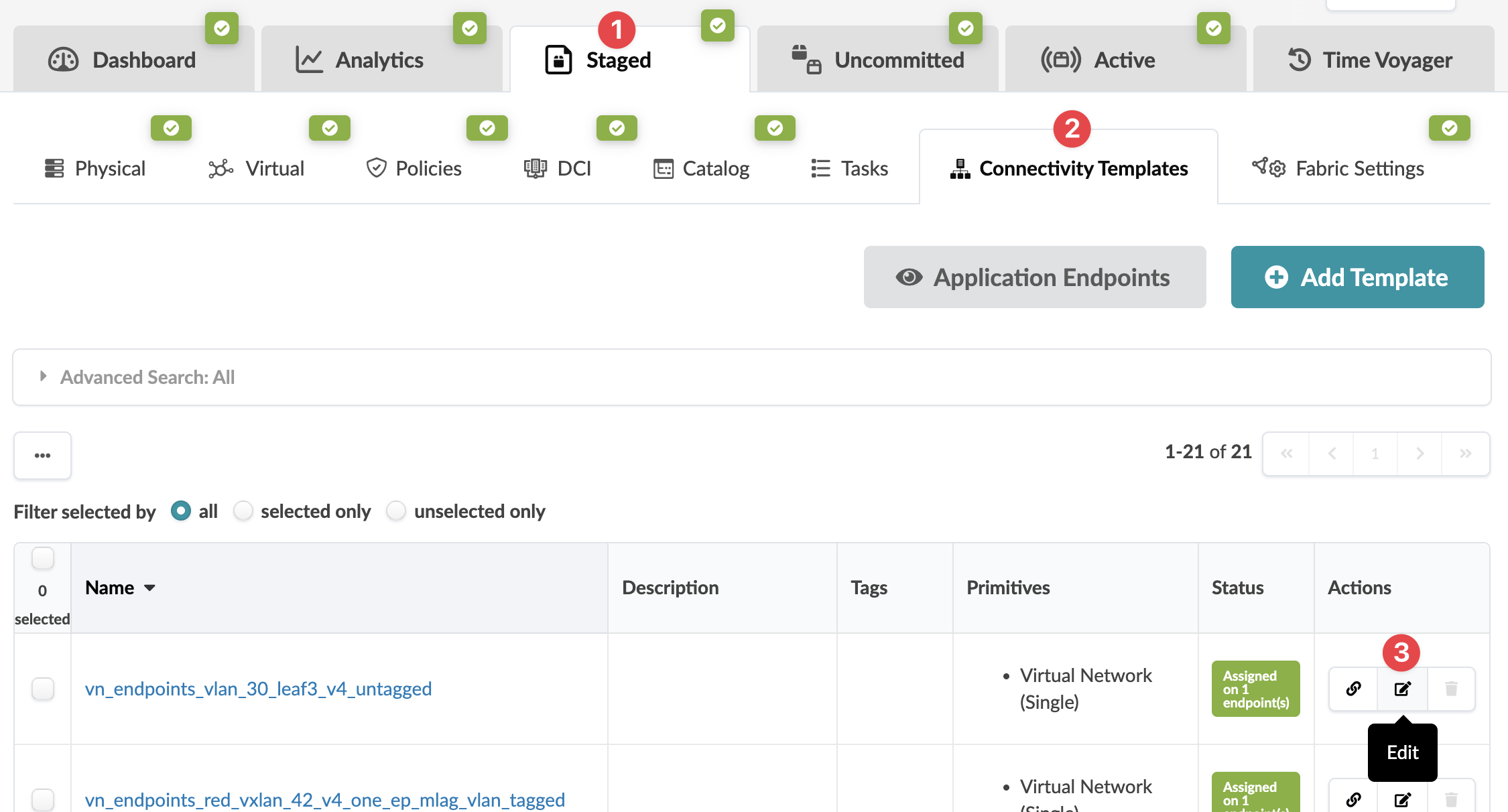
    User interface for network management tool with tabs for Dashboard, Analytics, and Staged. Staged has a red badge with 1. Connectivity Templates tab selected with Add Template button. Table lists templates with columns for Name, Description, and Status. Pagination shows 21 templates across multiple pages.
    The Edit Connectivity Template dialog opens.
  2. Make your changes. The Parameters tab includes a search function (new in HPE Networking Apstra Data Center Director version 5.0.0) that you can use to search for and highlight primitives based on their parameters, for example a given IP address, routing zone, or virtual network.
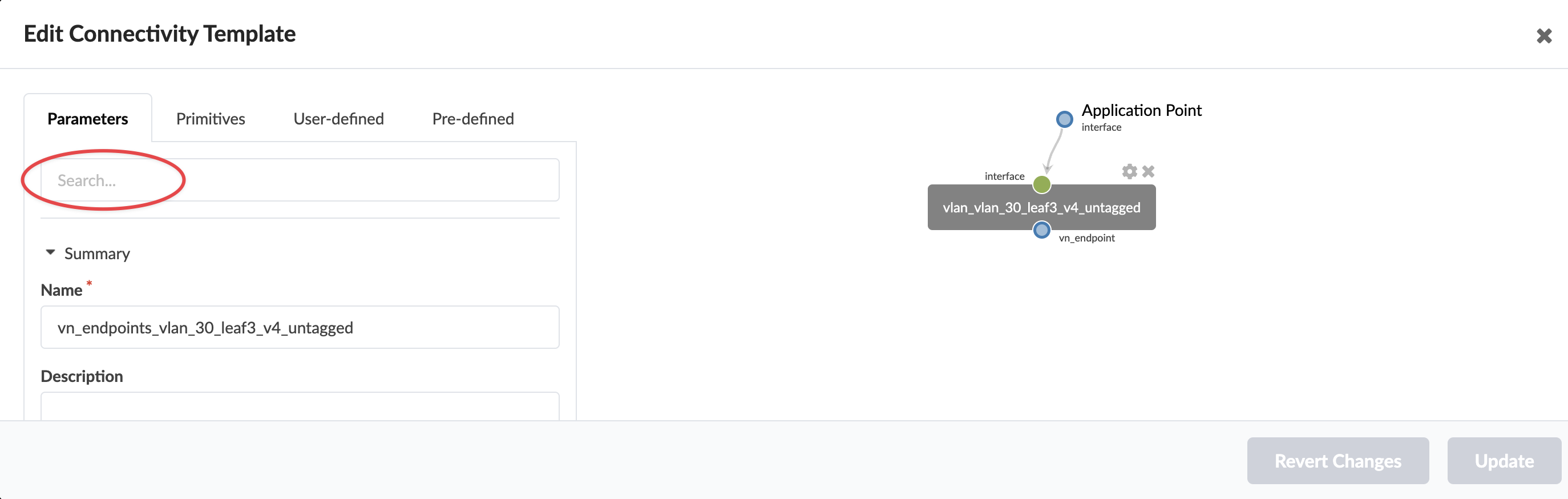
    User interface for editing a Connectivity Template with tabs for Parameters, Primitives, User-defined, and Pre-defined. Search bar highlighted. Summary section with Name field value vn_endpoints_vlan_30_leaf3_v4_untagged. Diagram shows Application Point node connected to vlan_vlan_30_leaf3_v4_untagged with interface and vn_endpoint labels. Revert Changes and Update buttons at bottom.
  3. Click Update to update the connectivity template and return to the table view. (If you decide not to change the connectivity template, click Revert Changes to discard your changes.)