Bulk-Assign a Load Balancing Policy
To bulk assign an LB policy to devices in your
blueprint:
-
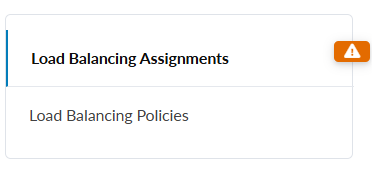
Select Load Balancing Assignments on the right side of the page.
-
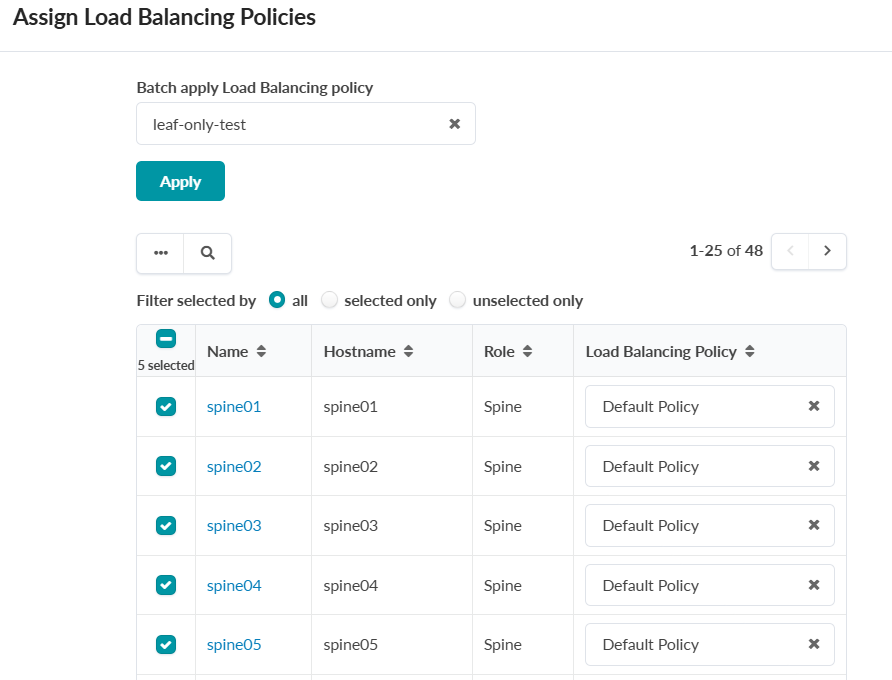
Select devices to assign the policy to, and select Batch apply Load Balancing
policy, then click Apply.
-
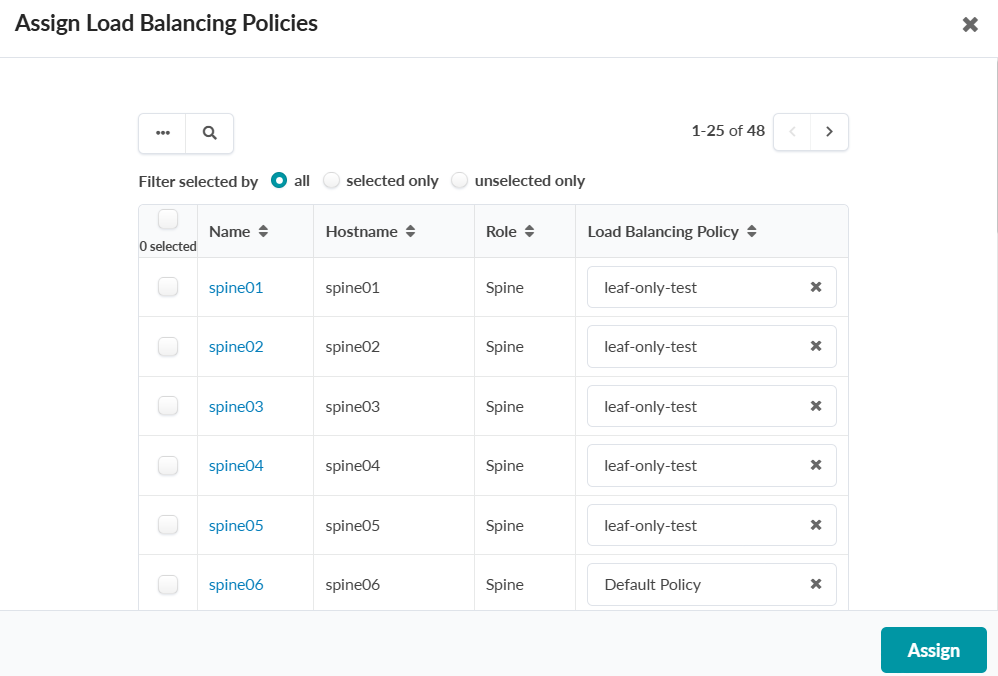
Click Assign.
Note:
If an incompatible LB policy is assigned to the wrong device type, a warning is raised. For example, if you assign a policy with GLB in Helper Only mode to a leaf device, an error is raised stating that the assigned policy is not supported for the associated device ASIC type.
If you have an AI fabric that requires a non-standard LB assignment policy, or if GLB support is expanded beyond TH5 switches, you can adjust the warning severity level for ASIC Feature Validators. This will enable you to continue building your blueprint. For information about changing the warning severity level for ASIC Feature Validators, see Update Severity Preferences.