Authenticate User (AZTP REST API)

Let's get you authenticated so you can make API calls to the ZTP server from the ZTP GUI.

To authenticate an AZTP user using the GUI:

  1. From the left navigation menu of the ZTP GUI, click API, click to expand POST /api/ztp/aaa/login (in the ztp section), then click Try it out.
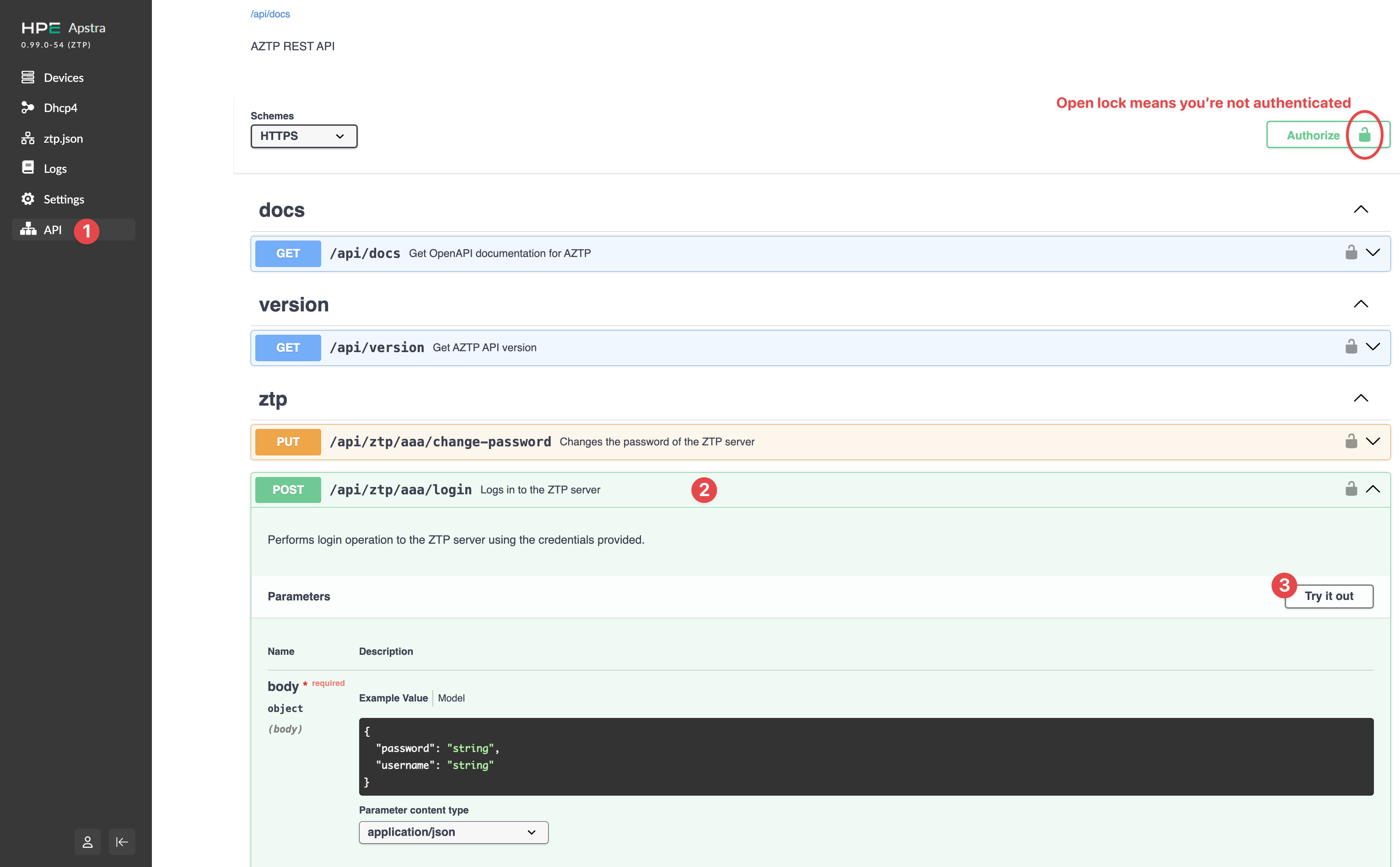
    HPE Apstra AZTP REST API documentation interface showing navigation options, API endpoints, and authentication status with an expanded login endpoint.
    The parameters become editable.
  2. Replace the username and password strings with your own, then click Execute.
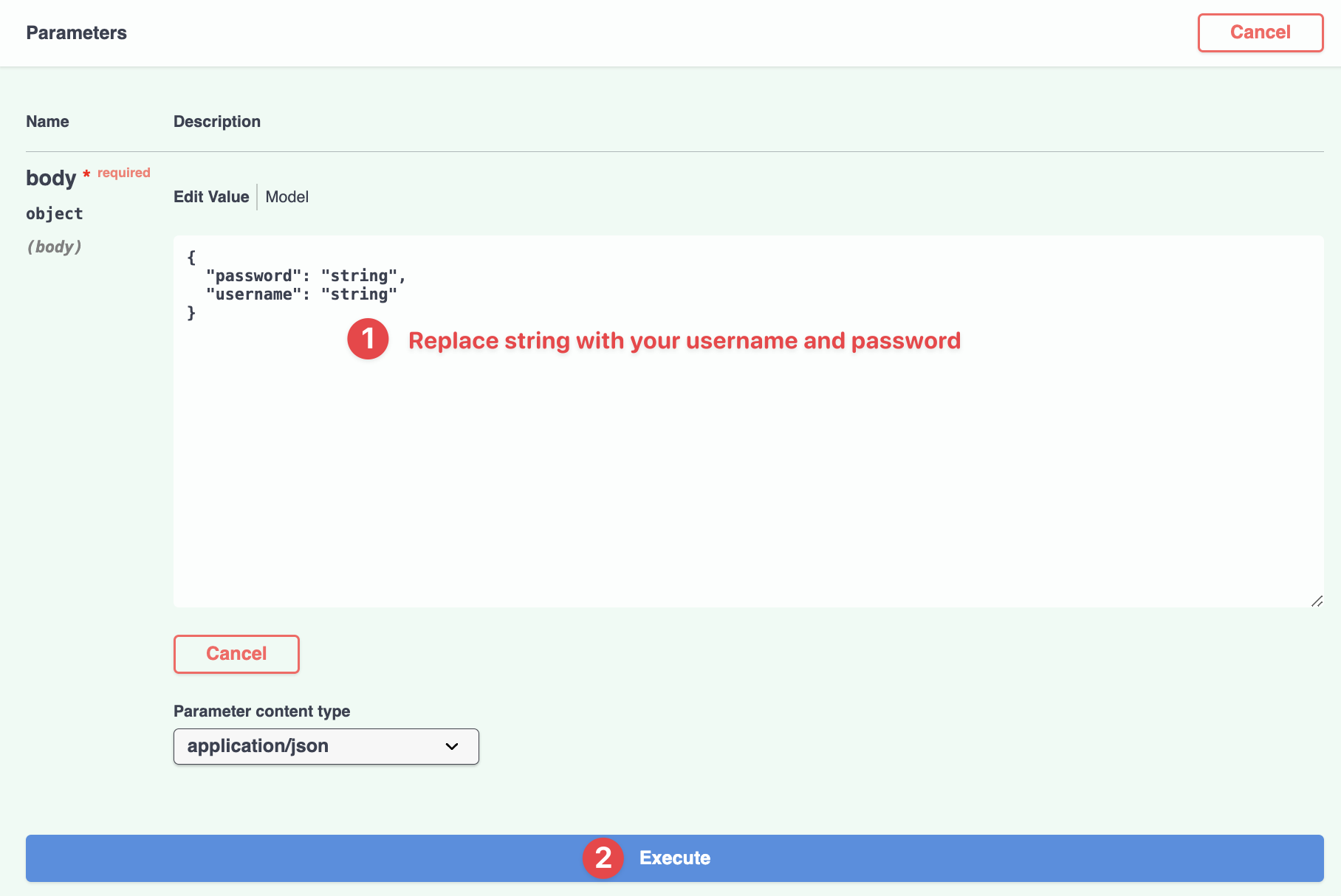
    API testing interface showing parameters section with required body object. JSON input fields for username and password with instruction to replace default text. Buttons for Cancel and Execute. Content type set to application/json.
    A token is added to the Response body of the Server response section.
  3. Copy the token (without quotation marks).
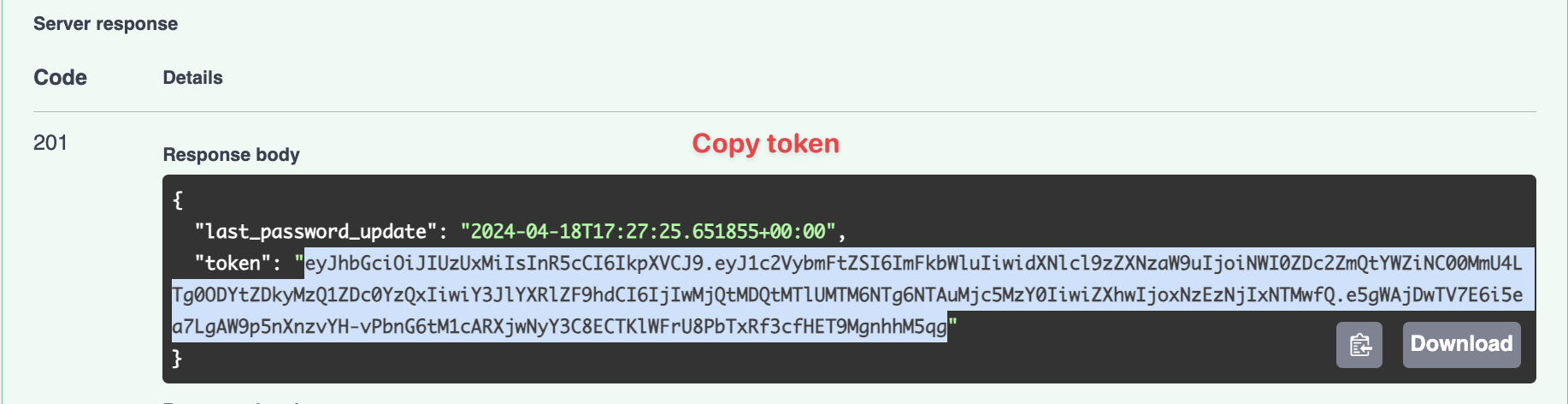
    Server response screenshot showing code 201 for successful resource creation. Contains last_password_update timestamp and JWT token with Copy token label. Download button visible.
  4. Scroll to the top of the page and click Authorize (top-right, shown in the first step).
    The Authorize dialog appears.
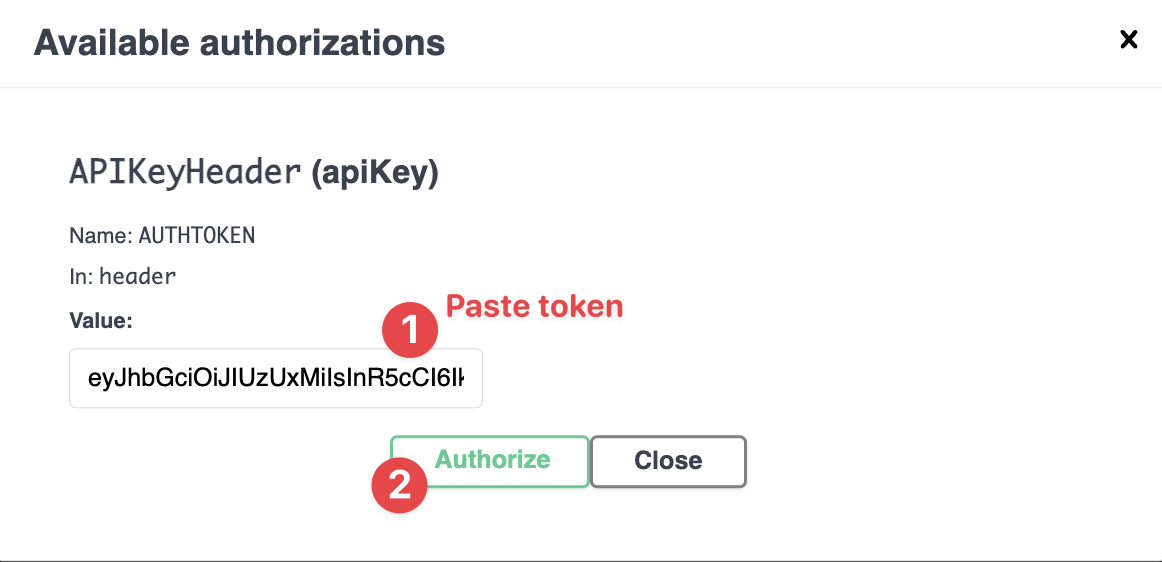
  5. Paste the token and click Authorize.
    API authorization interface with available authorizations section; paste token in Value text box labeled AUTHTOKEN in header; then click Authorize button to proceed; Close button to exit.
    The dialog shows that you've been authorized.
  6. Click the X in the dialog (top-right) or click Close to close the dialog.
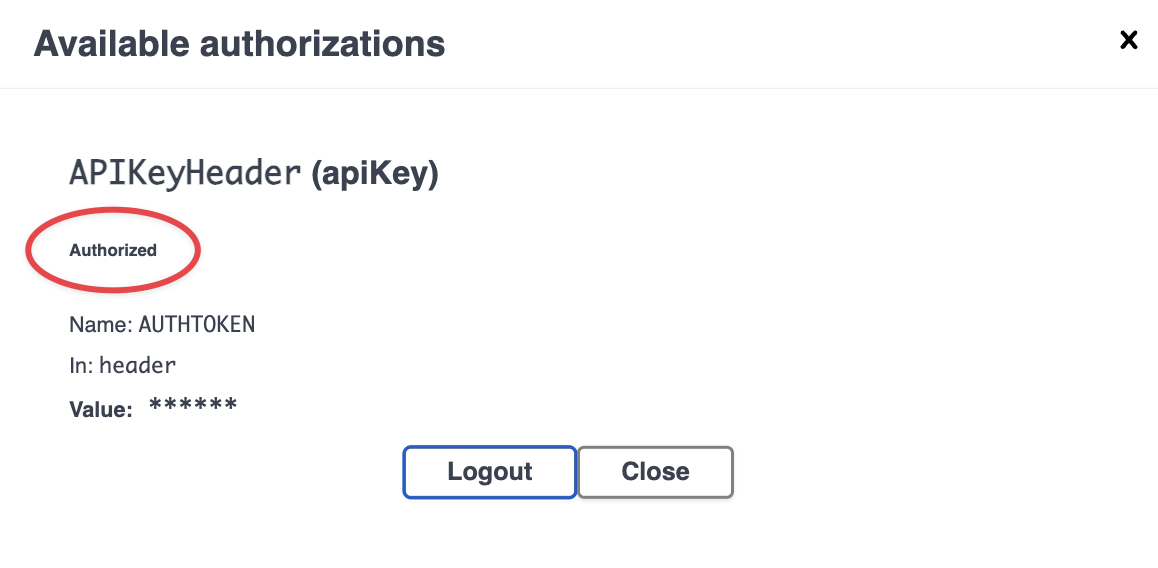
    API authorization interface with APIKeyHeader apiKey, status Authorized in red circle, token name AUTHTOKEN, in header, value masked. Logout and Close buttons at bottom.

    The lock on the Authorize button changes to a closed lock, indicating that you're authenticated.

    Screenshot of AZTP REST API interface with HTTPS selected in Schemes dropdown. Green Authorize button with lock icon indicates authentication. Red annotation explains lock icon means authenticated.

You're ready to make API calls. See the docs section for the AZTP OpenAPI documentation and the ztp section for available API calls.