HPE Networking Data Center Director CLI Utility Commands
A few examples of apstra-cli commands. The complete list is available in apstra-cli.
cli-commands
                        execute
You can now use a new ApstraDC Director CLI command cli-commands
execute to create and execute lists of show
commands across multiple devices. This feature helps you troubleshoot and collect
data for your devices. You can define the command sets once and then run them
against specific devices or device roles, such as leaf, spine, or access switches
within your data center. You can see the command output on your screen, and this
output is automatically saved as a compressed tar.gz file for later analysis.
This enhancement reduces the time needed to perform routine device queries, and it also provides a consistent method for collecting diagnostic information across your network infrastructure. The compressed output format makes it simple to share diagnostic data with support teams or archive operational snapshots. the role-based targeting eliminates the need for you to specify individual device identifiers for common troubleshooting scenarios.
You can use this command at the apstra-cli> prompt of your Apstra
server.
This command has the following options:
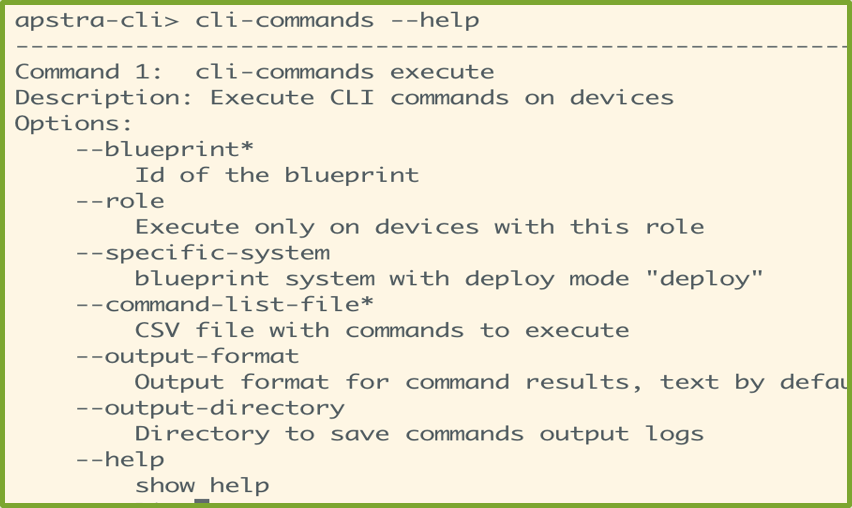
Here's an example of the command with some of the specified options:

Specify the IP address of the Apstra DC Director server:

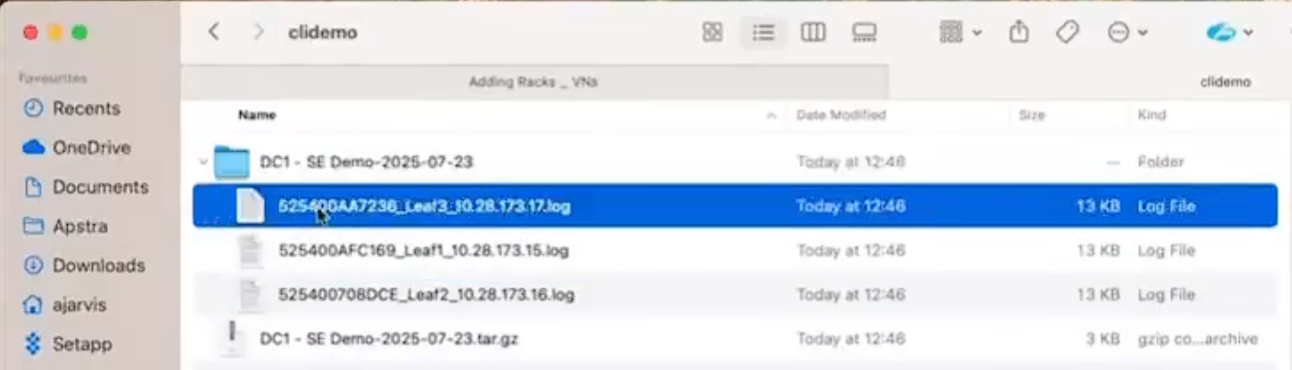
The results output is archived in the /mytmp directory:
 Here are
some of the output logs:
Here are
some of the output logs:
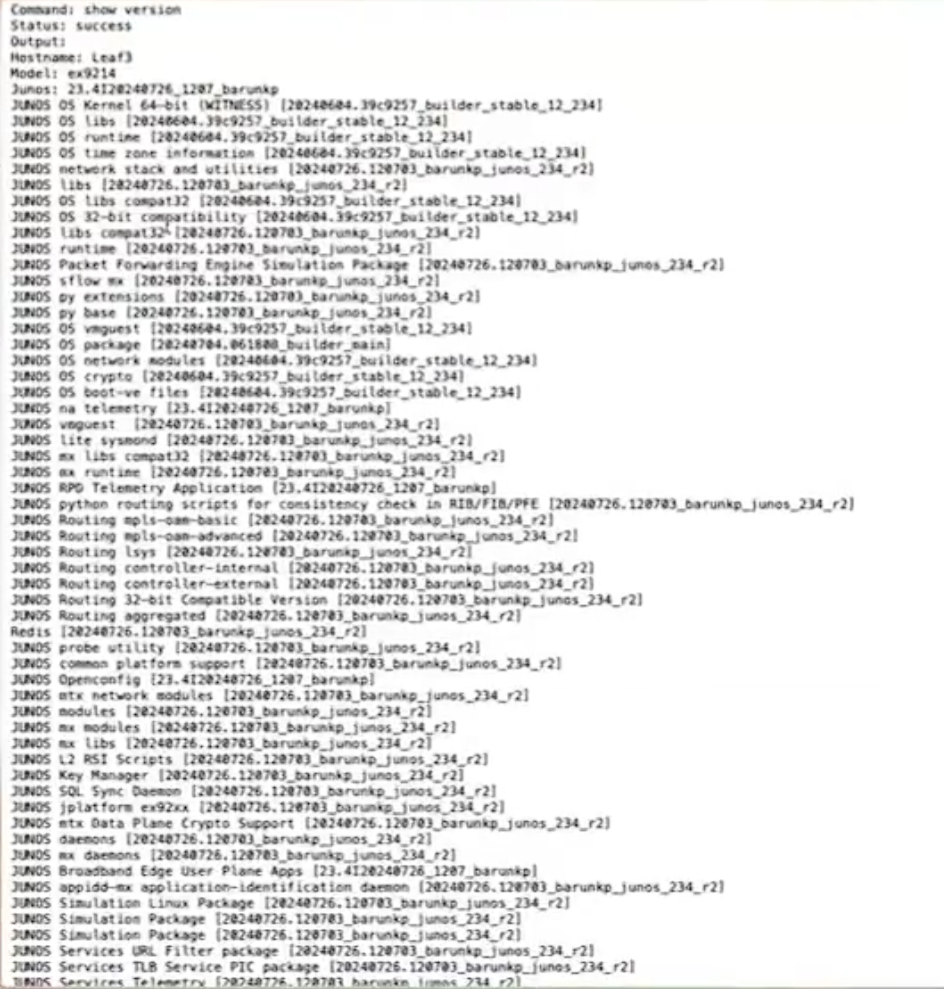
Here are the results of the show version command for Leaf3:
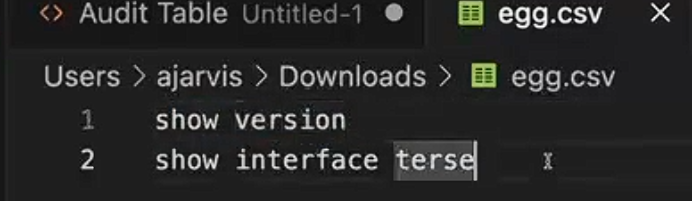
Here are some of the commands you have saved in your egg.csv
file:
scenario change-device-password
To comply with security requirements and best practices you may need to change root
passwords and local user passwords on device system agents on a regular basis. You
can change passwords on all devices in a blueprint by running a single command.
Instead of entering a specific system ID you would enter all.
Use the following command to change all devices at once:
scenario change-device-password --blueprint <bp_id> --system all
                    --old-password <old_password> --new-password
                <new_password>
Use the following command to change a specific device:
scenario change-device-password --blueprint <bp_id> --system
                    <sys_id> --old-password <old_password> --new-password
                    <new_password>
scenario change-device-password is a collection of the following
eleven tasks:
-
Check old password by ssh connection
-
State creation of configlet for password
-
Commit blueprint
-
Check new password by ssh connection
-
Change system agent password
-
Check system agent status
- Update device pristine config
-
State deletion of configlet used for password change
-
Commit blueprint
-
Check new password by ssh connection
-
Check system agent status
scenario change-root-password
This command applies to Juniper, Arista and SONiC devices. Cisco devices are not supported. Use the following command to change all device root passwords at once:
scenario change-root-password --all --old-password <password>
                    --new-password <password>
Use the following command to change a specific device root password:
scenario change-root-password --system <system> --old-password
                    <password> --new-password <password>
config-syntax-check (Juniper only)
Command Syntax for Datacenter blueprints:
blueprint --blueprint <bp_id> config-syntax-check --system <sys_id>
                    --username <device_username> --password <device_password>
Command Syntax for Freeform blueprints:
blueprint --blueprint <bp_id> freeform-system config-syntax-check --system
                    <sys_id> --username <device_username> --password
                    <device_password>
With the config-syntax-check command, you can verify configuration
syntax on your Juniper devices before committing your blueprint. This check is
useful when working with configlets in Datacenter blueprints and when working with
config templates in Freeform blueprints.
This command works only with hierarchical configuration to verify whether
configuration syntax is correct. It doesn't work for set
commands.