Uncommitted Introduction
While you're staging your new blueprint (under the Staged tab), the status indicator on the Uncommitted tab is red. When you've finished staging the blueprint and resolved any build errors, the indicator turns yellow, or orange if you have warnings, and the Commit button turns from gray to black indicating that the blueprint is ready to be committed. When you commit your pending changes you are pushing configuration to the Active blueprint. The meaning of the status indicator colors are shown in the table below:
| Status Indicator Color | Description |
|---|---|
| Red | The blueprint needs staging or has Build Errors that must be resolved before you can commit. |
| Orange | The blueprint has Warnings to notify you of potential issues. The blueprint may or may not have staged changes. You can commit to a blueprint that has warnings and pending changes. |
| Yellow | The blueprint has pending changes that you can commit to the blueprint. |
| Green | The blueprint does not have any pending changes, warning, or errors. The blueprint is active and there is nothing to commit. |
Review Staged Changes
From the blueprint top menu, click Uncommitted to go to pending changes. You can review Logical Diff, Full Nodes Diff, Build Errors, Warnings, and Commit Check for Junos devices. When you're finished reviewing your changes and you've resolved any build errors, proceed to commit your changes to the blueprint or discard them, as applicable. See below for more information about each section.
Logical Diff
From Logical Diff, click a name from the Name column to see detailed changes, additions or deletions for that element. (The screenshots below are for a previous HPE Networking Data Center Director version, which looks slightly different from the current version.)
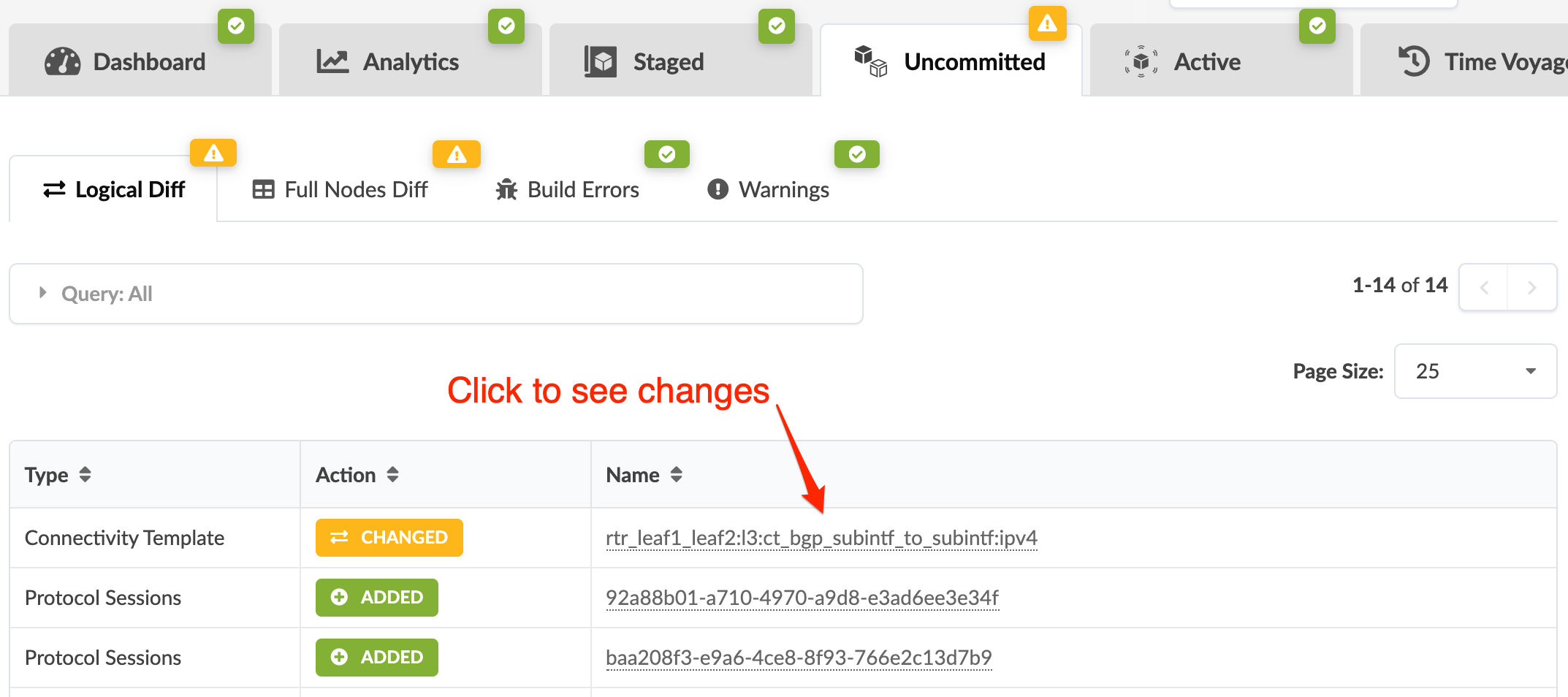
Details for the selected change.

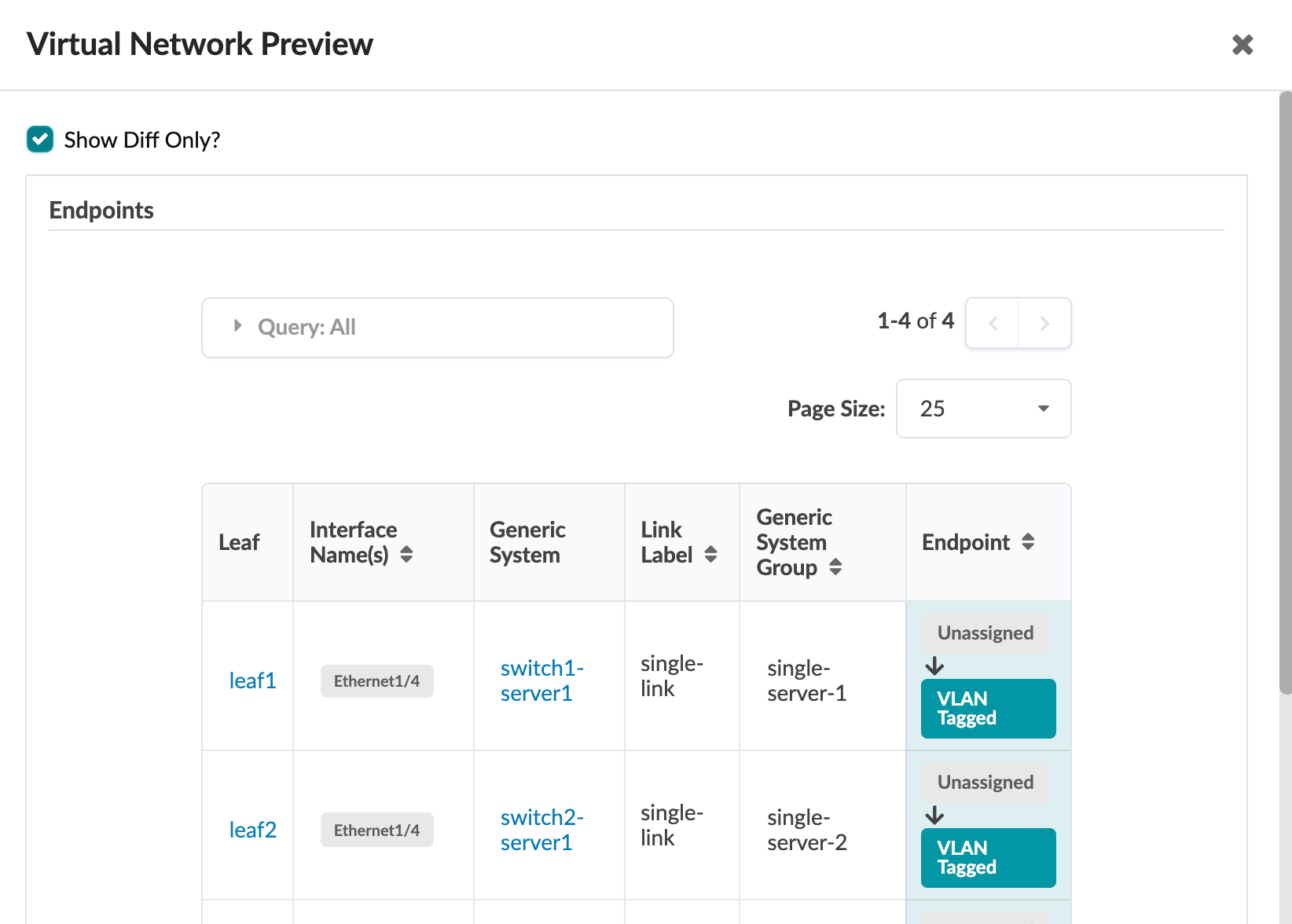
In some cases, you have the option of viewing only the differences, as shown below. 
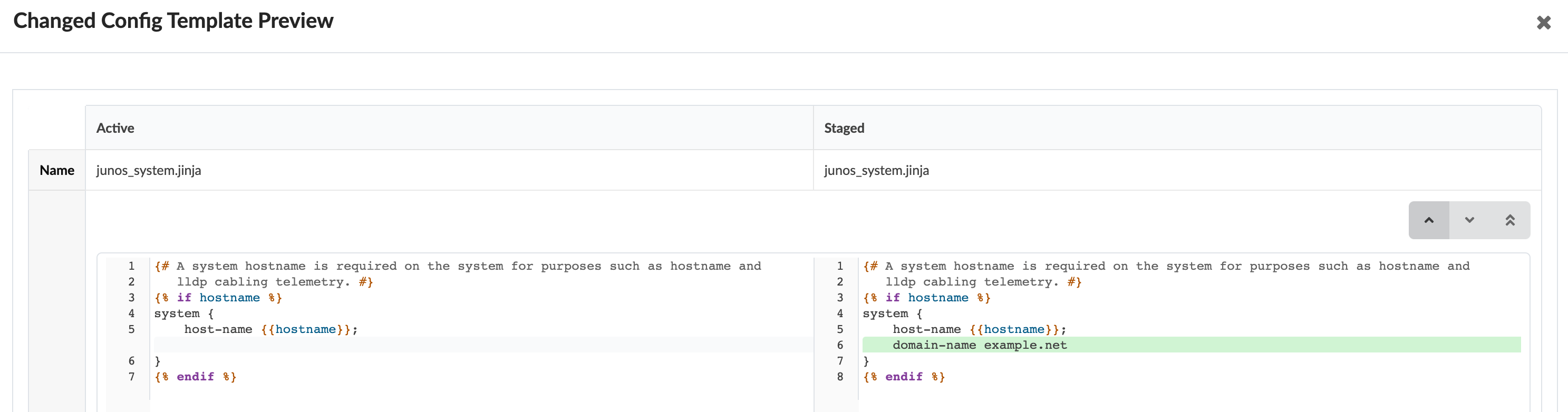
The preview for config template changes is color-coded to easily see the content that has been added (in green) and the content that has been removed (in red).
Full Nodes Diff
Full nodes diff shows all uncommitted changes in one place, organized by node type, change type and raw data. You can sort and search the diffs, then preview the changed element. Full nodes diff requires a fair amount of resources and time to generate.
Build Errors
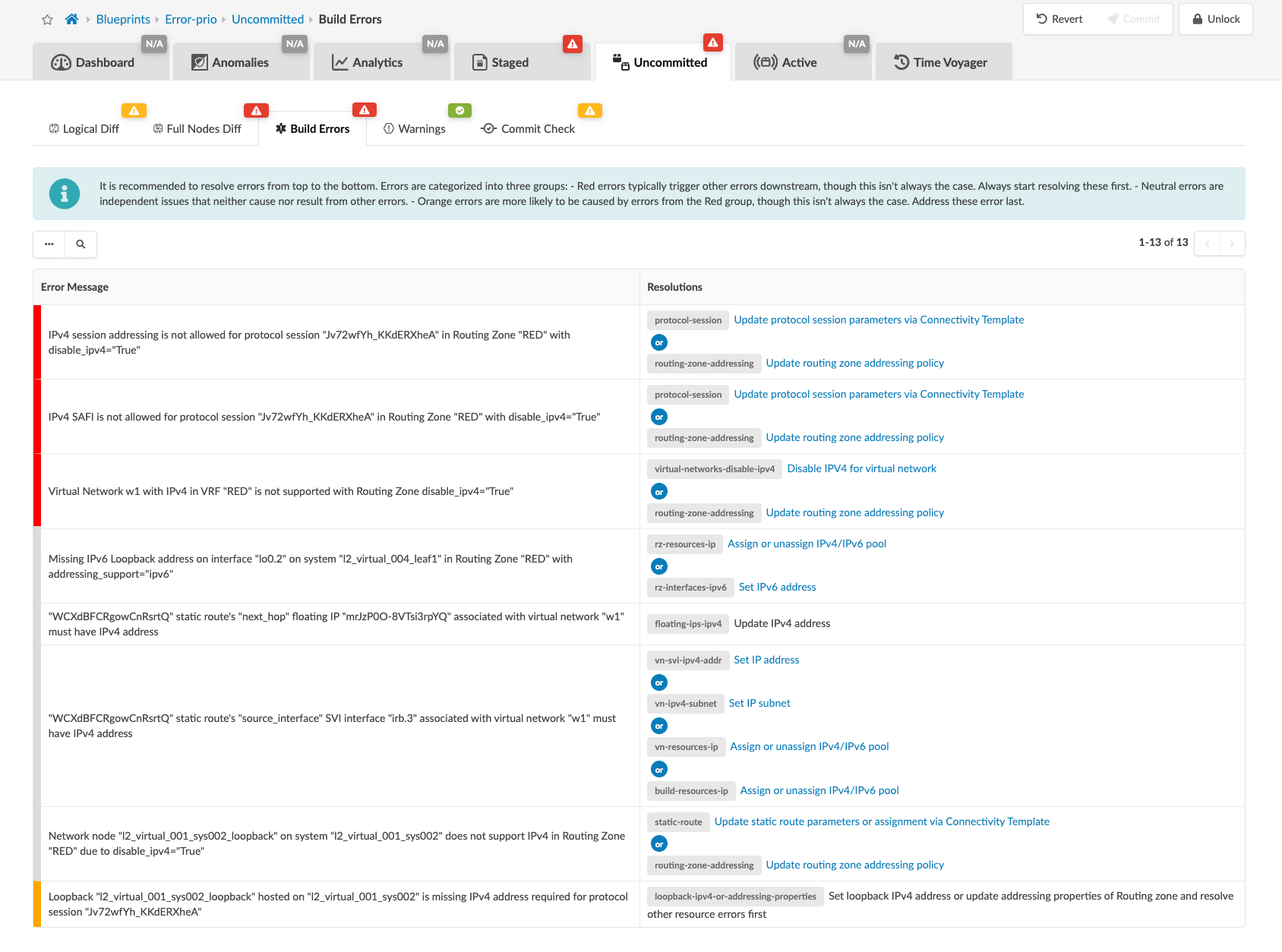
Build errors identify issues with your blueprint that require resolution before you commit changes to your blueprint. When you resolve the issues, the indicator changes from red to yellow (or orange if you also have warnings), allowing you to commit to the blueprint.
Priorities have been added to build errors. Error priorities eliminate uncertainty in determining the correct error correction sequence. Errors causing a cascading sequence of dependent errors have the highest priority. Resolving these errors first typically resolves dependent lower-priority errors.
Errors are assigned colors for quick identification. The color definitions are prioritized as follows:
| Red Error | Red errors frequently cause additional problems elsewhere in the system. Resolve these errors first before addressing lower-priority errors. |
| Neutral/Gray Error | Neutral errors are standalone problems without a causal connection to other errors. |
| Orange Error | Orange errors often result from downstream consequences of red errors. Resolve all red errors before addressing orange errors. |
Warnings
Warnings indicate potential issues with your blueprint. You're not prevented from committing changes to a blueprint with warnings, but it's best to address the issues before proceeding.
The blueprint below has warnings and pending changes. You can commit these
changes. 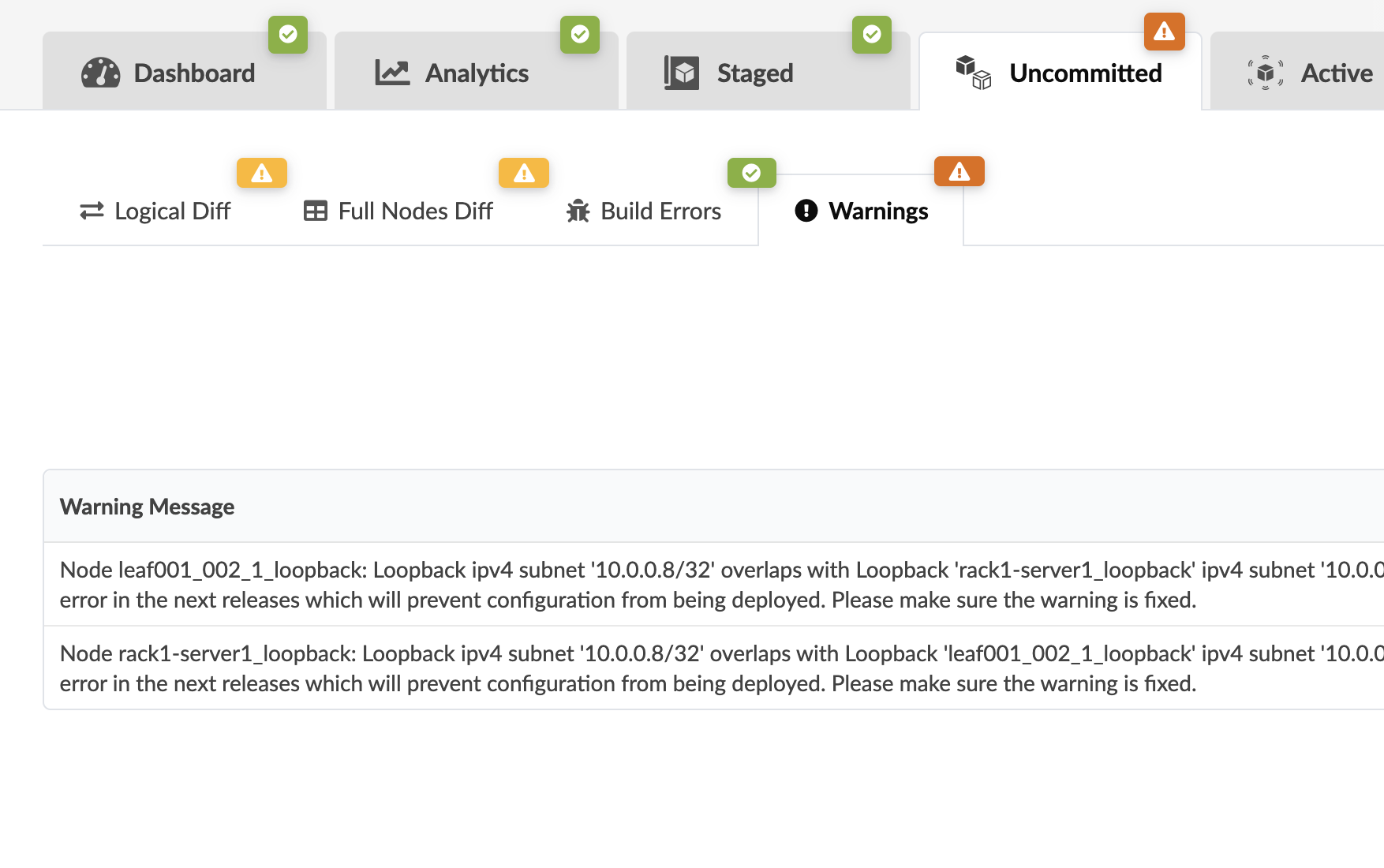
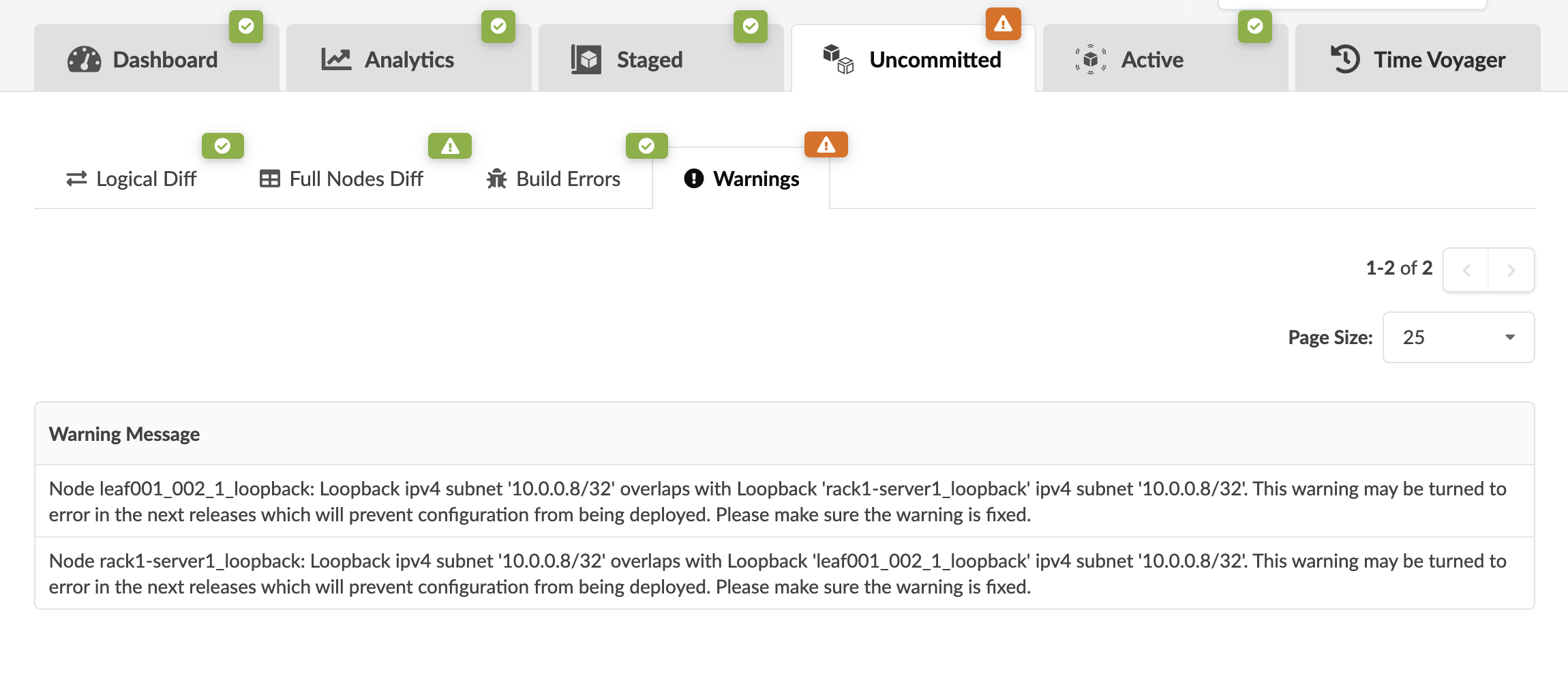
The blueprint below has warnings and no pending changes. There is nothing to commit.
You can validate port assignments on HPE Networking Junos Operating System Evolved switches only. This enhancement allows Apstra DC Director to proactively alert you to potential port issues arising from hardware constraints before pushing configuration. When you attempt to use two or more incompatible ports, the system flags it as a warning. The incompatibility occurs when the speed of one port (transformation) prevents the use of one or more other ports. The screenshot below shows an example.
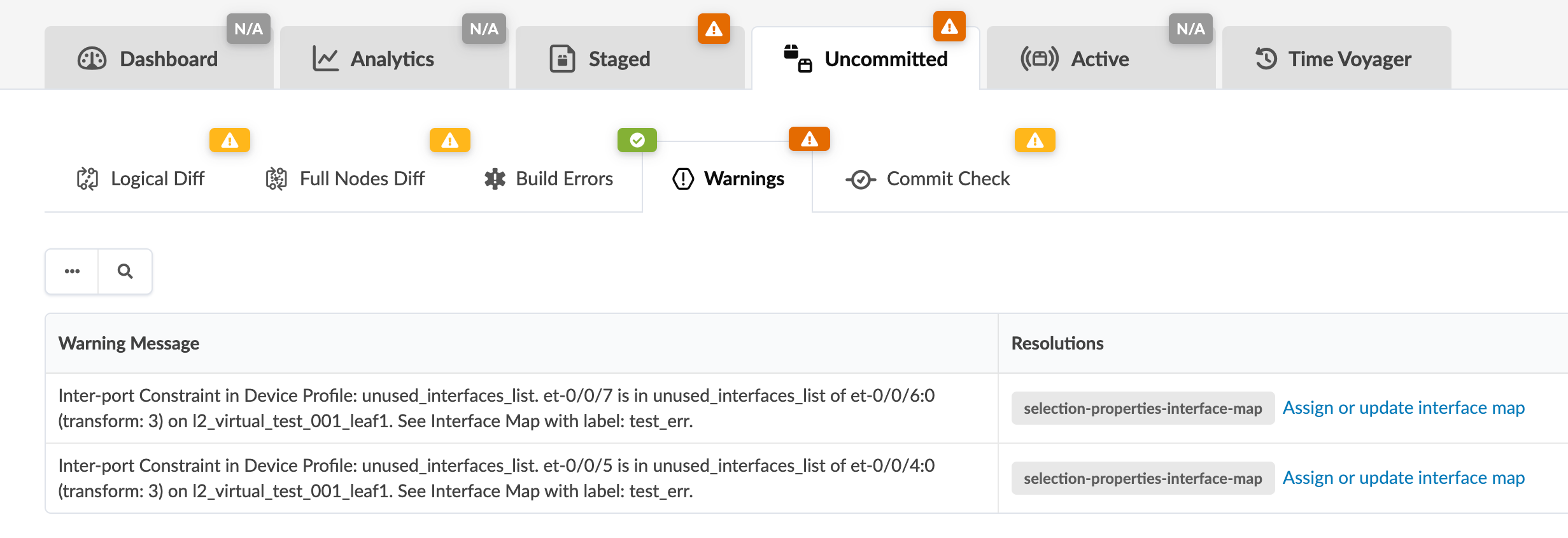
You can resolve this issue by changing the interface map. Click Assign or update interface map in the Resolutions column to go to Physical > Topology. You can update the interface map in two ways. The best way is to add a new link to the interface that shouldn't be used, then delete the problem interface. Alternatively, you could go into the global catalog, make updates to the interface map, and import it back into the blueprint.
Commit Check
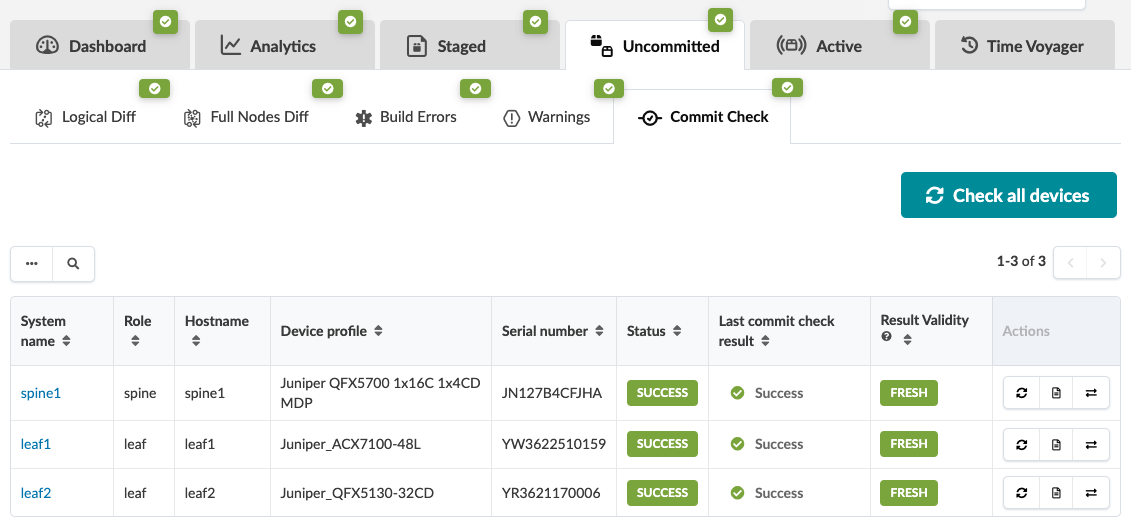
You can check configuration for semantic errors and omissions before deploying Junos OS and Junos Evolved devices, from the Commit Check tab.