Blueprint-Wide Search
You can search the entire blueprint from the Staged (and Active) tabs.
To search the staged blueprint, enter your search criteria in the Search field at the top of the Staged tab.

For assistance with search, you can click the search field to see a tooltip describing the ways you can search.
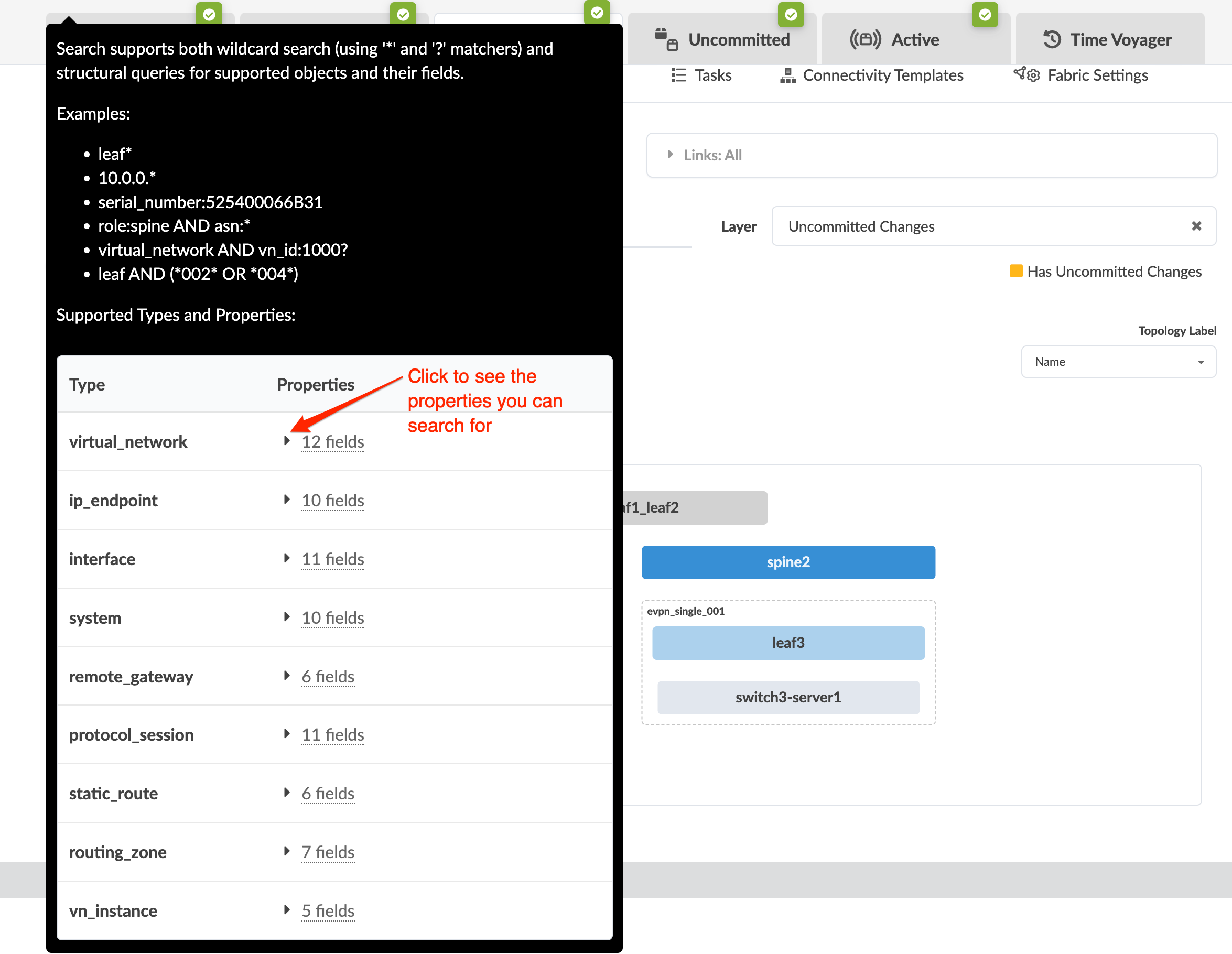
Exact Match
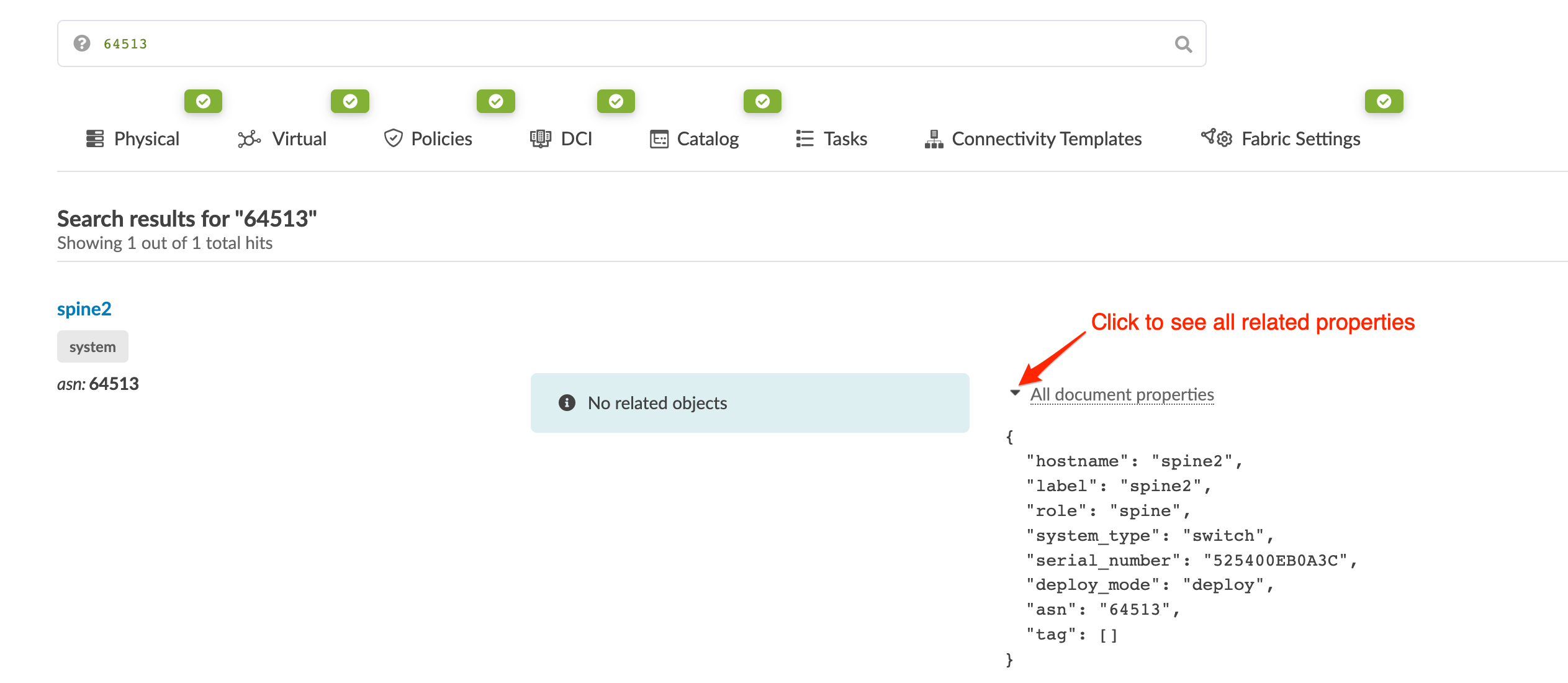
To find an exact match, enter the exact value for the object. For example, you can enter
64513 to find that ASN. The results in our example show that it's
assigned to spine2.
Additional metadata is returned that tells you what else is associated with the object. Click All document properties to see this information.
From your results you can click an object name (in blue) to go to its details.
Wildcards
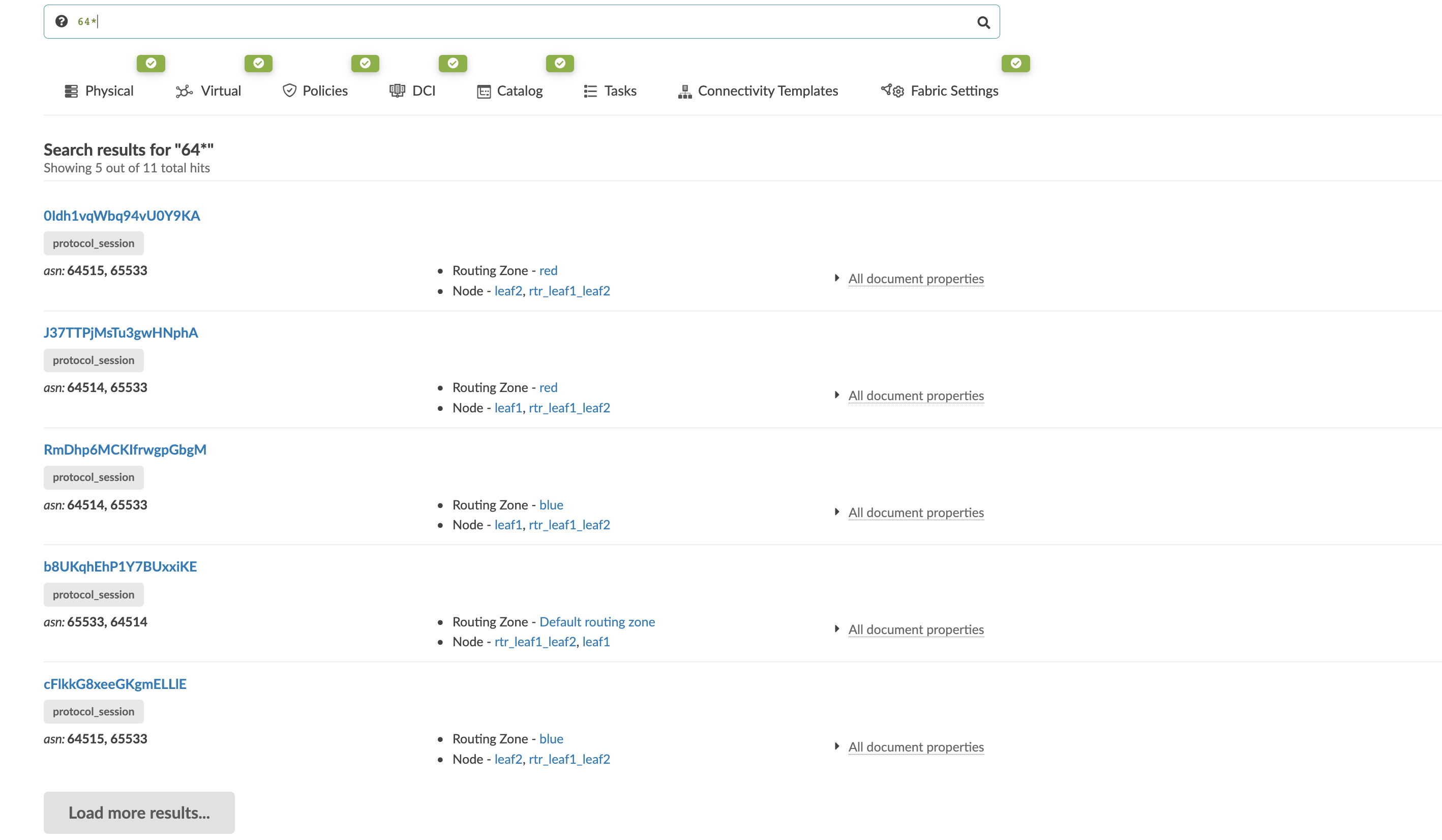
You can search using wildcards. Let's say you want to search for ASNs that begin with
64. By adding the wildcard character *, you get all
objects that begin with 64. (Enter 64*.) Five results are loaded by
default. To see additional results, click Load more results. If there
are no more results, No more results appears at the bottom.
Field References
You can include a reference to a field in your search to receive more relevant results.
With the ASN example, if you search 64*, there may be other entities
besides ASNs that begin with 64. If you know you're looking for an ASN, you
can enter a search query, such as asn:"64*". As you begin typing results
auto-fill to help you with the query. You can press the tab key to autocomplete.
Composite Queries
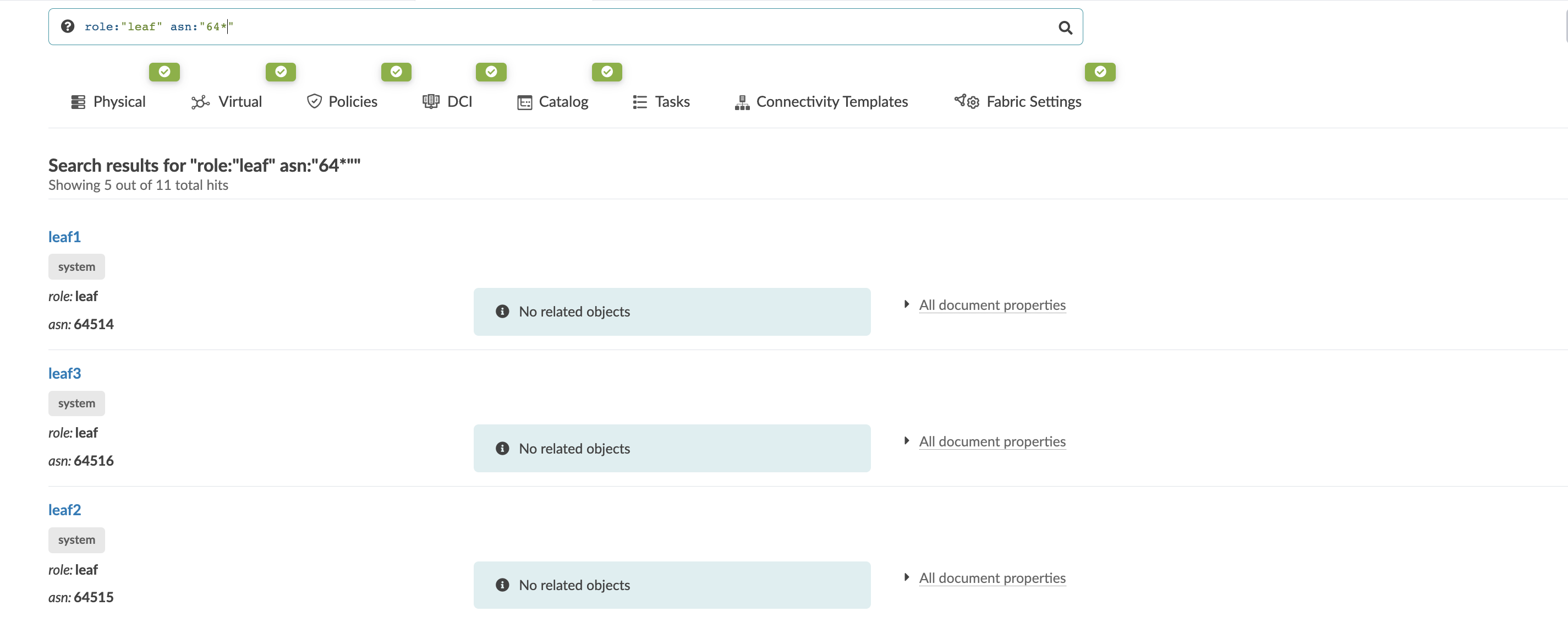
You can combine searches into one query. Returning to the ASN example, say you want to find
ASNs beginning with 64 and that also have the leaf role. You can enter the
search query, role:"leaf" asn:"64*".