QFX5250 Chassis LEDs
This topic describes the status LEDs for the chassis and ports on the QFX5250.
The LEDs on the QFX5250 switch indicate the status of the device and its components. You can also use the LEDs for troubleshooting.
Chassis Status LEDs
The QFX5250 switches have four LED types that indicate system status. You can find these LEDs to the right of the network ports.
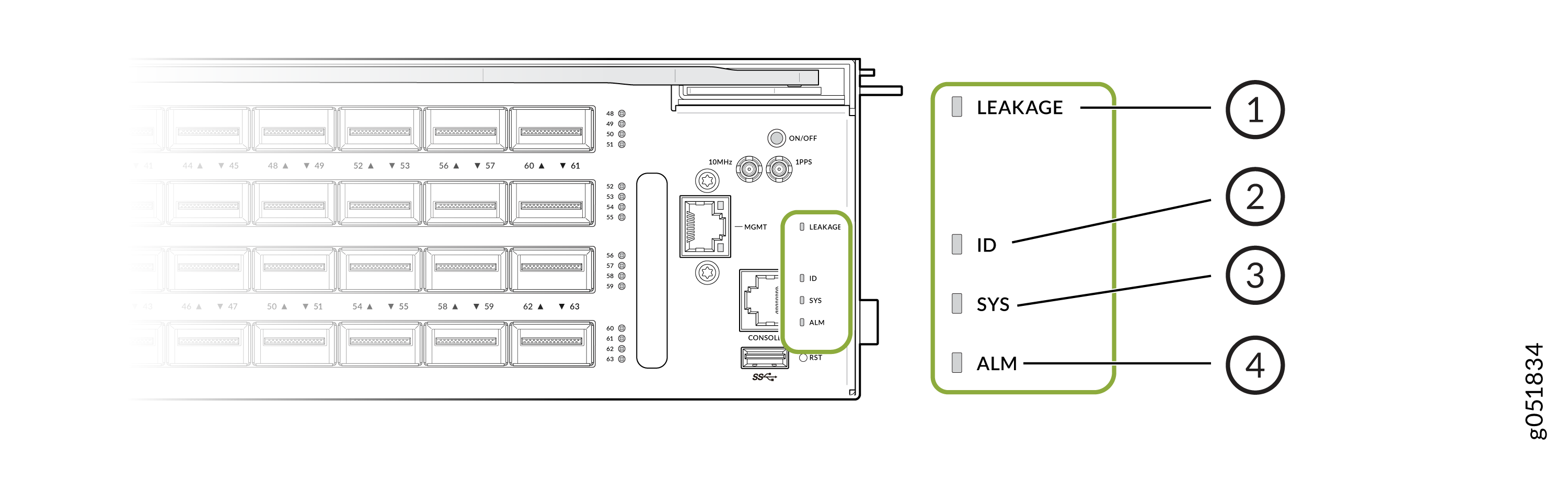
QFX5250-64OE-L (liquid-cooled model)—You can view the colors of the LEDs remotely through
the CLI by issuing the operational mode command show chassis led:
user@host> show chassis led
 -----------------------------------
LEDs status:
    Alarm LED : Yellow
    Beacon LED: Off
    System LED: Green

Interface               STATUS LED      LINK/ACTIVITY LED
---------------------------------------------------------
et-0/0/0                N/A             Off
et-0/0/1                N/A             Off
et-0/0/2                N/A             Off
et-0/0/3                N/A             Off
et-0/0/4                N/A             Off
et-0/0/5                N/A             Off
et-0/0/6                N/A             Off
et-0/0/7                N/A             Off
et-0/0/8                N/A             Green
et-0/0/9                N/A             Green
et-0/0/10               N/A             Off
et-0/0/11               N/A             Off
et-0/0/12               N/A             Off
et-0/0/13               N/A             Off
et-0/0/14               N/A             Off
et-0/0/15               N/A             Off
et-0/0/16               N/A             Off
et-0/0/17               N/A             Off
et-0/0/18               N/A             Off
et-0/0/19               N/A             Off
et-0/0/20               N/A             Off
et-0/0/21               N/A             Off
et-0/0/22               N/A             Off
et-0/0/23               N/A             Off
et-0/0/24               N/A             Off
et-0/0/25               N/A             Off
et-0/0/26               N/A             Off
et-0/0/27               N/A             Off
et-0/0/28               N/A             Amber
et-0/0/29               N/A             Off
et-0/0/30               N/A             Red
et-0/0/31               N/A             Amber
et-0/0/32               N/A             Off
et-0/0/33               N/A             Off
et-0/0/34               N/A             Off
et-0/0/35               N/A             Off
et-0/0/36               N/A             Off
et-0/0/37               N/A             Off
et-0/0/38               N/A             Off
et-0/0/39               N/A             Off
et-0/0/40               N/A             Off
et-0/0/41               N/A             Off
et-0/0/42               N/A             Off
et-0/0/43               N/A             Off
et-0/0/44               N/A             Off
et-0/0/45               N/A             Off
et-0/0/46               N/A             Off
et-0/0/47               N/A             Off
et-0/0/48               N/A             Off
et-0/0/49:0             N/A             Off
et-0/0/49:1             N/A             Off
et-0/0/49:2             N/A             Off
et-0/0/49:3             N/A             Off
et-0/0/49:4             N/A             Off
et-0/0/49:5             N/A             Off
et-0/0/49:6             N/A             Off
et-0/0/49:7             N/A             Off
et-0/0/50               N/A             Off
et-0/0/51               N/A             Off
et-0/0/52:0             N/A             Off
et-0/0/52:1             N/A             Off
et-0/0/52:2             N/A             Off
et-0/0/52:3             N/A             Off
et-0/0/52:4             N/A             Off
et-0/0/52:5             N/A             Off
et-0/0/52:6             N/A             Off
et-0/0/52:7             N/A             Off
et-0/0/53               N/A             Off
et-0/0/54               N/A             Off
et-0/0/55               N/A             Off
et-0/0/56               N/A             Off
et-0/0/57               N/A             Off
et-0/0/58               N/A             Off
et-0/0/59               N/A             Off
et-0/0/60               N/A             Off
et-0/0/61               N/A             Off
et-0/0/62               N/A             Off
et-0/0/63               N/A             Off
et-0/0/64               N/A             Amber
et-0/0/65 N/A Off| Indication | Color | State | Description |
| ALM (Alarm) LED | Unlit | Off |
The switch is halted, or there is no alarm. |
| Red | On steadily |
A major system level fault has occurred, such as a temperature alarm, power failure, or media failure. It may lead to a device shutdown. Use the CLI commands |
|
| Yellow | On steadily |
A minor system level fault has occurred, such as a software error or a missing rescue configuration. Use the CLI commands |
|
| Red and Yellow | Blinking |
A major system level fault has occurred, along with a minor system level fault and the device has halted. |
|
| SYS (System) | Unlit | Off |
The device is powered off or halted. Note: The SYS LED glows green during BIOS booting.
|
| Green | Blinking |
The system is loading Junos OS Evolved or shutting down. |
|
| Green | On steadily | Junos OS Evolved is loaded on the device. | |
| ID (Identification) | Unlit | Off |
The beacon feature is not enabled on the device. Enable this feature by using the
|
| Blue | Blinking |
The beacon feature is enabled on the device. Disable this feature by using the
|
|
|
Note: Port beacon is currently not supported on the QFX5250 switch.
Tip:
To know the status of the beacon, use the user@host> show chassis beacon
OFF
|
|||
Management Port LEDs
The RJ-45 management port on the QFX5250 switches have two LEDs that indicate link status and link activity. The management port is labeled MGMT.
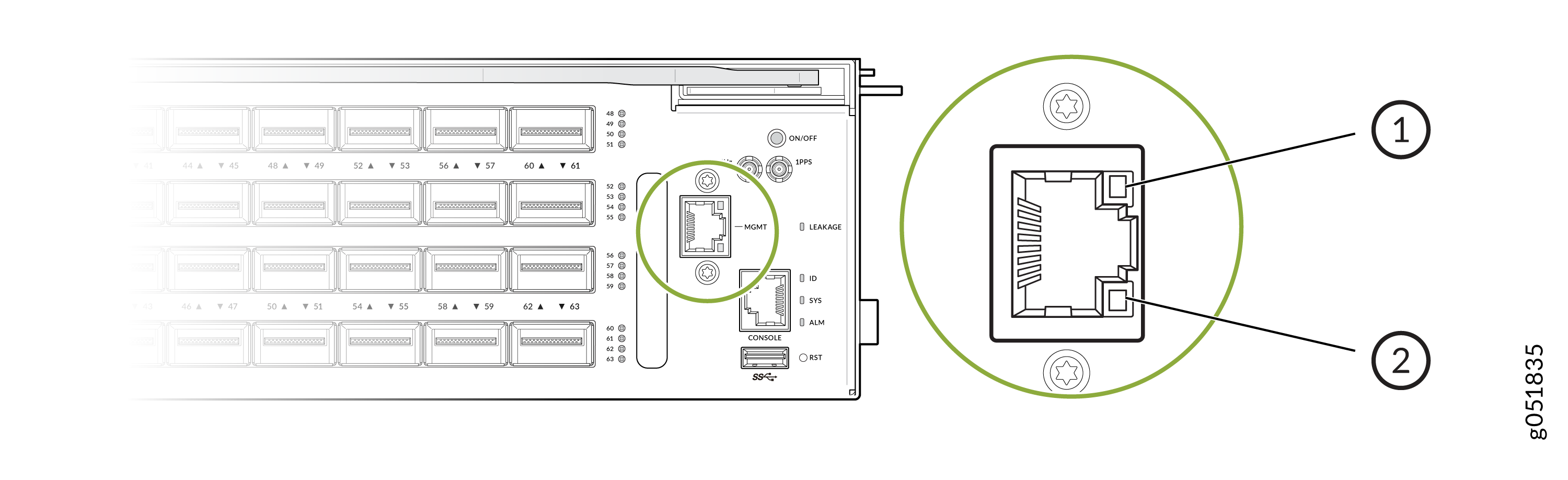
| LED | Color | State | Description |
| Link activity |
Green |
Blinking |
A link is established, and there is link activity. |
| Status | Solid Green | On steadily | The port speed is 1 Gbps. |
| Unlit | Off | The link is down. | |
| Unlit | Off |
The port speed is 10 Mbps. |
Push Buttons on QFX5250
| Button Name | Functional Description |
| Reset (RST) | Press the switch to reset the system. |
|
Press and hold the switch for more than 250 milliseconds and less than 10 seconds to reset the system. Press and hold the switch for more than 10 seconds to initiate BIOS recovery. |
|
| ON/OFF |
When a leakage is detected, the QFX5250 liquid-cooled switch does not power-on until the power button is pressed. Turn on or turn off the system power:
|
Network Port Status LEDs
Each OSFP Port is provided with a single bi-color LED, red and green.
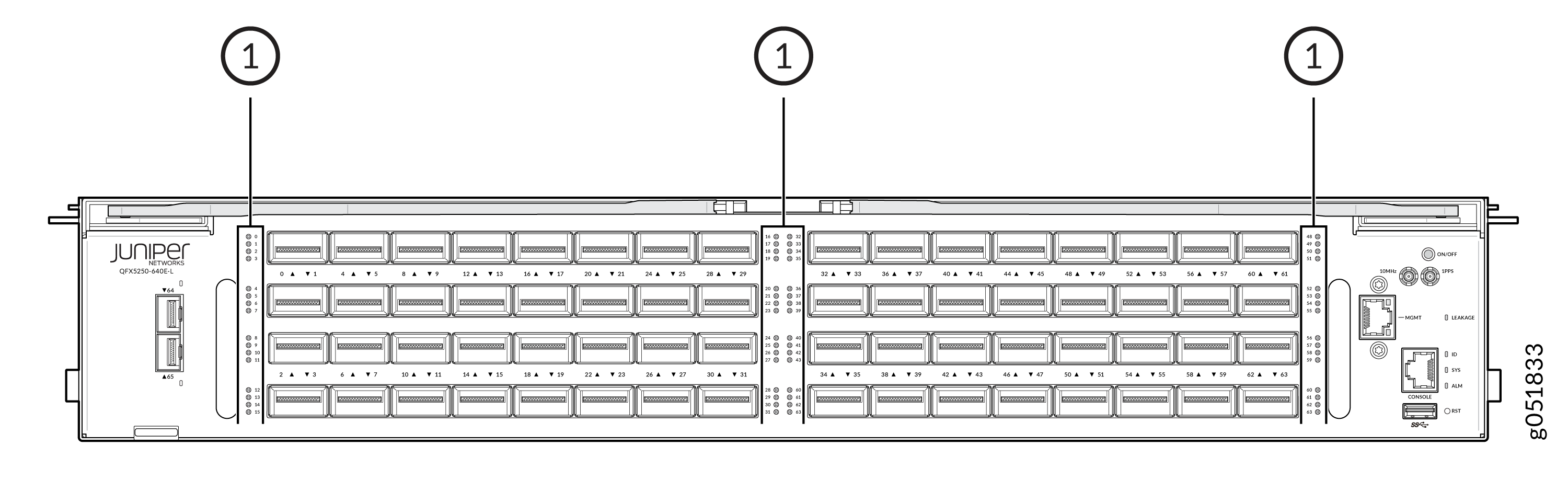
| Callout | Item | Description |
|---|---|---|
|
1 |
Network Ports |
| Color | State | Description | Lane Display |
|---|---|---|---|
| No Breakout (Non-channelized) | |||
| Unlit | Off |
By default, the LED is unlit, so it is in the Off state. The LED can be unlit even when power is present and a transceiver is present in the port. |
Not Applicable |
| Green | On Steadily | A link is established, and there is no link activity. | |
| Green | On Steadily |
A link is established, and there is link activity. |
|
| Red | On Steadily |
The link is down because the port or transceiver has a hardware failure. |
|
| Off | Off |
The link is down with an LoS. |
|
| Amber | On Steadily |
The link is down or the port experiences a fault other than loss of signal or transceiver hardware failure. |
|
| Amber | On Steadily |
The link is down because the port was disabled through the CLI. |
|
| Off | Off |
Transceiver is not installed. |
|
| Amber | On Steadily | An interface error is detected. | |
| Breakout (Channelized) | |||
| Off | On Steadily |
By default, the LED is unlit, so it is in the Off state. The LED can be unlit even when power is present and a transceiver is present in the port. |
Per Lane LED is not provided |
| Green | On Steadily |
A link is established, and there is no link activity. |
|
| Green | On Steadily Note: Green LED indication is lit only if
link is up for all channels.
|
A link is established, and there is link activity. |
|
| Red | On Steadily |
The link is down because the port or transceiver has a hardware failure with transceiver initialization error. |
|
| Off | Off |
The link is down with an LoS for all channels. |
|
| Amber | On Steadily |
The link is down because at least one of the breakout port was disabled through the CLI. |
|
| Amber | On Steadily |
The LED color is amber for all other scenarios. |
|
| Color | State | Description | Lane Display |
|---|---|---|---|
| Unlit | Off | Default (power on, with or without transceiver) | Not Applicable |
| Green | On Steadily | Link is established with no activity | |
| Green | On Steadily | Link is established with activity | |
| Red | On Steadily | Link is down, with transceiver hardware failure | |
| Off | Off | Link is down with loss of signal (LoS) detected | |
| Amber | On Steadily | Link is down with any other fault except LoS and transceiver hardware failure | |
| Amber | On Steadily | Port is explicitly disabled in the Command line interface (CLI) | |
| Off | Off | Anything except disabled port but no transceiver is present |