QFX5220-128C Port Panel
Overview
The port panel of the QFX5220-128C consists of 128 high-density 100-Gigabit Ethernet quad small form-factor pluggable solution (QSFP28) ports and the management panel. The highly flexible ports support 100-Gbps or 40-Gbps port speeds. The QFX5220-128C supports channelizing the QSFP28 ports to 4 independent 25-Gbps speed interfaces. The switch has two dedicated 10-Gigabit Ethernet ports; 32 of the 128 ports can be channelized to 4 x 25-Gbps. See Figure 1.
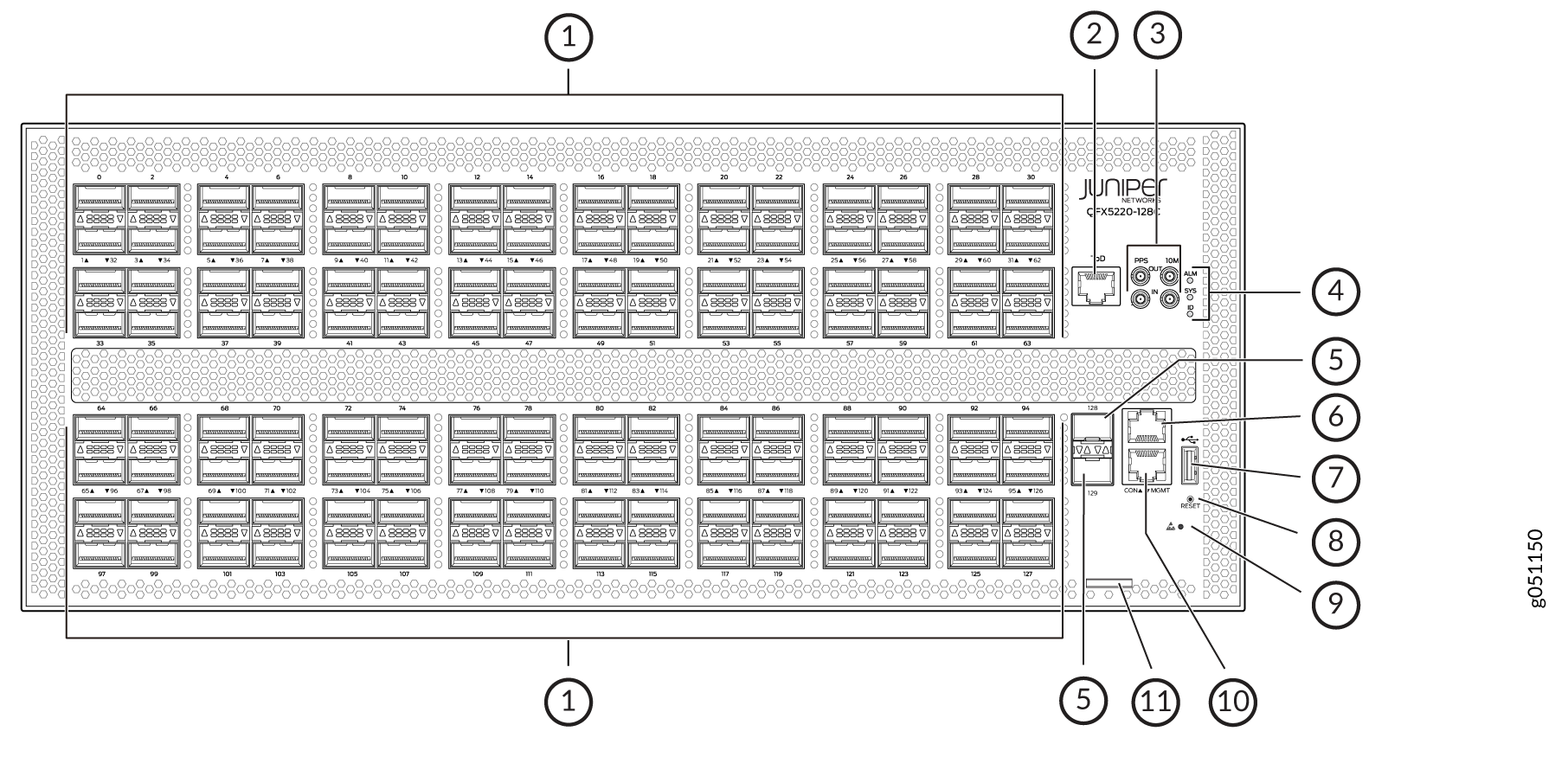
1 — 128 QSFP28 ports | 7 — USB 2.0 port |
2 — RJ-45 time-of-day message port | 8 — Reset button |
3 — PTP-capable connections: SMB In, SMB Out, 10 MHz In, 10 MHz Out | 9 — ESD point |
4 — Chassis status alarms | 10 — RJ-45 MGMT connection for the re0:mgmt-0 management interface |
5 — 2 SFP+ ports | 11 — Chassis serial number pull-out tab |
6 — RJ-45 console port (CON) to support RS-232 serial ports. (The LEDs indicate status and link.) |
Network Ports
The QFX5220-128C QSFP28 network ports (0 to 127) support:
-
100-Gbps QSFP28 transceivers
-
100-Gbps QSFP28 direct attach copper (DAC) cables
-
100-Gbps QSFP28 to 25-Gbps SFP28 direct attach copper break out (DACBO) cables (100-Gbps breaks out to 4 independent 25-Gbps ports)
-
100-Gbps active optic cables (AOC)
-
40-Gbps QSFP+ transceivers
-
40-Gbps AOC
-
40 Gbps QSFP+ DAC cables
-
40 Gbps QSFP+ transceivers
- Ports qualified for channelization support 100-Gbps QSFP28 to 25-Gbps SFP28 direct attach copper break out (DACBO) cables (100-Gbps breaks out to 4 independent 25-Gbps.
-
The last two SFP+ ports cannot support 1GbE modules. These two ports support only 10GbE modules.
The 10-Gbps network ports 128 (et-0/0/128) and 129 (et-0/0/129) support SFP+ transceivers.
Port Configurations
The QFX5220-128C has 128 QSFP28 ports and 2 SFP+ ports. You can configure any of these ports in these combinations:
-
Any of the QSFP28 ports can be configured as 100 Gbps.
-
For Junos OS Evolved releases up to 20.2R1, you can configure any even-numbered QSFP28 port 40 Gbps speed. The system configures the next (odd) port as unused. For Junos OS Evolved releases 20.2R1 and later, you can configure all 128 QSFP28 ports for 40 Gbps speed.
-
Every first port (0, 4, 8...124) can be configured as channelized 4 x 25 Gbps. However before configuring a port as channelized, the next three ports must be configured as unused.
-
Any SFP+ port can be configured as 10 Gbps or 1 Gbps.
Table 1 shows how each QSFP28 port can be configured. You can mix and match speeds as long as you adhere to the port rules. For example, on the same device you can configure port 0 as 40 Gbps, ports 2 and 3 as 100 Gbps, and port port as 4 x 25 Gbps. In this example, port 1 and port 5-7 must be configured as unused unless you are running Junos OS Evolved Release 20.2R1 or later..
|
Port |
Ports Configurable as 100 Gbps |
Ports Configurable as 40 Gbps |
Ports Configurable as channelized 4 x 25 Gbps |
|---|---|---|---|
|
0 |
✓ |
✓ |
✓ |
|
1 |
✓ |
Configure as unused for initial Junos OS Evolved releases ✓ for Junos OS Evolved 20.2R1 and later |
Configure as unused |
|
2 |
✓ |
✓ |
Configure as unused |
|
3 |
✓ |
Configure as unused for initial Junos OS Evolved releases ✓ for Junos OS Evolved 20.2R1 and later |
Configure as unused |
|
4 |
✓ |
✓ |
✓ |
|
5 |
✓ |
Configure as unused for initial Junos OS Evolved releases ✓ for Junos OS Evolved 20.2R1 and later |
Configure as unused |
|
6 |
✓ |
✓ |
Configure as unused |
|
7 |
✓ |
Configure as unused for initial Junos OS Evolved releases ✓ for Junos OS Evolved 20.2R1 and later |
Configure as unused |
|
8 |
✓ |
✓ |
✓ |
|
9 |
✓ |
Configure as unused for initial Junos OS Evolved releases ✓ for Junos OS Evolved 20.2R1 and later |
Configure as unused |
|
10 |
✓ |
✓ |
Configure as unused |
|
11 |
✓ |
Configure as unused for initial Junos OS Evolved releases ✓ for Junos OS Evolved 20.2R1 and later |
Configure as unused |
|
12 |
✓ |
✓ |
✓ |
|
13 |
✓ |
Configure as unused for initial Junos OS Evolved releases ✓ for Junos OS Evolved 20.2R1 and later |
Configure as unused |
|
14 |
✓ |
✓ |
Configure as unused |
|
15 |
✓ |
Configure as unused for initial Junos OS Evolved releases ✓ for Junos OS Evolved 20.2R1 and later |
Configure as unused |
|
16 |
✓ |
✓ |
✓ |
|
17 |
✓ |
Configure as unused for initial Junos OS Evolved releases ✓ for Junos OS Evolved 20.2R1 and later |
Configure as unused |
|
18 |
✓ |
✓ |
Configure as unused |
|
19 |
✓ |
Configure as unused for initial Junos OS Evolved releases ✓ for Junos OS Evolved 20.2R1 and later |
Configure as unused |
|
20 |
✓ |
✓ |
✓ |
|
21 |
✓ |
Configure as unused for initial Junos OS Evolved releases ✓ for Junos OS Evolved 20.2R1 and later |
Configure as unused |
|
22 |
✓ |
✓ |
Configure as unused |
|
23 |
✓ |
Configure as unused for initial Junos OS Evolved releases ✓ for Junos OS Evolved 20.2R1 and later |
Configure as unused |
|
24 |
✓ |
✓ |
✓ |
|
25 |
✓ |
Configure as unused for initial Junos OS Evolved releases ✓ for Junos OS Evolved 20.2R1 and later |
Configure as unused |
|
26 |
✓ |
✓ |
Configure as unused |
|
27 |
✓ |
Configure as unused for initial Junos OS Evolved releases ✓ for Junos OS Evolved 20.2R1 and later |
Configure as unused |
|
28 |
✓ |
✓ |
✓ |
|
29 |
✓ |
Configure as unused for initial Junos OS Evolved releases ✓ for Junos OS Evolved 20.2R1 and later |
Configure as unused |
|
30 |
✓ |
✓ |
Configure as unused |
|
31 |
✓ |
Configure as unused for initial Junos OS Evolved releases ✓ for Junos OS Evolved 20.2R1 and later |
Configure as unused |
|
32 |
✓ |
✓ |
✓ |
|
33 |
✓ |
Configure as unused for initial Junos OS Evolved releases ✓ for Junos OS Evolved 20.2R1 and later |
Configure as unused |
|
34 |
✓ |
✓ |
Configure as unused |
|
35 |
✓ |
Configure as unused for initial Junos OS Evolved releases ✓ for Junos OS Evolved 20.2R1 and later |
Configure as unused |
|
36 |
✓ |
✓ |
✓ |
|
37 |
✓ |
Configure as unused for initial Junos OS Evolved releases ✓ for Junos OS Evolved 20.2R1 and later |
Configure as unused |
|
38 |
✓ |
✓ |
Configure as unused |
|
39 |
✓ |
Configure as unused for initial Junos OS Evolved releases ✓ for Junos OS Evolved 20.2R1 and later |
Configure as unused |
|
40 |
✓ |
✓ |
✓ |
|
41 |
✓ |
Configure as unused for initial Junos OS Evolved releases ✓ for Junos OS Evolved 20.2R1 and later |
Configure as unused |
|
42 |
✓ |
✓ |
Configure as unused |
|
43 |
✓ |
Configure as unused for initial Junos OS Evolved releases ✓ for Junos OS Evolved 20.2R1 and later |
Configure as unused |
|
44 |
✓ |
✓ |
✓ |
|
45 |
✓ |
Configure as unused for initial Junos OS Evolved releases ✓ for Junos OS Evolved 20.2R1 and later |
Configure as unused |
|
46 |
✓ |
✓ |
Configure as unused |
|
47 |
✓ |
Configure as unused for initial Junos OS Evolved releases ✓ for Junos OS Evolved 20.2R1 and later |
Configure as unused |
|
48 |
✓ |
✓ |
✓ |
|
49 |
✓ |
Configure as unused for initial Junos OS Evolved releases ✓ for Junos OS Evolved 20.2R1 and later |
Configure as unused |
|
50 |
✓ |
✓ |
Configure as unused |
|
51 |
✓ |
Configure as unused for initial Junos OS Evolved releases ✓ for Junos OS Evolved 20.2R1 and later |
Configure as unused |
|
52 |
✓ |
✓ |
✓ |
|
53 |
Configure as unused for initial Junos OS Evolved releases ✓ for Junos OS Evolved 20.2R1 and later |
Configure as unused |
|
|
54 |
✓ |
✓ |
Configure as unused |
|
55 |
✓ |
Configure as unused for initial Junos OS Evolved releases ✓ for Junos OS Evolved 20.2R1 and later |
Configure as unused |
|
56 |
✓ |
✓ |
✓ |
|
57 |
✓ |
Configure as unused for initial Junos OS Evolved releases ✓ for Junos OS Evolved 20.2R1 and later |
Configure as unused |
|
58 |
✓ |
✓ |
Configure as unused |
|
59 |
✓ |
Configure as unused for initial Junos OS Evolved releases ✓ for Junos OS Evolved 20.2R1 and later |
Configure as unused |
|
60 |
✓ |
✓ |
✓ |
|
61 |
✓ |
Configure as unused for initial Junos OS Evolved releases ✓ for Junos OS Evolved 20.2R1 and later |
Configure as unused |
|
62 |
✓ |
✓ |
Configure as unused |
|
63 |
✓ |
Configure as unused for initial Junos OS Evolved releases ✓ for Junos OS Evolved 20.2R1 and later |
Configure as unused |
|
64 |
✓ |
✓ |
✓ |
|
65 |
✓ |
Configure as unused for initial Junos OS Evolved releases ✓ for Junos OS Evolved 20.2R1 and later |
Configure as unused |
|
66 |
✓ |
✓ |
Configure as unused |
|
67 |
✓ |
Configure as unused for initial Junos OS Evolved releases ✓ for Junos OS Evolved 20.2R1 and later |
Configure as unused |
|
68 |
✓ |
✓ |
✓ |
|
69 |
✓ |
Configure as unused for initial Junos OS Evolved releases ✓ for Junos OS Evolved 20.2R1 and later |
Configure as unused |
|
70 |
✓ |
✓ |
Configure as unused |
|
71 |
✓ |
Configure as unused for initial Junos OS Evolved releases ✓ for Junos OS Evolved 20.2R1 and later |
Configure as unused |
|
72 |
✓ |
✓ |
✓ |
|
73 |
✓ |
Configure as unused for initial Junos OS Evolved releases ✓ for Junos OS Evolved 20.2R1 and later |
Configure as unused |
|
74 |
✓ |
✓ |
Configure as unused |
|
75 |
✓ |
Configure as unused for initial Junos OS Evolved releases ✓ for Junos OS Evolved 20.2R1 and later |
Configure as unused |
|
76 |
✓ |
✓ |
✓ |
|
77 |
✓ |
Configure as unused for initial Junos OS Evolved releases ✓ for Junos OS Evolved 20.2R1 and later |
Configure as unused |
|
78 |
✓ |
✓ |
Configure as unused |
|
79 |
✓ |
Configure as unused for initial Junos OS Evolved releases ✓ for Junos OS Evolved 20.2R1 and later |
Configure as unused |
|
80 |
✓ |
✓ |
✓ |
|
81 |
✓ |
Configure as unused for initial Junos OS Evolved releases ✓ for Junos OS Evolved 20.2R1 and later |
Configure as unused |
|
82 |
✓ |
✓ |
Configure as unused |
|
83 |
✓ |
Configure as unused for initial Junos OS Evolved releases ✓ for Junos OS Evolved 20.2R1 and later |
Configure as unused |
|
84 |
✓ |
✓ |
✓ |
|
85 |
✓ |
Configure as unused for initial Junos OS Evolved releases ✓ for Junos OS Evolved 20.2R1 and later |
Configure as unused |
|
86 |
✓ |
✓ |
Configure as unused |
|
87 |
✓ |
Configure as unused for initial Junos OS Evolved releases ✓ for Junos OS Evolved 20.2R1 and later |
Configure as unused |
|
88 |
✓ |
✓ |
✓ |
|
89 |
✓ |
Configure as unused for initial Junos OS Evolved releases ✓ for Junos OS Evolved 20.2R1 and later |
Configure as unused |
|
90 |
✓ |
✓ |
Configure as unused |
|
91 |
✓ |
Configure as unused for initial Junos OS Evolved releases ✓ for Junos OS Evolved 20.2R1 and later |
Configure as unused |
|
92 |
✓ |
✓ |
✓ |
|
93 |
✓ |
Configure as unused for initial Junos OS Evolved releases ✓ for Junos OS Evolved 20.2R1 and later |
Configure as unused |
|
94 |
✓ |
✓ |
Configure as unused |
|
95 |
✓ |
Configure as unused for initial Junos OS Evolved releases ✓ for Junos OS Evolved 20.2R1 and later |
Configure as unused |
|
96 |
✓ |
✓ |
✓ |
|
97 |
✓ |
Configure as unused for initial Junos OS Evolved releases ✓ for Junos OS Evolved 20.2R1 and later |
Configure as unused |
|
98 |
✓ |
✓ |
Configure as unused |
|
99 |
✓ |
Configure as unused for initial Junos OS Evolved releases ✓ for Junos OS Evolved 20.2R1 and later |
Configure as unused |
|
100 |
✓ |
✓ |
✓ |
|
101 |
✓ |
Configure as unused for initial Junos OS Evolved releases ✓ for Junos OS Evolved 20.2R1 and later |
Configure as unused |
|
102 |
✓ |
✓ |
Configure as unused |
|
103 |
✓ |
Configure as unused for initial Junos OS Evolved releases ✓ for Junos OS Evolved 20.2R1 and later |
Configure as unused |
|
104 |
✓ |
✓ |
✓ |
|
105 |
✓ |
Configure as unused for initial Junos OS Evolved releases ✓ for Junos OS Evolved 20.2R1 and later |
Configure as unused |
|
106 |
✓ |
✓ |
Configure as unused |
|
107 |
✓ |
Configure as unused for initial Junos OS Evolved releases ✓ for Junos OS Evolved 20.2R1 and later |
Configure as unused |
|
108 |
✓ |
✓ |
✓ |
|
109 |
✓ |
Configure as unused for initial Junos OS Evolved releases ✓ for Junos OS Evolved 20.2R1 and later |
Configure as unused |
|
110 |
✓ |
✓ |
Configure as unused |
|
111 |
✓ |
Configure as unused for initial Junos OS Evolved releases ✓ for Junos OS Evolved 20.2R1 and later |
Configure as unused |
|
112 |
✓ |
✓ |
✓ |
|
113 |
✓ |
Configure as unused for initial Junos OS Evolved releases ✓ for Junos OS Evolved 20.2R1 and later |
Configure as unused |
|
114 |
✓ |
✓ |
Configure as unused |
|
115 |
✓ |
Configure as unused for initial Junos OS Evolved releases ✓ for Junos OS Evolved 20.2R1 and later |
Configure as unused |
|
116 |
✓ |
✓ |
✓ |
|
117 |
✓ |
Configure as unused for initial Junos OS Evolved releases ✓ for Junos OS Evolved 20.2R1 and later |
Configure as unused |
|
118 |
✓ |
✓ |
Configure as unused |
|
119 |
✓ |
Configure as unused for initial Junos OS Evolved releases ✓ for Junos OS Evolved 20.2R1 and later |
Configure as unused |
|
120 |
✓ |
✓ |
✓ |
|
121 |
✓ |
Configure as unused for initial Junos OS Evolved releases ✓ for Junos OS Evolved 20.2R1 and later |
Configure as unused |
|
122 |
✓ |
✓ |
Configure as unused |
|
123 |
✓ |
Configure as unused for initial Junos OS Evolved releases ✓ for Junos OS Evolved 20.2R1 and later |
Configure as unused |
|
124 |
✓ |
✓ |
✓ |
|
125 |
✓ |
Configure as unused for initial Junos OS Evolved releases ✓ for Junos OS Evolved 20.2R1 and later |
Configure as unused |
|
126 |
✓ |
✓ |
Configure as unused |
|
127 |
✓ |
Configure as unused for initial Junos OS Evolved releases ✓ for Junos OS Evolved 20.2R1 and later |
Configure as unused |
100-Gbps Port Configuration
All QSFP28 ports support either 40 Gbps or 100 Gbps. Use the set chassis fpc 0 pic 0 port port-num speed 100g
command to configure ports 0 to 127 for 100-Gbps speed and commit the configuration.
40-Gbps Port Configuration
Before configuring a port for 40 Gbps, determine its associated used port (see Table 1). In the following example, you would need to configure the neighboring port first before configuring port et-0/0/0. If you are running a newer software release, you can skip to Step 2.
-
Block the port following the desired 40-Gbps port as unused and commit the configuration. For example, because you are configuring et-0/0/0 as 40 Gbps, you must first configure the following port (et-0/0/1) as unused and commit that configuration.
# set chassis fpc 0 pic 0 port 1 unused
# commit
-
Configure the speed on the desired port (et-0/0/0) as 40 Gbps and commit the configuration.
# set chassis fpc 0 pic 0 port 0 speed 40g
# commit
4 x 25 Gbps Port Channelization
Before configuring a port for channelization, determine its associated used ports (see Table 1). In the following example, you’ll configure port et-0/0/4 to operate as a 4 x 25 Gbps channelized port.
-
Block the three ports following the desired channelized port as unused, and commit the configuration. For example, because you are configuring et-0/0/4 as 4 x 25 Gbps, you must first configure the following ports (et-0/0/5, et-0/0/6, and et-0/0/7) as unused and commit the configuration.
# set chassis fpc 0 pic 0 port 5 unused
# set chassis fpc 0 pic 0 port 6 unused
# set chassis fpc 0 pic 0 port 7 unused
# commit
Software removes these ports and updates the configuration.
-
Configure the speed on the desired port (et-0/0/4) as 25 Gbps, the
number -of sub-portsas 4, and commit the configuration:# set chassis fpc 0 pic 0 port 4 speed 25g number-of-sub-ports 4 # commit
Delete 4 x 25 Gbps Port Channelization
To remove the channelization configuration from a set of QFX5220-128C ports, delete the configuration from the channelized port and commit the configuration. For example:
# delete chassis fpc 0 pic 0 port port-number number-of-sub-ports 4
# delete chassis fpc 0 pic 0 port port-number speed port-speed
# commit
An incorrectly configured port can cause unexpected port and
switch behavior. The system software does not check whether the port
speed or the attached optic are supported at the time of the commit.
Use the show chassis alarms and the show chassis pic
fpc-slot 0 pic-slot 0 to locate incorrectly configured ports.
See Configuration Changes Leading to Unexpected QFX5220 Behavior.
QFX5220-128C Network LEDs
The QSFP28 network ports use a single bi-colored LED for each port or channel to indicate link status, activity on the link, or a fault condition. When the port is channelized, there is an LED for each channel; when the port is not channelized, the left-most LED indicates the port link status.
The 10-Gbps SFP+ ports have separate bi-colored LEDs; the left LED indicates link and activity and the right LED indicates a fault condition. See Figure 2.
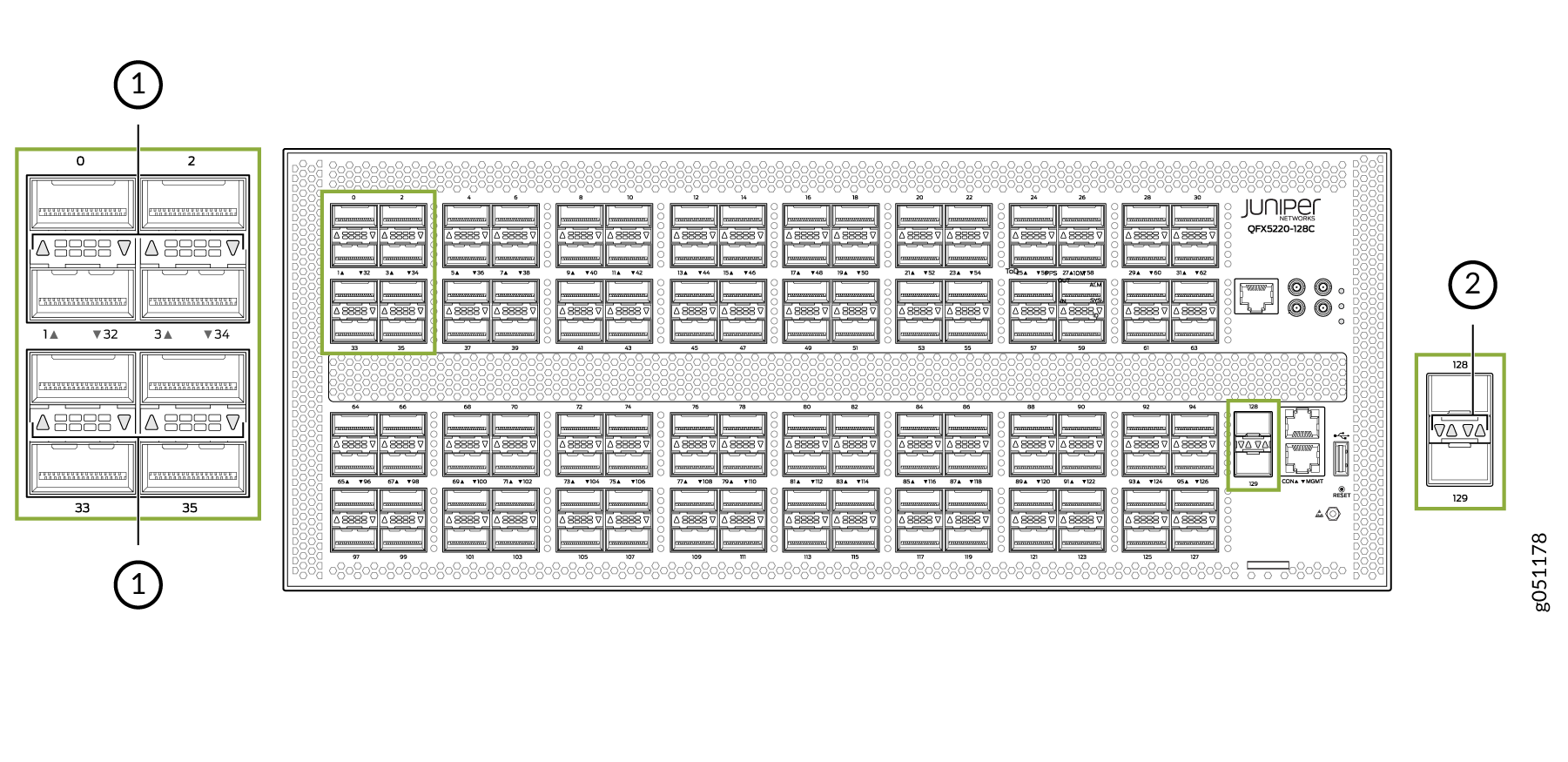
1 — QSFP28 LEDs that indicate link/activity,status, and channelization | 2 — SFP+ :LEDs that indicate link/activity and status |
Table 2 describe the various states of the LEDs for the QSFP28 ports and Table 3 describe the LED states for the SFP+ ports.
|
Color |
State |
Non-Channelized |
Channelized |
|---|---|---|---|
|
Unlit |
Off |
The port is administratively disabled, there is no power, the link is down, no module is present, or the interface is disabled. |
A module is not present, all sub-channels are disabled, or there is no link. |
|
Green |
On steadily |
A link is established, but there is no link activity. |
All sub-channels are up. |
|
Flashing |
A link is established, and there is link activity. |
The interface is up with activity. |
|
|
Blipping |
The beacon is enabled on the port. |
The beacon is enabled on the port. |
|
|
Amber |
On steadily |
NA |
At least one, but not all sub-channels are up. |
|
Blinking |
There is an interface error. |
There is an error on one or more sub-channels. |
|
|
Flashing |
NA |
At least one, but not all sub-channels are up with activity. |
|
LED |
Color |
State |
Description |
|---|---|---|---|
|
Link/Activity |
Unlit |
Off |
The port is administratively disabled, there is no power, the link is down, or there is a fault. |
|
Green |
On steadily |
A link is established, but there is no link activity. |
|
|
Blinking |
A link is established, and there is link activity. |
||
|
Amber |
Blinking |
The beacon is enabled on the port. |
|
|
Status |
Unlit |
Off |
The link is down or there is a fault. |
|
Green |
On steadily |
A 10-Gigabit Ethernet transceiver is installed in the port and link is established. |
|
|
Green |
Blinking |
A 1-Gigabit Ethernet transceiver is installed in the port and the link is established. |
|
|
Amber |
Slow blipping |
The beacon function is enabled on the port. |
QFX5230-64CD Port Panel
- Overview
- Network Ports
- Port Configurations
- 100-Gbps Port Configuration
- 40-Gbps Port Configuration
- 4 x 25 Gbps Port Channelization
- Delete 4 x 25 Gbps Port Channelization
- QFX5220-128C Network LEDs
Overview
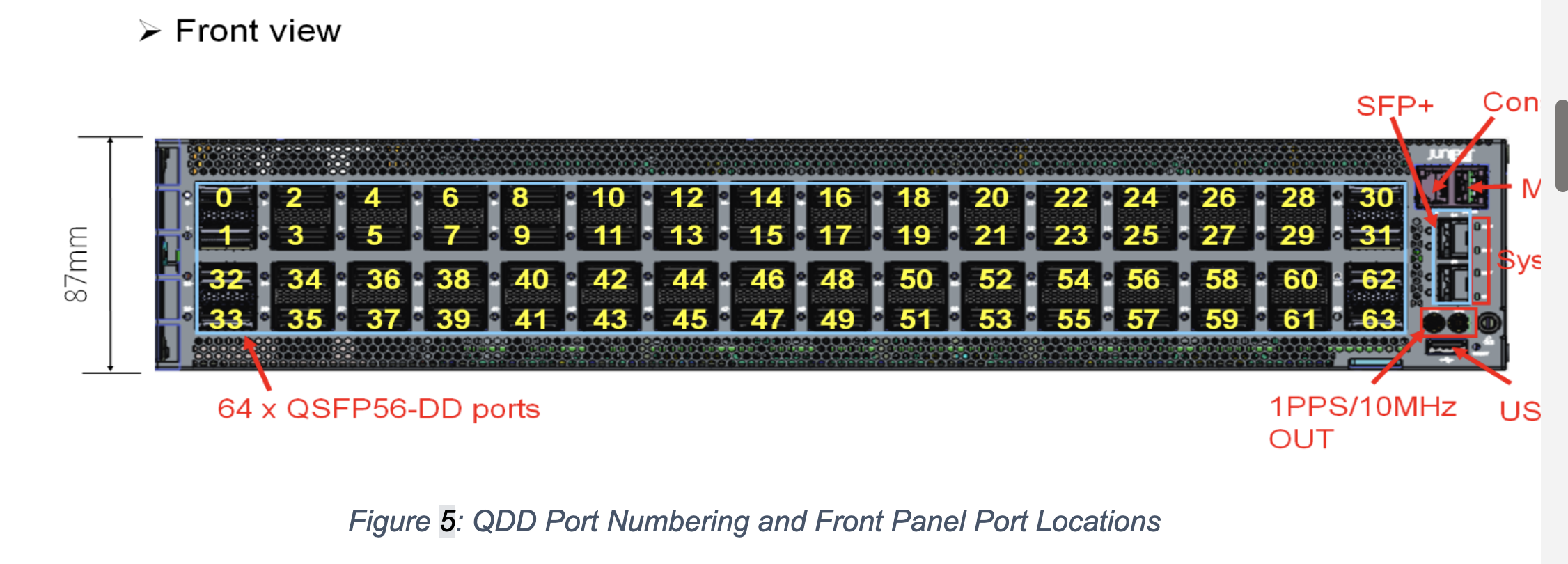
The port panel of the QFX5230-64CD consists of 64 high-density 100-Gigabit Ethernet quad small form-factor pluggable solution (QSFP56-DD) ports and the management panel. It also contains 2 SFP+ ports. The QFX5230-64CD supports channelizing the QSFP28 ports to 4 independent 25-Gbps speed interfaces. The switch has two dedicated 10-Gigabit Ethernet ports; 32 of the 128 ports can be channelized to 4 x 25-Gbps. .
Network Ports
Ethernet Ports à 64xQSFP56-DD user ports
PHY less connection to QSFP56-DD ports
Flexible SerDes that contains Serdes lanes per BlackhawkCore, configured to operate in any of the following configurations: 10GbE KR, SFI, XFI (1-lane) 40GbE XLAUI, XLPPI (4-lane), 50GbE KR-2 (2-lane), 100GbE CR4, KR-4, CAUI-4 (4-lane), 50GbE CR, KR (1-lane), 100GbE CR-2, KR-2 (2-lane), 200GbE CR-4, KR-4, GAUI-4 (4-lane), 400GbE GAUI-8 (8-lane)
2xSFP+ user ports
10G/1GE SFP+ ports
System management port and Console port
1x RJ45 MGMT port for 1GE connectivity to the network
1x RJ45 Console port
PTP timing support10MHz and 1PPS clock signal output via 2x DIN connectors
1x USB 2.0 Type A
The QFX5220-128C QSFP28 network ports (0 to 127) support:
-
100-Gbps QSFP28 transceivers
-
100-Gbps QSFP28 direct attach copper (DAC) cables
-
100-Gbps QSFP28 to 25-Gbps SFP28 direct attach copper break out (DACBO) cables (100-Gbps breaks out to 4 independent 25-Gbps ports)
-
100-Gbps active optic cables (AOC)
-
40-Gbps QSFP+ transceivers
-
40-Gbps AOC
-
40 Gbps QSFP+ DAC cables
-
40 Gbps QSFP+ transceivers
- Ports qualified for channelization support 100-Gbps QSFP28 to 25-Gbps SFP28 direct attach copper break out (DACBO) cables (100-Gbps breaks out to 4 independent 25-Gbps.
-
The last two SFP+ ports cannot support 1GbE modules. These two ports support only 10GbE modules.
The 10-Gbps network ports 128 (et-0/0/128) and 129 (et-0/0/129) support SFP+ transceivers.
Port Configurations
The QFX5220-128C has 128 QSFP28 ports and 2 SFP+ ports. You can configure any of these ports in these combinations:
-
Any of the QSFP28 ports can be configured as 100 Gbps.
-
For Junos OS Evolved releases up to 20.2R1, you can configure any even-numbered QSFP28 port 40 Gbps speed. The system configures the next (odd) port as unused. For Junos OS Evolved releases 20.2R1 and later, you can configure all 128 QSFP28 ports for 40 Gbps speed.
-
Every first port (0, 4, 8...124) can be configured as channelized 4 x 25 Gbps. However before configuring a port as channelized, the next three ports must be configured as unused.
-
Any SFP+ port can be configured as 10 Gbps or 1 Gbps.
Table 1 shows how each QSFP28 port can be configured. You can mix and match speeds as long as you adhere to the port rules. For example, on the same device you can configure port 0 as 40 Gbps, ports 2 and 3 as 100 Gbps, and port port as 4 x 25 Gbps. In this example, port 1 and port 5-7 must be configured as unused unless you are running Junos OS Evolved Release 20.2R1 or later..
|
Port |
Ports Configurable as 100 Gbps |
Ports Configurable as 40 Gbps |
Ports Configurable as channelized 4 x 25 Gbps |
|---|---|---|---|
|
0 |
✓ |
✓ |
✓ |
|
1 |
✓ |
Configure as unused for initial Junos OS Evolved releases ✓ for Junos OS Evolved 20.2R1 and later |
Configure as unused |
|
2 |
✓ |
✓ |
Configure as unused |
|
3 |
✓ |
Configure as unused for initial Junos OS Evolved releases ✓ for Junos OS Evolved 20.2R1 and later |
Configure as unused |
|
4 |
✓ |
✓ |
✓ |
|
5 |
✓ |
Configure as unused for initial Junos OS Evolved releases ✓ for Junos OS Evolved 20.2R1 and later |
Configure as unused |
|
6 |
✓ |
✓ |
Configure as unused |
|
7 |
✓ |
Configure as unused for initial Junos OS Evolved releases ✓ for Junos OS Evolved 20.2R1 and later |
Configure as unused |
|
8 |
✓ |
✓ |
✓ |
|
9 |
✓ |
Configure as unused for initial Junos OS Evolved releases ✓ for Junos OS Evolved 20.2R1 and later |
Configure as unused |
|
10 |
✓ |
✓ |
Configure as unused |
|
11 |
✓ |
Configure as unused for initial Junos OS Evolved releases ✓ for Junos OS Evolved 20.2R1 and later |
Configure as unused |
|
12 |
✓ |
✓ |
✓ |
|
13 |
✓ |
Configure as unused for initial Junos OS Evolved releases ✓ for Junos OS Evolved 20.2R1 and later |
Configure as unused |
|
14 |
✓ |
✓ |
Configure as unused |
|
15 |
✓ |
Configure as unused for initial Junos OS Evolved releases ✓ for Junos OS Evolved 20.2R1 and later |
Configure as unused |
|
16 |
✓ |
✓ |
✓ |
|
17 |
✓ |
Configure as unused for initial Junos OS Evolved releases ✓ for Junos OS Evolved 20.2R1 and later |
Configure as unused |
|
18 |
✓ |
✓ |
Configure as unused |
|
19 |
✓ |
Configure as unused for initial Junos OS Evolved releases ✓ for Junos OS Evolved 20.2R1 and later |
Configure as unused |
|
20 |
✓ |
✓ |
✓ |
|
21 |
✓ |
Configure as unused for initial Junos OS Evolved releases ✓ for Junos OS Evolved 20.2R1 and later |
Configure as unused |
|
22 |
✓ |
✓ |
Configure as unused |
|
23 |
✓ |
Configure as unused for initial Junos OS Evolved releases ✓ for Junos OS Evolved 20.2R1 and later |
Configure as unused |
|
24 |
✓ |
✓ |
✓ |
|
25 |
✓ |
Configure as unused for initial Junos OS Evolved releases ✓ for Junos OS Evolved 20.2R1 and later |
Configure as unused |
|
26 |
✓ |
✓ |
Configure as unused |
|
27 |
✓ |
Configure as unused for initial Junos OS Evolved releases ✓ for Junos OS Evolved 20.2R1 and later |
Configure as unused |
|
28 |
✓ |
✓ |
✓ |
|
29 |
✓ |
Configure as unused for initial Junos OS Evolved releases ✓ for Junos OS Evolved 20.2R1 and later |
Configure as unused |
|
30 |
✓ |
✓ |
Configure as unused |
|
31 |
✓ |
Configure as unused for initial Junos OS Evolved releases ✓ for Junos OS Evolved 20.2R1 and later |
Configure as unused |
|
32 |
✓ |
✓ |
✓ |
|
33 |
✓ |
Configure as unused for initial Junos OS Evolved releases ✓ for Junos OS Evolved 20.2R1 and later |
Configure as unused |
|
34 |
✓ |
✓ |
Configure as unused |
|
35 |
✓ |
Configure as unused for initial Junos OS Evolved releases ✓ for Junos OS Evolved 20.2R1 and later |
Configure as unused |
|
36 |
✓ |
✓ |
✓ |
|
37 |
✓ |
Configure as unused for initial Junos OS Evolved releases ✓ for Junos OS Evolved 20.2R1 and later |
Configure as unused |
|
38 |
✓ |
✓ |
Configure as unused |
|
39 |
✓ |
Configure as unused for initial Junos OS Evolved releases ✓ for Junos OS Evolved 20.2R1 and later |
Configure as unused |
|
40 |
✓ |
✓ |
✓ |
|
41 |
✓ |
Configure as unused for initial Junos OS Evolved releases ✓ for Junos OS Evolved 20.2R1 and later |
Configure as unused |
|
42 |
✓ |
✓ |
Configure as unused |
|
43 |
✓ |
Configure as unused for initial Junos OS Evolved releases ✓ for Junos OS Evolved 20.2R1 and later |
Configure as unused |
|
44 |
✓ |
✓ |
✓ |
|
45 |
✓ |
Configure as unused for initial Junos OS Evolved releases ✓ for Junos OS Evolved 20.2R1 and later |
Configure as unused |
|
46 |
✓ |
✓ |
Configure as unused |
|
47 |
✓ |
Configure as unused for initial Junos OS Evolved releases ✓ for Junos OS Evolved 20.2R1 and later |
Configure as unused |
|
48 |
✓ |
✓ |
✓ |
|
49 |
✓ |
Configure as unused for initial Junos OS Evolved releases ✓ for Junos OS Evolved 20.2R1 and later |
Configure as unused |
|
50 |
✓ |
✓ |
Configure as unused |
|
51 |
✓ |
Configure as unused for initial Junos OS Evolved releases ✓ for Junos OS Evolved 20.2R1 and later |
Configure as unused |
|
52 |
✓ |
✓ |
✓ |
|
53 |
Configure as unused for initial Junos OS Evolved releases ✓ for Junos OS Evolved 20.2R1 and later |
Configure as unused |
|
|
54 |
✓ |
✓ |
Configure as unused |
|
55 |
✓ |
Configure as unused for initial Junos OS Evolved releases ✓ for Junos OS Evolved 20.2R1 and later |
Configure as unused |
|
56 |
✓ |
✓ |
✓ |
|
57 |
✓ |
Configure as unused for initial Junos OS Evolved releases ✓ for Junos OS Evolved 20.2R1 and later |
Configure as unused |
|
58 |
✓ |
✓ |
Configure as unused |
|
59 |
✓ |
Configure as unused for initial Junos OS Evolved releases ✓ for Junos OS Evolved 20.2R1 and later |
Configure as unused |
|
60 |
✓ |
✓ |
✓ |
|
61 |
✓ |
Configure as unused for initial Junos OS Evolved releases ✓ for Junos OS Evolved 20.2R1 and later |
Configure as unused |
|
62 |
✓ |
✓ |
Configure as unused |
|
63 |
✓ |
Configure as unused for initial Junos OS Evolved releases ✓ for Junos OS Evolved 20.2R1 and later |
Configure as unused |
|
64 |
✓ |
✓ |
✓ |
|
65 |
✓ |
Configure as unused for initial Junos OS Evolved releases ✓ for Junos OS Evolved 20.2R1 and later |
Configure as unused |
|
66 |
✓ |
✓ |
Configure as unused |
|
67 |
✓ |
Configure as unused for initial Junos OS Evolved releases ✓ for Junos OS Evolved 20.2R1 and later |
Configure as unused |
|
68 |
✓ |
✓ |
✓ |
|
69 |
✓ |
Configure as unused for initial Junos OS Evolved releases ✓ for Junos OS Evolved 20.2R1 and later |
Configure as unused |
|
70 |
✓ |
✓ |
Configure as unused |
|
71 |
✓ |
Configure as unused for initial Junos OS Evolved releases ✓ for Junos OS Evolved 20.2R1 and later |
Configure as unused |
|
72 |
✓ |
✓ |
✓ |
|
73 |
✓ |
Configure as unused for initial Junos OS Evolved releases ✓ for Junos OS Evolved 20.2R1 and later |
Configure as unused |
|
74 |
✓ |
✓ |
Configure as unused |
|
75 |
✓ |
Configure as unused for initial Junos OS Evolved releases ✓ for Junos OS Evolved 20.2R1 and later |
Configure as unused |
|
76 |
✓ |
✓ |
✓ |
|
77 |
✓ |
Configure as unused for initial Junos OS Evolved releases ✓ for Junos OS Evolved 20.2R1 and later |
Configure as unused |
|
78 |
✓ |
✓ |
Configure as unused |
|
79 |
✓ |
Configure as unused for initial Junos OS Evolved releases ✓ for Junos OS Evolved 20.2R1 and later |
Configure as unused |
|
80 |
✓ |
✓ |
✓ |
|
81 |
✓ |
Configure as unused for initial Junos OS Evolved releases ✓ for Junos OS Evolved 20.2R1 and later |
Configure as unused |
|
82 |
✓ |
✓ |
Configure as unused |
|
83 |
✓ |
Configure as unused for initial Junos OS Evolved releases ✓ for Junos OS Evolved 20.2R1 and later |
Configure as unused |
|
84 |
✓ |
✓ |
✓ |
|
85 |
✓ |
Configure as unused for initial Junos OS Evolved releases ✓ for Junos OS Evolved 20.2R1 and later |
Configure as unused |
|
86 |
✓ |
✓ |
Configure as unused |
|
87 |
✓ |
Configure as unused for initial Junos OS Evolved releases ✓ for Junos OS Evolved 20.2R1 and later |
Configure as unused |
|
88 |
✓ |
✓ |
✓ |
|
89 |
✓ |
Configure as unused for initial Junos OS Evolved releases ✓ for Junos OS Evolved 20.2R1 and later |
Configure as unused |
|
90 |
✓ |
✓ |
Configure as unused |
|
91 |
✓ |
Configure as unused for initial Junos OS Evolved releases ✓ for Junos OS Evolved 20.2R1 and later |
Configure as unused |
|
92 |
✓ |
✓ |
✓ |
|
93 |
✓ |
Configure as unused for initial Junos OS Evolved releases ✓ for Junos OS Evolved 20.2R1 and later |
Configure as unused |
|
94 |
✓ |
✓ |
Configure as unused |
|
95 |
✓ |
Configure as unused for initial Junos OS Evolved releases ✓ for Junos OS Evolved 20.2R1 and later |
Configure as unused |
|
96 |
✓ |
✓ |
✓ |
|
97 |
✓ |
Configure as unused for initial Junos OS Evolved releases ✓ for Junos OS Evolved 20.2R1 and later |
Configure as unused |
|
98 |
✓ |
✓ |
Configure as unused |
|
99 |
✓ |
Configure as unused for initial Junos OS Evolved releases ✓ for Junos OS Evolved 20.2R1 and later |
Configure as unused |
|
100 |
✓ |
✓ |
✓ |
|
101 |
✓ |
Configure as unused for initial Junos OS Evolved releases ✓ for Junos OS Evolved 20.2R1 and later |
Configure as unused |
|
102 |
✓ |
✓ |
Configure as unused |
|
103 |
✓ |
Configure as unused for initial Junos OS Evolved releases ✓ for Junos OS Evolved 20.2R1 and later |
Configure as unused |
|
104 |
✓ |
✓ |
✓ |
|
105 |
✓ |
Configure as unused for initial Junos OS Evolved releases ✓ for Junos OS Evolved 20.2R1 and later |
Configure as unused |
|
106 |
✓ |
✓ |
Configure as unused |
|
107 |
✓ |
Configure as unused for initial Junos OS Evolved releases ✓ for Junos OS Evolved 20.2R1 and later |
Configure as unused |
|
108 |
✓ |
✓ |
✓ |
|
109 |
✓ |
Configure as unused for initial Junos OS Evolved releases ✓ for Junos OS Evolved 20.2R1 and later |
Configure as unused |
|
110 |
✓ |
✓ |
Configure as unused |
|
111 |
✓ |
Configure as unused for initial Junos OS Evolved releases ✓ for Junos OS Evolved 20.2R1 and later |
Configure as unused |
|
112 |
✓ |
✓ |
✓ |
|
113 |
✓ |
Configure as unused for initial Junos OS Evolved releases ✓ for Junos OS Evolved 20.2R1 and later |
Configure as unused |
|
114 |
✓ |
✓ |
Configure as unused |
|
115 |
✓ |
Configure as unused for initial Junos OS Evolved releases ✓ for Junos OS Evolved 20.2R1 and later |
Configure as unused |
|
116 |
✓ |
✓ |
✓ |
|
117 |
✓ |
Configure as unused for initial Junos OS Evolved releases ✓ for Junos OS Evolved 20.2R1 and later |
Configure as unused |
|
118 |
✓ |
✓ |
Configure as unused |
|
119 |
✓ |
Configure as unused for initial Junos OS Evolved releases ✓ for Junos OS Evolved 20.2R1 and later |
Configure as unused |
|
120 |
✓ |
✓ |
✓ |
|
121 |
✓ |
Configure as unused for initial Junos OS Evolved releases ✓ for Junos OS Evolved 20.2R1 and later |
Configure as unused |
|
122 |
✓ |
✓ |
Configure as unused |
|
123 |
✓ |
Configure as unused for initial Junos OS Evolved releases ✓ for Junos OS Evolved 20.2R1 and later |
Configure as unused |
|
124 |
✓ |
✓ |
✓ |
|
125 |
✓ |
Configure as unused for initial Junos OS Evolved releases ✓ for Junos OS Evolved 20.2R1 and later |
Configure as unused |
|
126 |
✓ |
✓ |
Configure as unused |
|
127 |
✓ |
Configure as unused for initial Junos OS Evolved releases ✓ for Junos OS Evolved 20.2R1 and later |
Configure as unused |
100-Gbps Port Configuration
All QSFP28 ports support either 40 Gbps or 100 Gbps. Use the set chassis
fpc 0 pic 0 port port-num speed
100g
command to configure ports
0 to 127 for 100-Gbps speed
and commit the configuration.
40-Gbps Port Configuration
Before configuring a port for 40 Gbps, determine its associated used port (see Table 1). In the following example, you would need to configure the neighboring port first before configuring port et-0/0/0. If you are running a newer software release, you can skip to Step 2.
-
Block the port following the desired 40-Gbps port as unused and commit the configuration. For example, because you are configuring et-0/0/0 as 40 Gbps, you must first configure the following port (et-0/0/1) as unused and commit that configuration.
# set chassis fpc 0 pic 0 port 1 unused
# commit
-
Configure the speed on the desired port (et-0/0/0) as 40 Gbps and commit the configuration.
# set chassis fpc 0 pic 0 port 0 speed 40g
# commit
4 x 25 Gbps Port Channelization
Before configuring a port for channelization, determine its associated used ports (see Table 1). In the following example, you’ll configure port et-0/0/4 to operate as a 4 x 25 Gbps channelized port.
-
Block the three ports following the desired channelized port as unused, and commit the configuration. For example, because you are configuring et-0/0/4 as 4 x 25 Gbps, you must first configure the following ports (et-0/0/5, et-0/0/6, and et-0/0/7) as unused and commit the configuration.
# set chassis fpc 0 pic 0 port 5 unused
# set chassis fpc 0 pic 0 port 6 unused
# set chassis fpc 0 pic 0 port 7 unused
# commit
Software removes these ports and updates the configuration.
-
Configure the speed on the desired port (et-0/0/4) as 25 Gbps, the
number -of sub-portsas 4, and commit the configuration:# set chassis fpc 0 pic 0 port 4 speed 25g number-of-sub-ports 4 # commit
Delete 4 x 25 Gbps Port Channelization
To remove the channelization configuration from a set of QFX5220-128C ports, delete the configuration from the channelized port and commit the configuration. For example:
# delete chassis fpc 0 pic 0 port port-number number-of-sub-ports 4
# delete chassis fpc 0 pic 0 port port-number speed port-speed
# commit
An incorrectly configured port can cause unexpected port and switch behavior.
The system software does not check whether the port speed or the attached
optic are supported at the time of the commit. Use the show chassis
alarms and the show chassis pic fpc-slot 0 pic-slot
0 to locate incorrectly configured ports. See Configuration Changes Leading to Unexpected QFX5220 Behavior.
QFX5220-128C Network LEDs
The QSFP28 network ports use a single bi-colored LED for each port or channel to indicate link status, activity on the link, or a fault condition. When the port is channelized, there is an LED for each channel; when the port is not channelized, the left-most LED indicates the port link status.
The 10-Gbps SFP+ ports have separate bi-colored LEDs; the left LED indicates link and activity and the right LED indicates a fault condition. See Figure 2.
1 — QSFP28 LEDs that indicate link/activity,status, and channelization | 2 — SFP+ :LEDs that indicate link/activity and status |
Table 2 describe the various states of the LEDs for the QSFP28 ports and Table 3 describe the LED states for the SFP+ ports.
|
Color |
State |
Non-Channelized |
Channelized |
|---|---|---|---|
|
Unlit |
Off |
The port is administratively disabled, there is no power, the link is down, no module is present, or the interface is disabled. |
A module is not present, all sub-channels are disabled, or there is no link. |
|
Green |
On steadily |
A link is established, but there is no link activity. |
All sub-channels are up. |
|
Flashing |
A link is established, and there is link activity. |
The interface is up with activity. |
|
|
Blipping |
The beacon is enabled on the port. |
The beacon is enabled on the port. |
|
|
Amber |
On steadily |
NA |
At least one, but not all sub-channels are up. |
|
Blinking |
There is an interface error. |
There is an error on one or more sub-channels. |
|
|
Flashing |
NA |
At least one, but not all sub-channels are up with activity. |
|
LED |
Color |
State |
Description |
|---|---|---|---|
|
Link/Activity |
Unlit |
Off |
The port is administratively disabled, there is no power, the link is down, or there is a fault. |
|
Green |
On steadily |
A link is established, but there is no link activity. |
|
|
Blinking |
A link is established, and there is link activity. |
||
|
Amber |
Blinking |
The beacon is enabled on the port. |
|
|
Status |
Unlit |
Off |
The link is down or there is a fault. |
|
Green |
On steadily |
A 10-Gigabit Ethernet transceiver is installed in the port and link is established. |
|
|
Green |
Blinking |
A 1-Gigabit Ethernet transceiver is installed in the port and the link is established. |
|
|
Amber |
Slow blipping |
The beacon function is enabled on the port. |