ラベルを使用して「不明な」アプリケーションを特定する
ラベルの有益な用途の 1 つは、Juniper Mist で自動的に分類できないアプリケーションを識別することです。これにより、[アプリケーション] ページを表示すると、表示される不明な項目が少なくなり、データからより多くの分析情報が得られます。
™ Juniper Mist は、DNS クエリ応答を使用して、[分析情報] ページの [アプリケーション] セクションへの入力を支援します。「アプリケーション」セクションには、一部の事前定義されたアプリケーションが「不明」として表示されます。つまり、Juniper Mistはこのネットワークトラフィックを分類または識別できませんでした。
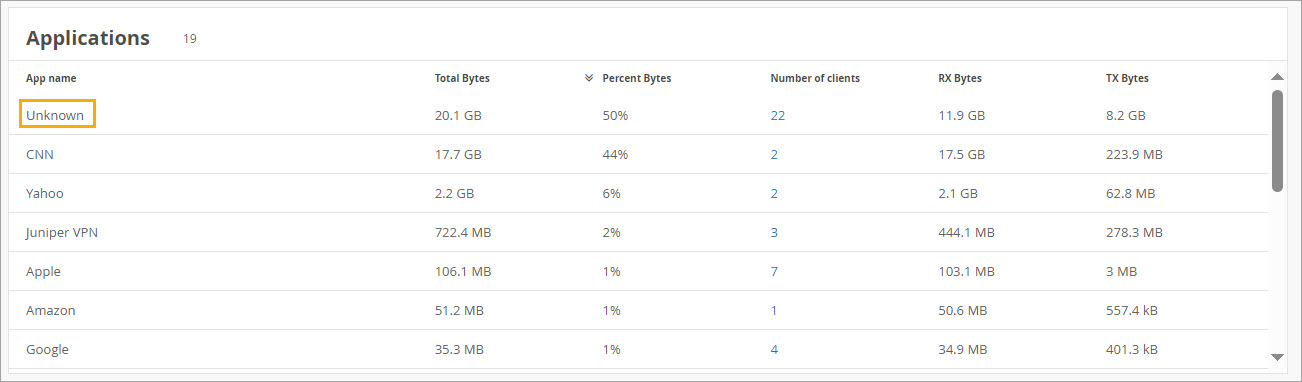
事前に定義されたアプリケーションの完全なリストを表示するには、/api/v1/sites/:site_id/wxtags/appsに移動します
これらのアプリケーションのいずれかを追跡する場合は、ラベルを使用して識別できます。ラベルは、組織レベルまたはサイトレベルで構成できます。
[インサイト(Insights)] ページには、アプリケーションのトラフィックしきい値があります。アプリケーションは、合計 200 KB 以上のトラフィックを担当している場合にのみ表示されます。
「不明な」アプリケーションのラベルを設定するには:
- 組織またはサイトの [ラベル] ページに移動します。
-
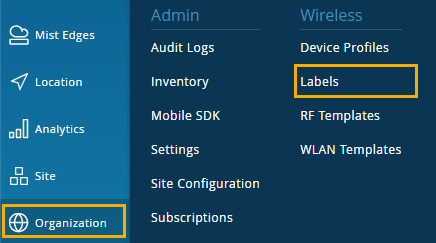
組織レベルのラベルには、[ 組織 ] > [Wireless | Juniper Mist ポータルの左側のメニューのラベル。
-
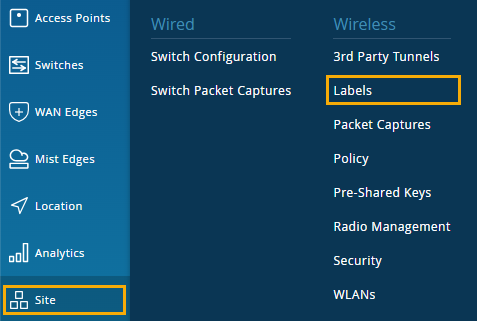
サイトレベルのラベルには、[ Site > Wireless | Juniper Mist ポータルの左側のメニューのラベル。
-
- 情報を入力します。
-
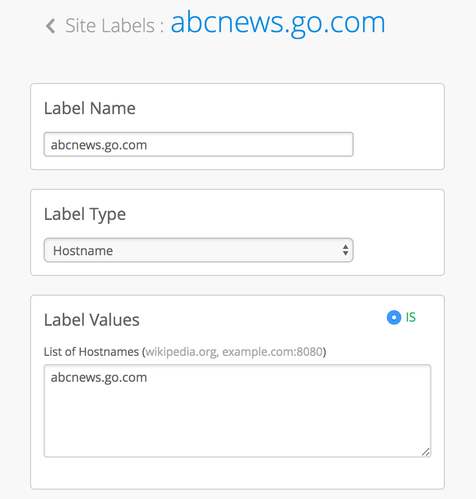
[ラベル名(Label Name)]:このアプリケーションの識別に使用する名前。
-
[ラベル タイプ(Label Type)]: [ホスト名(Hostname)] を選択します。
-
[List of Hostnames]:このラベルで識別するトラフィックのホスト名を入力します。
この例では、abcnews.go.com からのトラフィックには abcnews.go.com とラベル付けされます。
-