Microsoft TeamsにMarvisアプリをインストールする

次の手順に従って、Marvis アプリをインストールし、ジュニパー Mist™組織に接続し、アプリを Teams チャネルに追加します。

Teamsユーザーは、管理者がTeams環境でアプリを許可した場合にのみ、Marvisアプリをインストールして使用できます。さらに、管理者は、権限ポリシーを使用してユーザーがアプリを使用できるようにする必要があります。「 Microsoft TeamsでMarvisアプリを有効化または統合する」を参照してください。

TeamsにMarvisアプリをインストールする

TeamsにMarvisアプリをインストールするには:

  1. Microsoft Teams ウィンドウの左側のウィンドウから、[ アプリ] を選択します。
  2. 検索ボックスに Marvis を入力し、検索アイコンをクリックします。

    検索結果にMarvisアプリが表示されます。

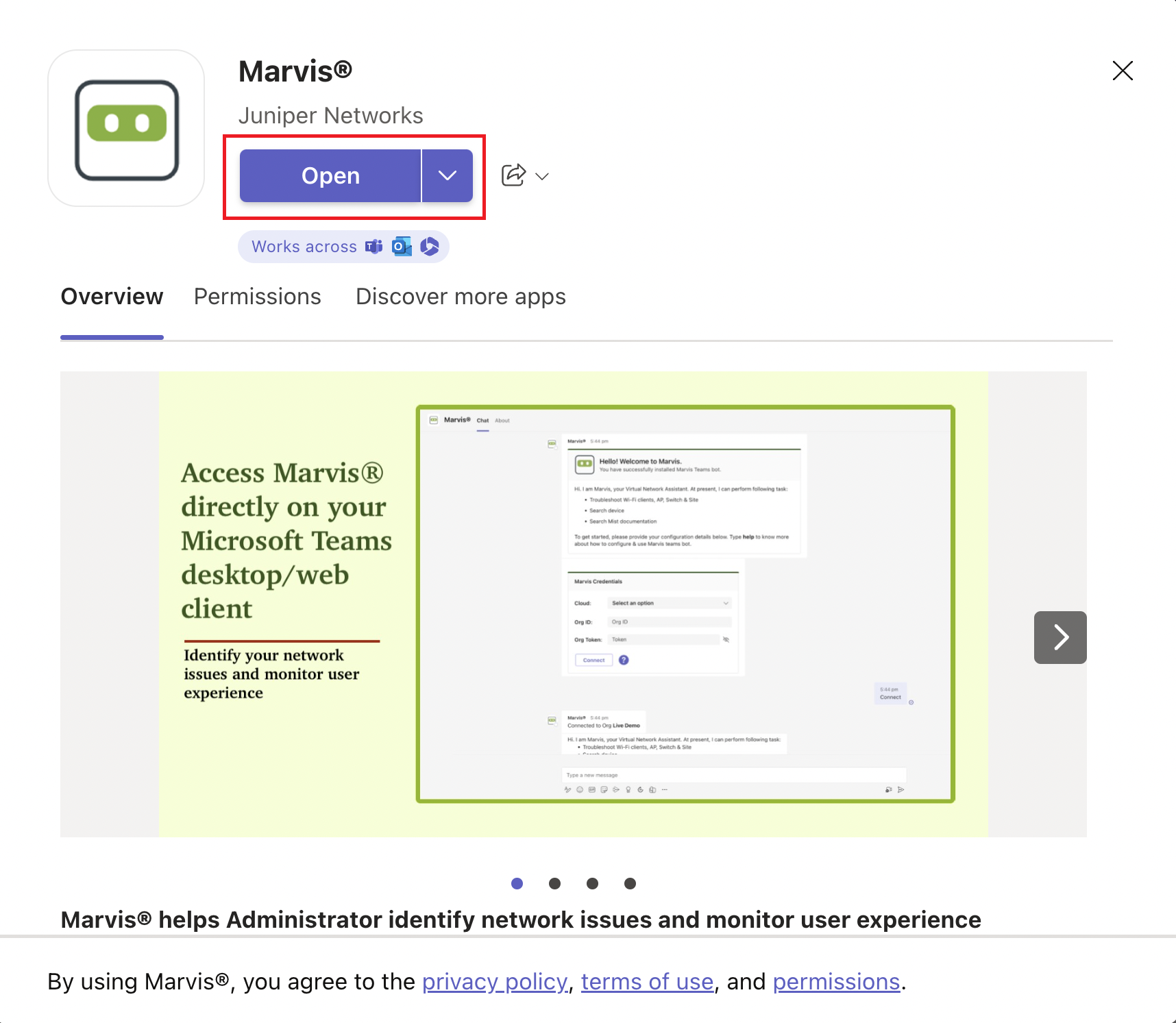
  3. アプリを選択し、[ 開く]をクリックします。

    Screenshot of Marvis by Juniper Networks app page in Microsoft Teams. Features Open button, app description, preview of Marvis interface, and footer agreement note.

    次のウィンドウが表示され、アプリが正常にインストールされたことを示します。
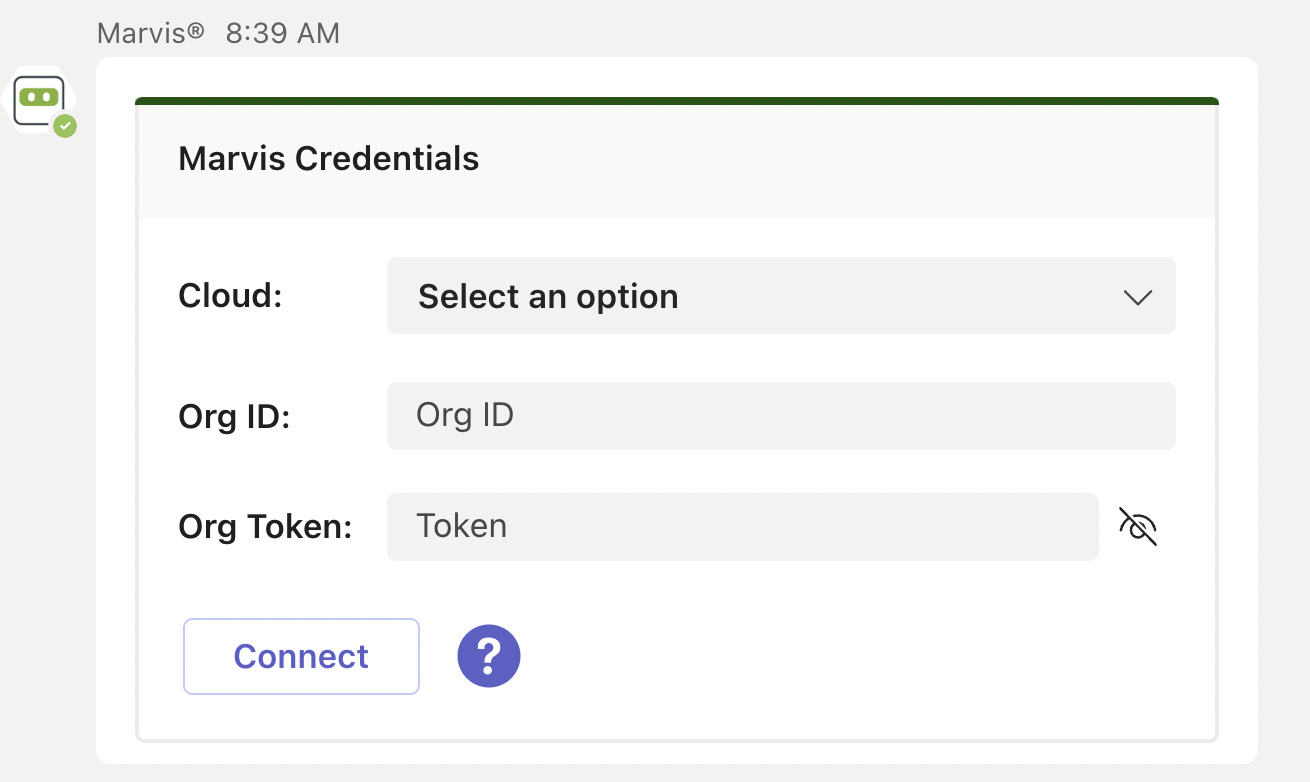
    User interface for entering Marvis Credentials with fields for Cloud dropdown, Org ID, Org Token with hide-show option, Connect button, and help icon.

  4. 次に、Mistポータルで組織に接続する必要があります。

Mist組織に接続する

Mist組織に接続するには:

  1. 企業にログインするには、以下の詳細を入力します。
    • クラウド環境名(Global 01、Global 02など)。この情報は、Mistポータルのログイン画面から取得できます。
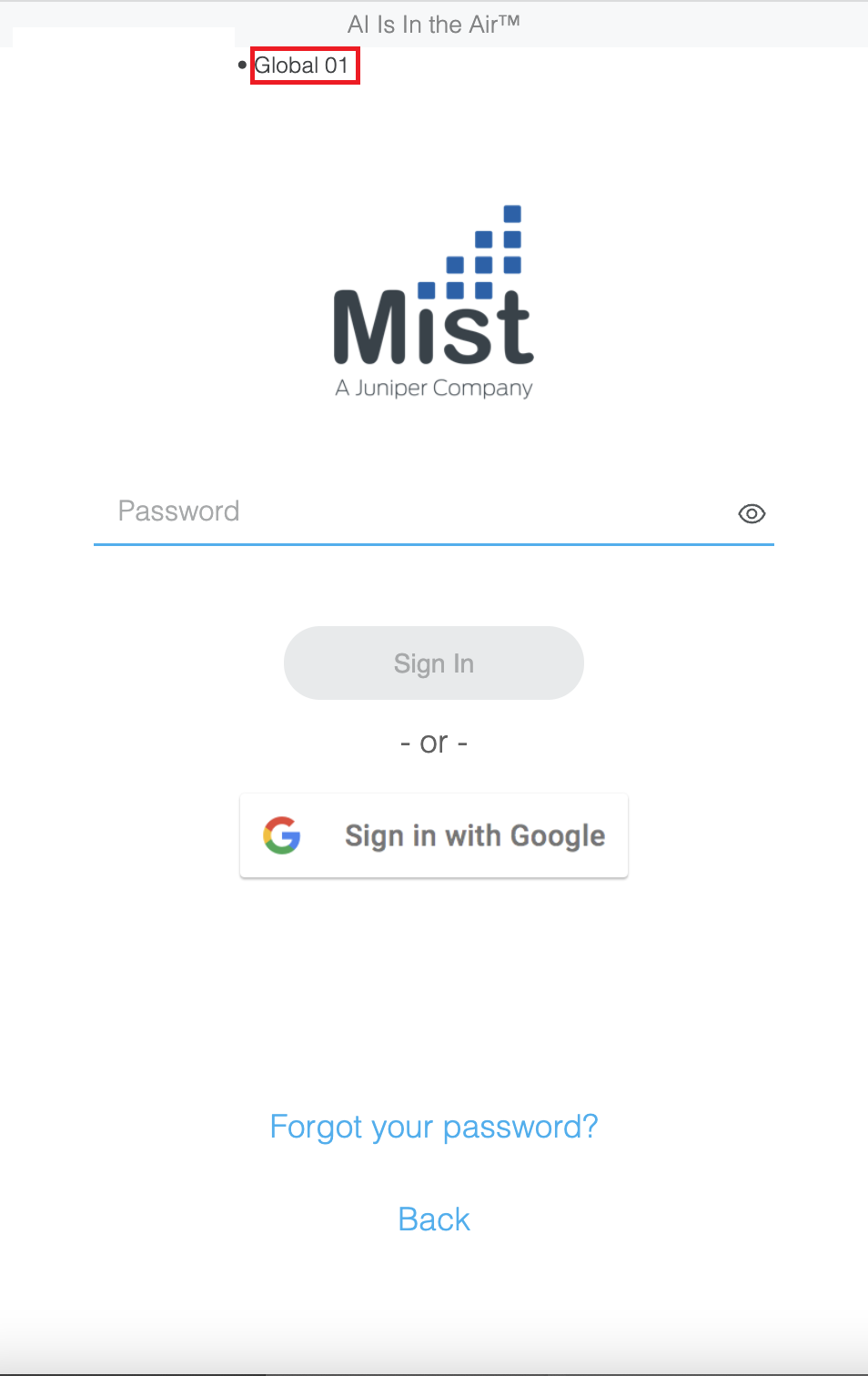
      Login page for Mist, a Juniper Networks company, with AI Is In the Air tagline, password field, Sign In and Google Sign-In buttons, and links for Forgot your password and Back.
    • 組織ID(組織ID)

      組織IDは、Mistポータルの 組織>設定 ページで確認できます。
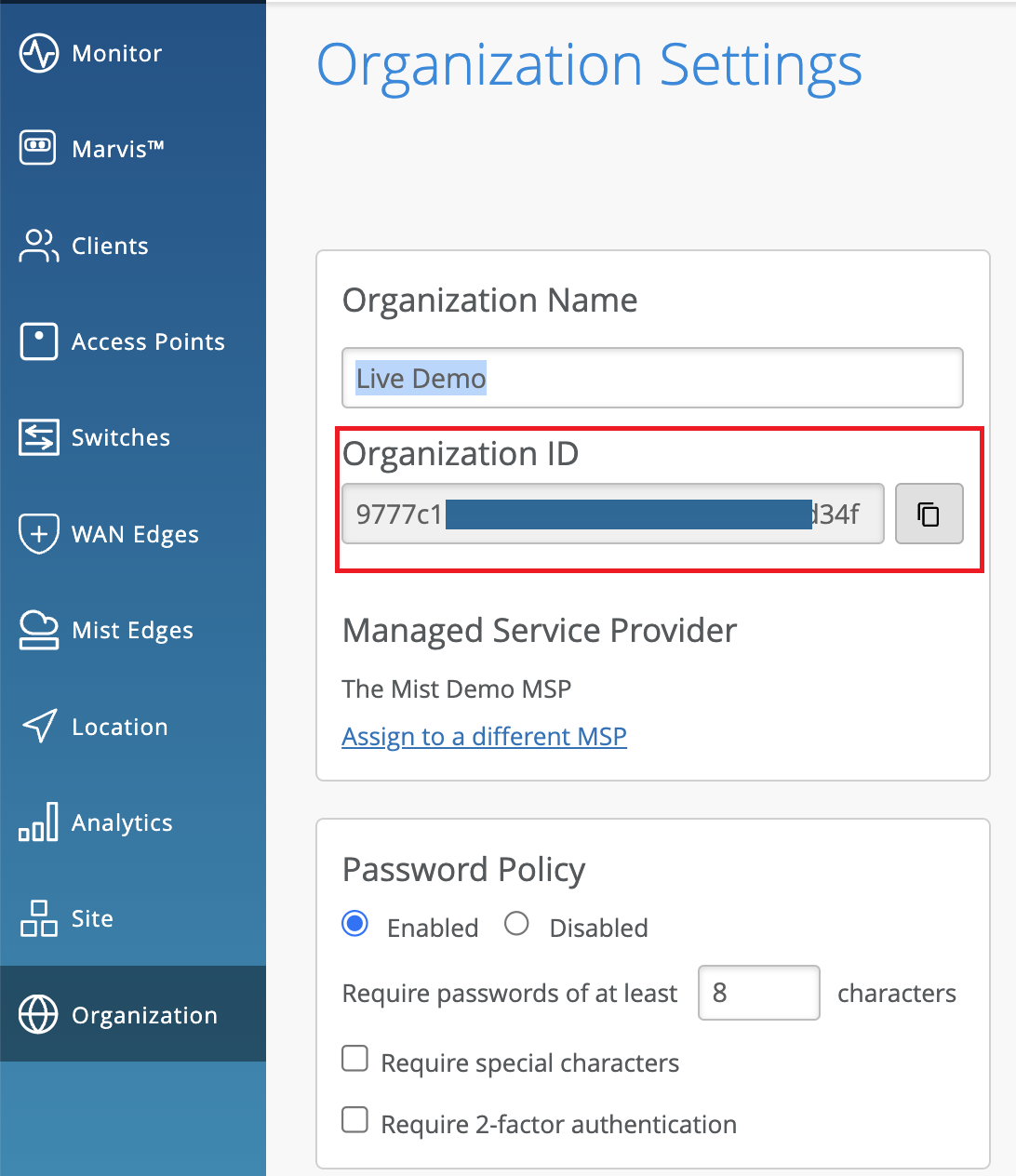
      Organization Settings page showcasing organization name Live Demo, organization ID partially visible in red, MSP set to The Mist Demo MSP, password policy enabled with 8-character minimum, no special character or 2FA requirement, and a navigation menu for IT management features like Monitor, Clients, and Access Points.
    • 組織トークン

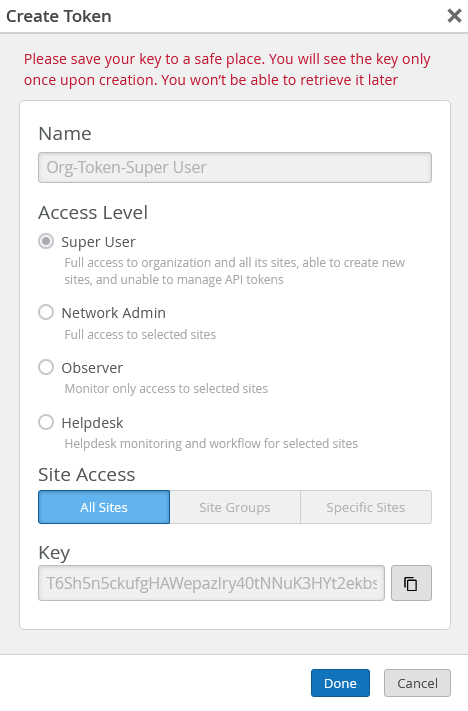
      組織トークンは、Mistポータルの 組織>設定 ページで生成できます。組織トークンは、ユーザーベースのAPIトークンと同様に機能しますが、特定の組織に関連付けられています。組織トークンの権限は、選択した アクセスレベル と サイトアクセス オプションに基づきます。

      トークンを作成するには:

      1. 設定ページのAPIトークンセクションにあるトークンの作成をクリックします。

      2. 名前を入力し、 生成をクリックします。生成されたキーは組織トークンです。

      Create Token interface with fields for token name, access level options, site access scope, generated token key with copy button, and action buttons Done and Cancel. Warning to save key securely is displayed.
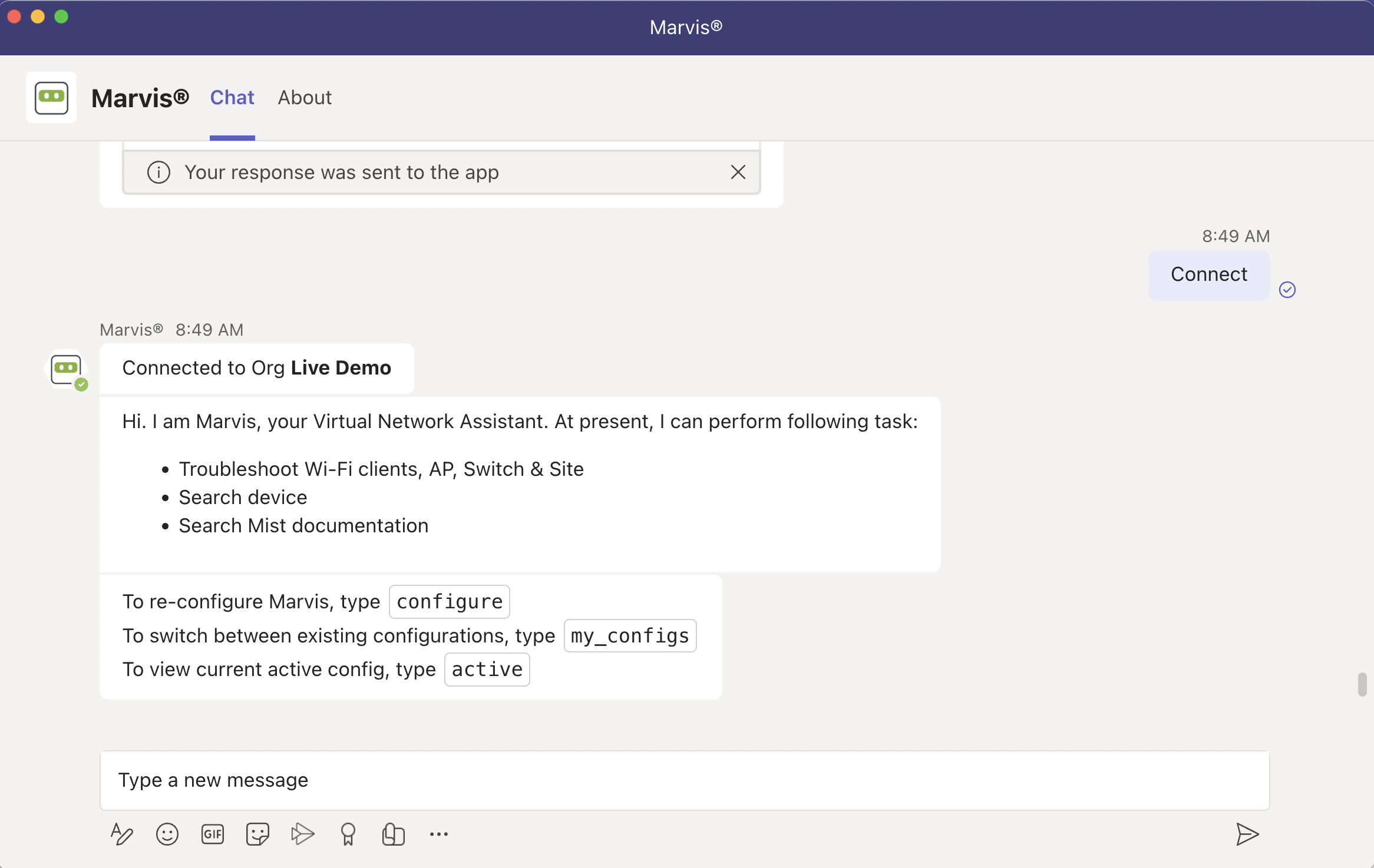
  2. 接続をクリックします。接続が成功すると、次のウィンドウが表示されます。
    Chat interface for Marvis virtual network assistant connected to Live Demo organization. Lists tasks like troubleshooting Wi-Fi clients and devices, searching Mist documentation, and provides configuration instructions. Text input field and icons for attachments, emojis, and options are shown.

MarvisアプリをMicrosoft Teamsチャネルに追加する

チームメンバーとしてMarvisアプリをMicrosoft Teamsチャネルに追加できます。そのTeamsチャネルのメンバーは、Marvisに情報を照会できます。

MarvisをTeamsチャネルに追加する前に、前のセクションで説明したように、Teamsにアプリをインストールし、アプリを組織に接続する必要があります。

MarvisアプリをMicrosoft Teamsチャネルに追加するには:

  1. Microsoft Teams ウィンドウの左側のウィンドウで、[ アプリ] を選択します。
  2. 検索ボックスに Marvis を入力し、 検索をクリックします。
    検索結果にMarvisアプリが表示されます。
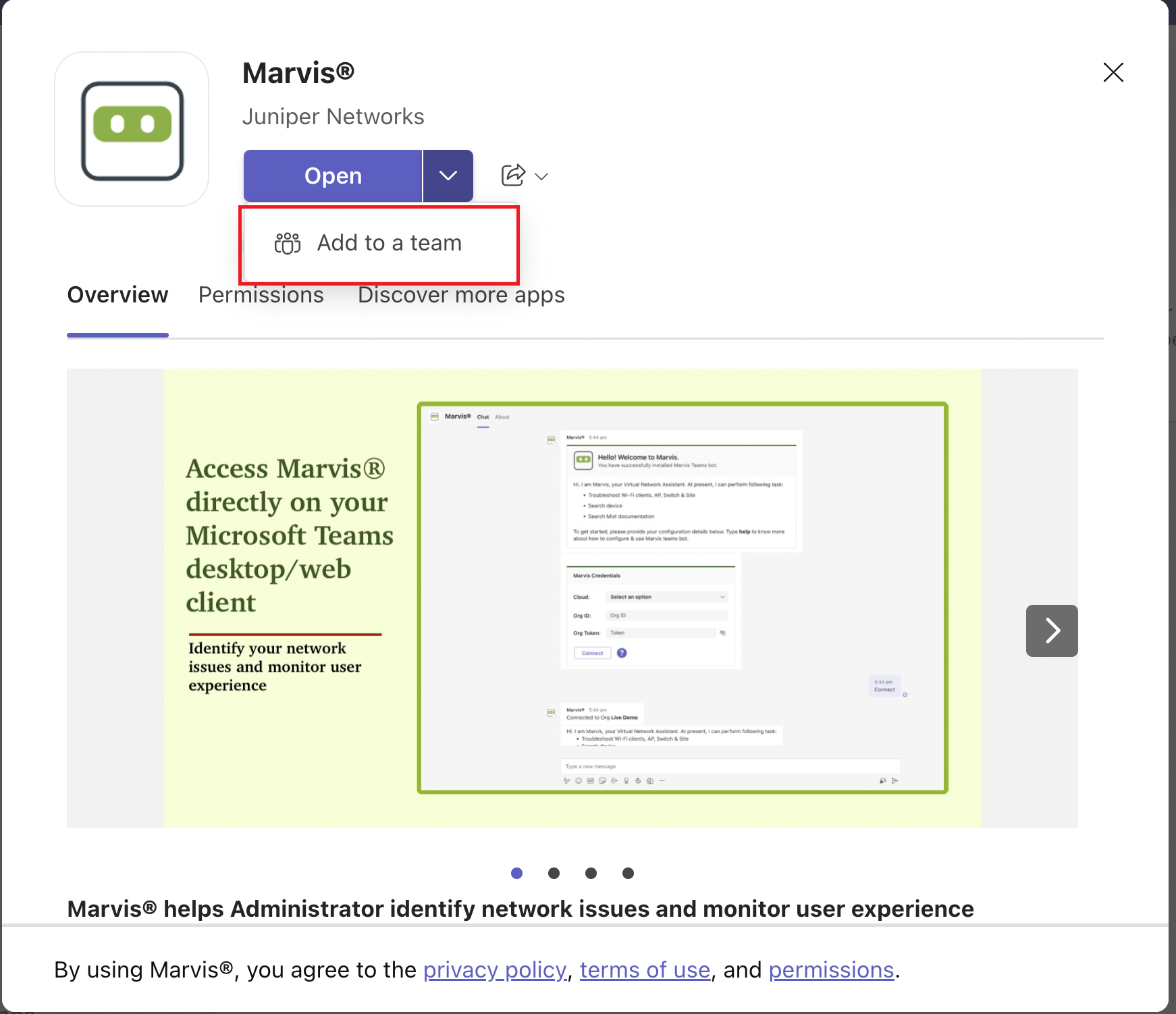
  3. アプリをクリックし、[ チームに追加]を選択します。
    Marvis app by Juniper Networks on Microsoft Teams store with options to Open or Add to a team and overview detailing network issue identification and user experience monitoring.
  4. Teams チャネルを選択します。
    これでおしまい!あなたとあなたのチームメンバーは、Marvisに質問を始めることができます。
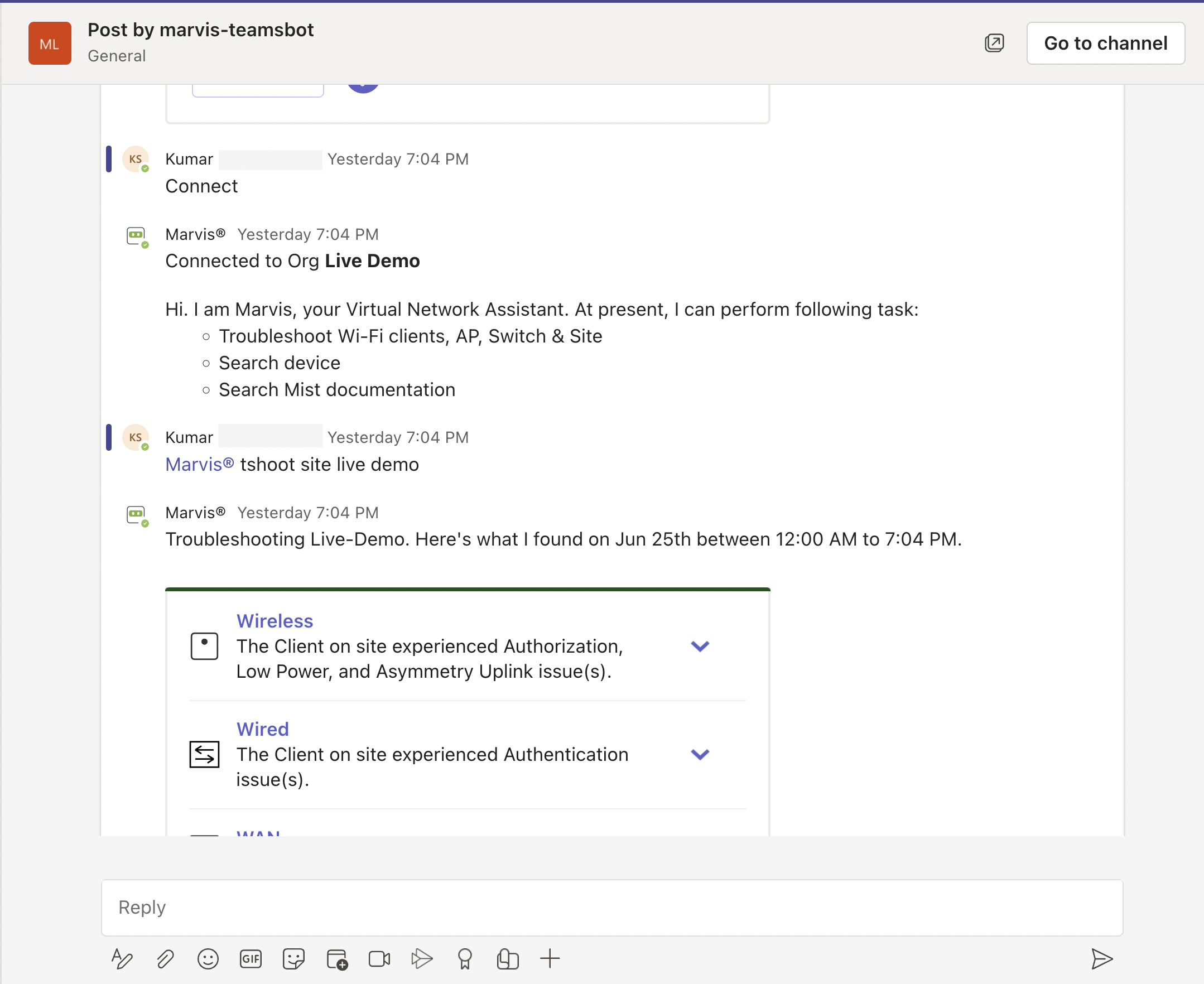
    Chat interface showing Kumar asking Marvis to troubleshoot the Live Demo site. Marvis lists its capabilities and provides a summary of issues found, categorized into Wireless, Wired, and WAN sections, with options to expand for details.

  5. @marvisプロンプトを使用して、最初の質問を入力します。