デバイスからPristine Configを更新する

  1. ブループリントからデバイスの 割り当てを解除 します(Apstraバージョン5.0.0以降、展開モードは自動的に展開から未設定に変更されます)。デバイスがサービス停止状態(OOS-READY または OOS-MAINT)であることを確認します。
  2. CLI経由で実行中のデバイスの設定に必要な変更を加えます。
  3. Apstra GUIの左側のナビゲーションメニューから、 デバイス>管理対象デバイス に移動し、更新するデバイスの 管理IP をクリックします。
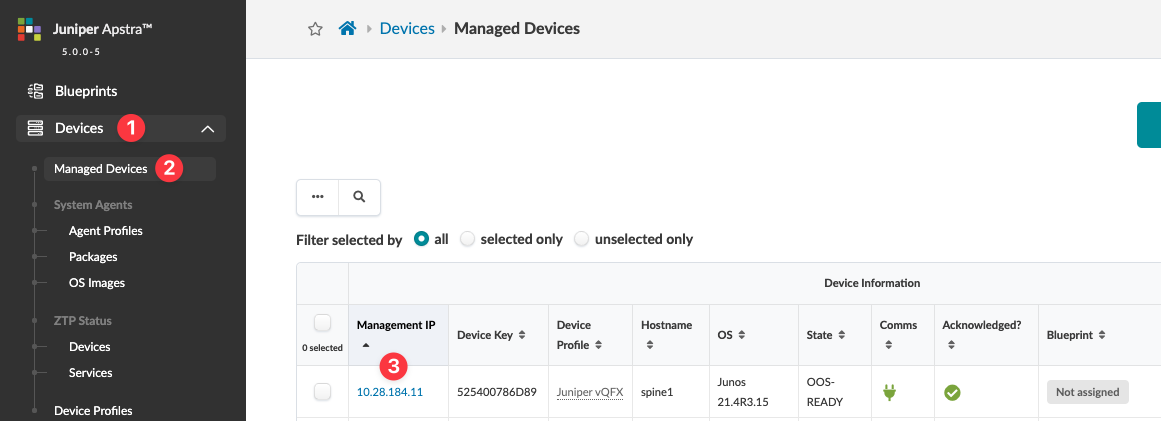
    HPE Apstra interface showing Managed Devices section listing device details like management IP, device key, profile, hostname, OS version, state, communication status, acknowledgment status, and blueprint assignment. Left sidebar displays navigation options including Blueprints, Devices, System Agents, ZTP Status, and Device Profiles.
    選択項目の デバイス の詳細ページが表示されます。
  4. [Pristine Config]タブ(左上)をクリックし、[Update From Device](右上)をクリックします。
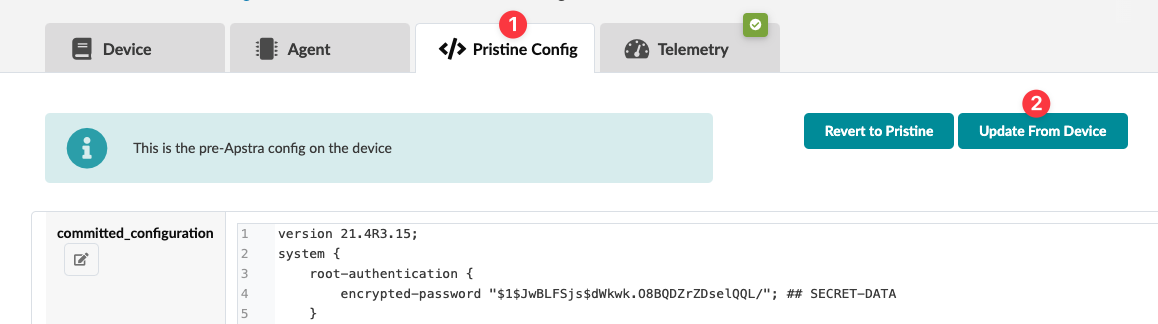
    Network management interface showing Pristine Config tab with Apstra. Includes committed configuration code for a device with version 21.4R3.15 and root authentication. Options to Revert to Pristine or Update From Device. Pre-Apstra configuration notification present.
    デバイスからプリスティンコンフィグを収集ダイアログが開きます。
  5. 収集をクリックしてデバイスからPristine Configを更新し、Pristine Configタブに戻ります。

元の設定を検証します。アウトオブサービス状態のデバイスの実行中の設定をコピーしました。これは ディスカバリ1 の設定であるはずです。インターフェイスの「speed」コマンドなどの追加設定が含まれる場合があります。Pristine Configを再度編集し、追加設定を手動で削除できます。必要に応じて、 ジュニパーサポート にお問い合わせください。