本页内容
在交换机上配置 DHCP 服务器或中继
请按照以下步骤在交换机上配置 DHCP 服务器或中继。
先决条件
配置 DHCP 服务器或中继之前,请确保满足以下条件:
- 将在交换机上为其配置 DHCP 服务器的 VLAN 分配给连接到 DHCP 客户端的端口。为此,可将相关的端口配置文件应用于端口。有关端口配置文件的更多信息,请参阅 静态和动态端口配置文件。
- 交换机具有 静态 IP 配置或附加 IP 配置,以便网络运行 DHCP 服务器。或者,已为 DHCP 服务器或中继配置了 L3 接口。
有关在有线客户端列表中显示 DHCP 客户端属性的信息,请参阅 有线客户端 。
配置 DHCP 服务器
要在交换机上配置 DHCP 服务器:
- 在交换机详细信息页面上,向下滚动到 Services 部分中的 DHCP 服务器/中继 磁贴。
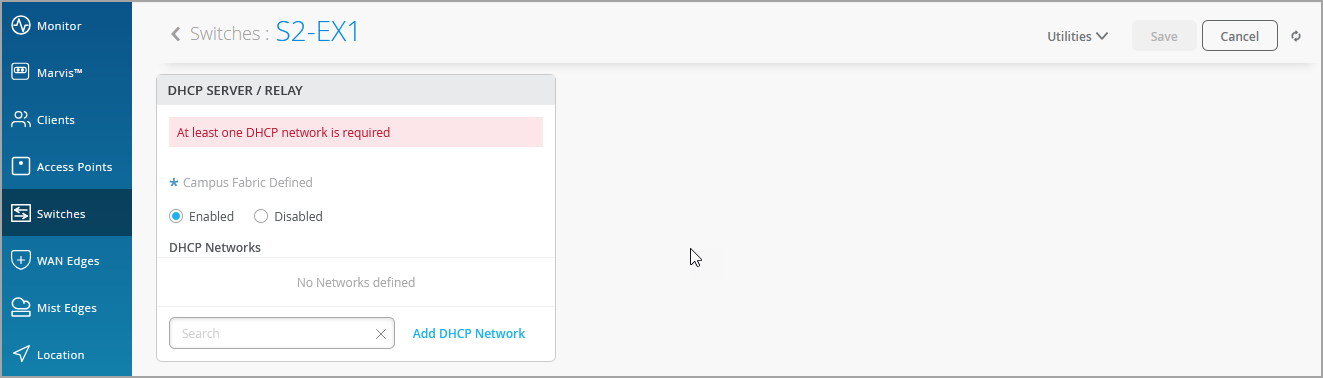
- 指定以下字段:
-
IP 开始 — DHCP IP 地址分配池中的起始 IP 地址。
-
IP 端 — DHCP IP 地址分配池中的结束 IP 地址。
-
网关 — DHCP 客户端的默认网关。通常,它是相应网络的交换机 IRB IP 地址。
-
DNS 服务器 (可选) — 您最多可以添加三个 DNS IP 地址,格式以逗号分隔。
-
DNS 后缀(可选)—您最多可以添加三个以逗号分隔的格式的域后缀。
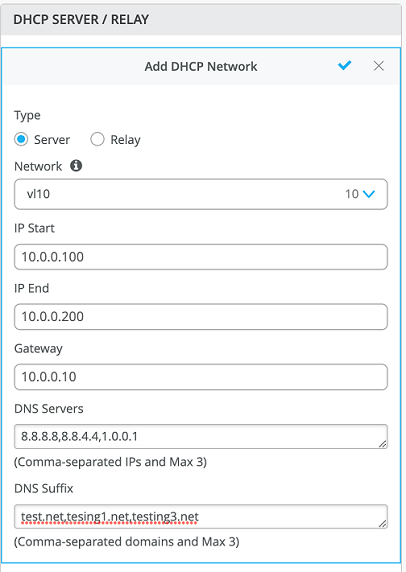
如果未配置 DNS 服务器和 DNS 后缀,Mist 会采用在交换机级别配置的 DNS 服务器和 DNS 后缀来自动生成配置。
-
- 保存更改。
以下配置将应用于 API
/sites/:site-id/devices/device-id: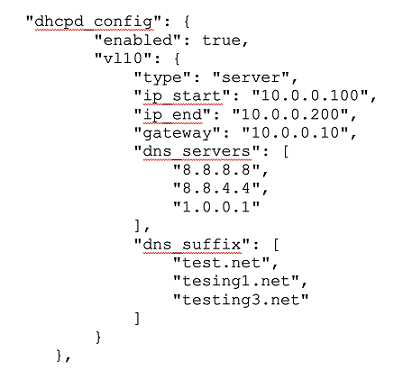
检查要推送到以下 API 的相应预期配置:
/sites/:site-id/devices/device-id/config_cmdDHCP 服务器在 vl10 的 irb.10 接口上启用。以下示例适用于 Junos 交换机:
set groups top system services dhcp-local-server group vl10 interface irb.10
地址分配池配置如下所示(适用于 Junos 交换机):
"set groups top access address-assignment pool vl10 family inet network 10.0.0.0/24",
"set groups top access address-assignment pool vl10 family inet range vl10 low 10.0.0.100",
"set groups top access address-assignment pool vl10 family inet range vl10 high 10.0.0.200",
"set groups top access address-assignment pool vl10 family inet dhcp-attributes name-server 8.8.8.8",
"set groups top access address-assignment pool vl10 family inet dhcp-attributes name-server 8.8.4.4",
"set groups top access address-assignment pool vl10 family inet dhcp-attributes name-server 1.0.0.1",
"set groups top access address-assignment pool vl10 family inet dhcp-attributes router 10.0.0.10",
"set groups top access address-assignment pool vl10 family inet dhcp-attributes option 15 array string test.net",
"set groups top access address-assignment pool vl10 family inet dhcp-attributes option 15 array string tesing1.net",
"set groups top access address-assignment pool vl10 family inet dhcp-attributes option 15 array string testing3.net,"
- 使用以下 CLI 验证交换机上的配置。以下示例适用于 Junos 交换机:
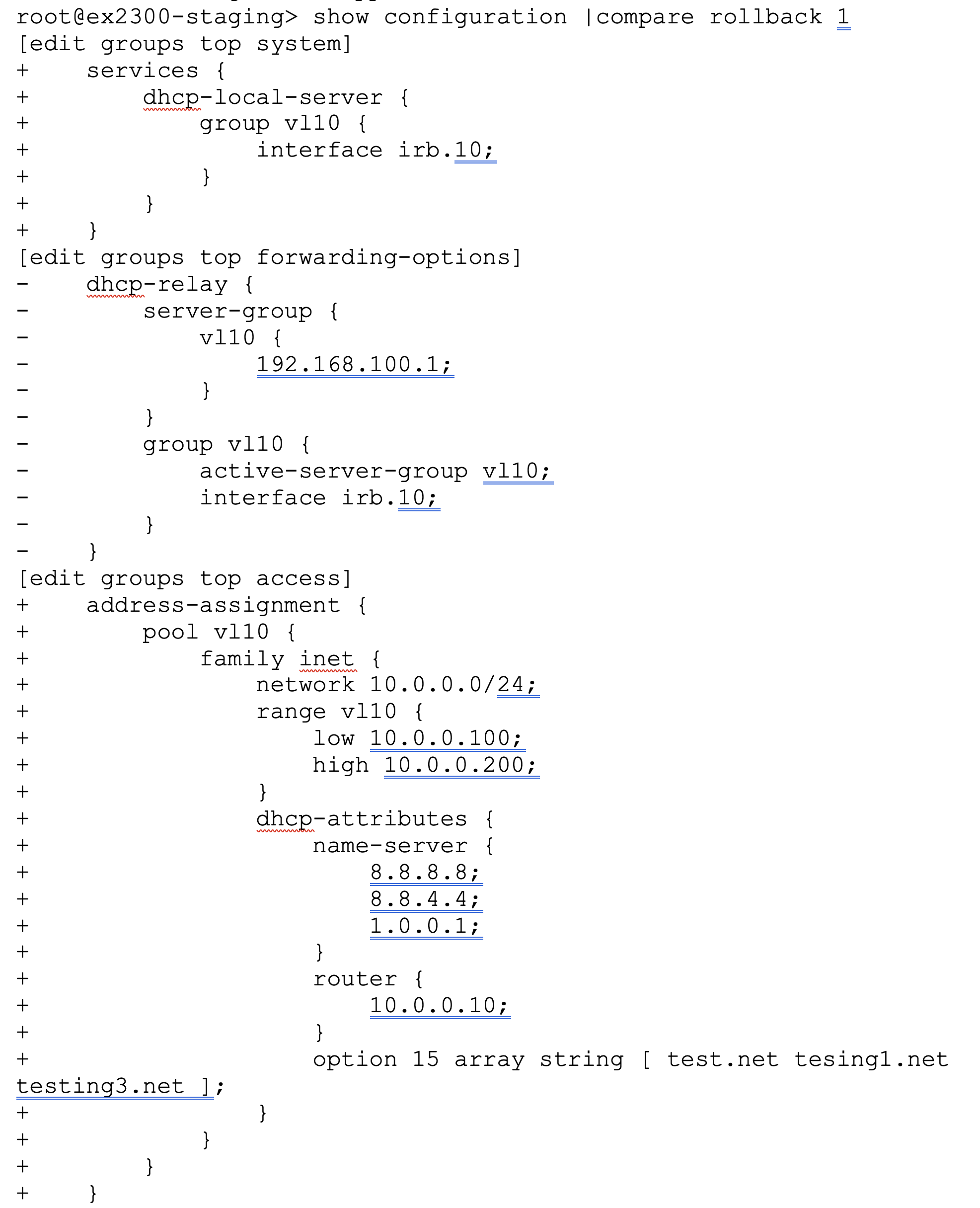
现在,应由 DHCP 服务器为 v110 网络的 DHCP 客户端分配 IP 地址,如下所示:
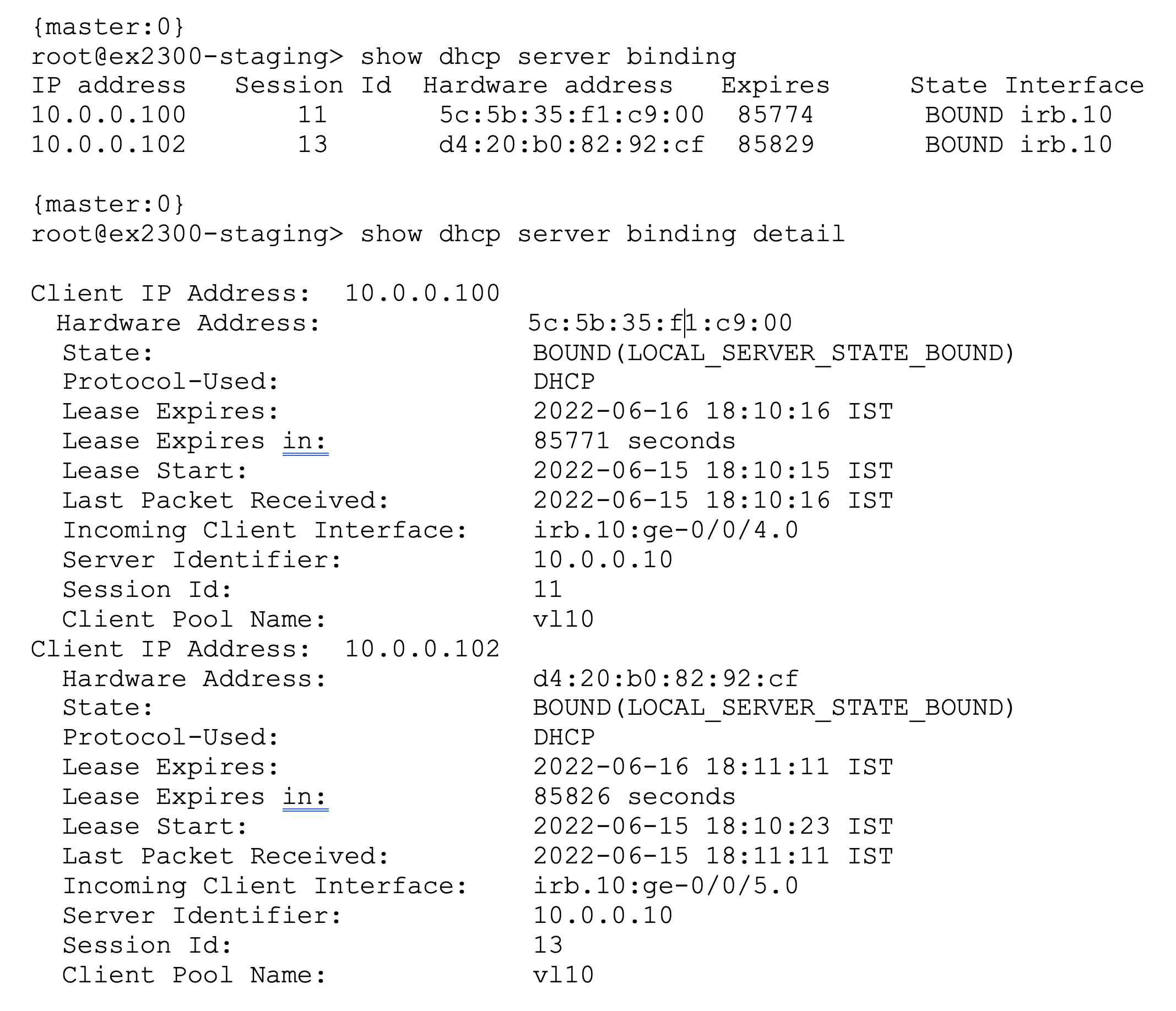
以上示例适用于 Junos 交换机。
以下是一些有用的 Junos CLI 命令:
-
show dhcp server binding或show dhcp server binding detail—查看 DHCP 服务器绑定信息。 show dhcp server statistics— 查看发送/接收的 DHCP 消息统计信息。clear dhcp server binding interface x-x/x/x— 清除特定接口上客户端的 DHCP 客户端绑定。clear dhcp server binding <address>— 清除基于有线客户端的 IP 地址或 MAC 地址的 DHCP 客户端绑定。
配置 DHCP 中继
要在交换机上配置 DHCP 中继,请执行以下操作:
- 在交换机详细信息页面上,向下滚动到 Services 部分中的 DHCP 服务器/中继 磁贴。
- 选择 Relay 作为配置 类型。
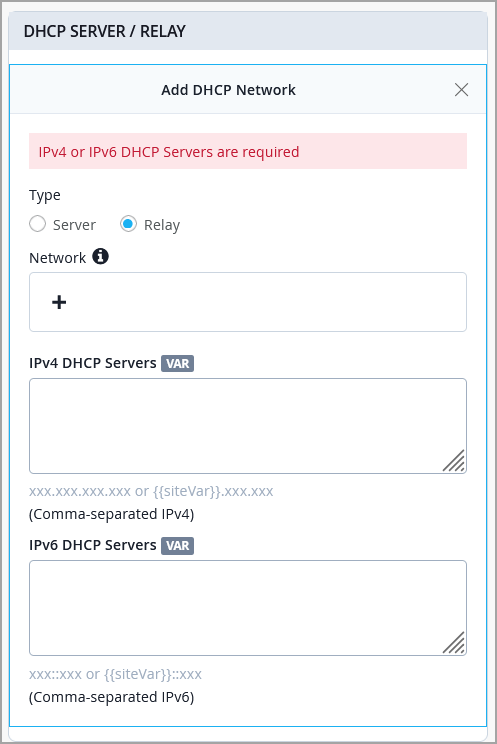
- 保存更改。
以下配置将应用于 API
/sites/:site-id/devices/device-id: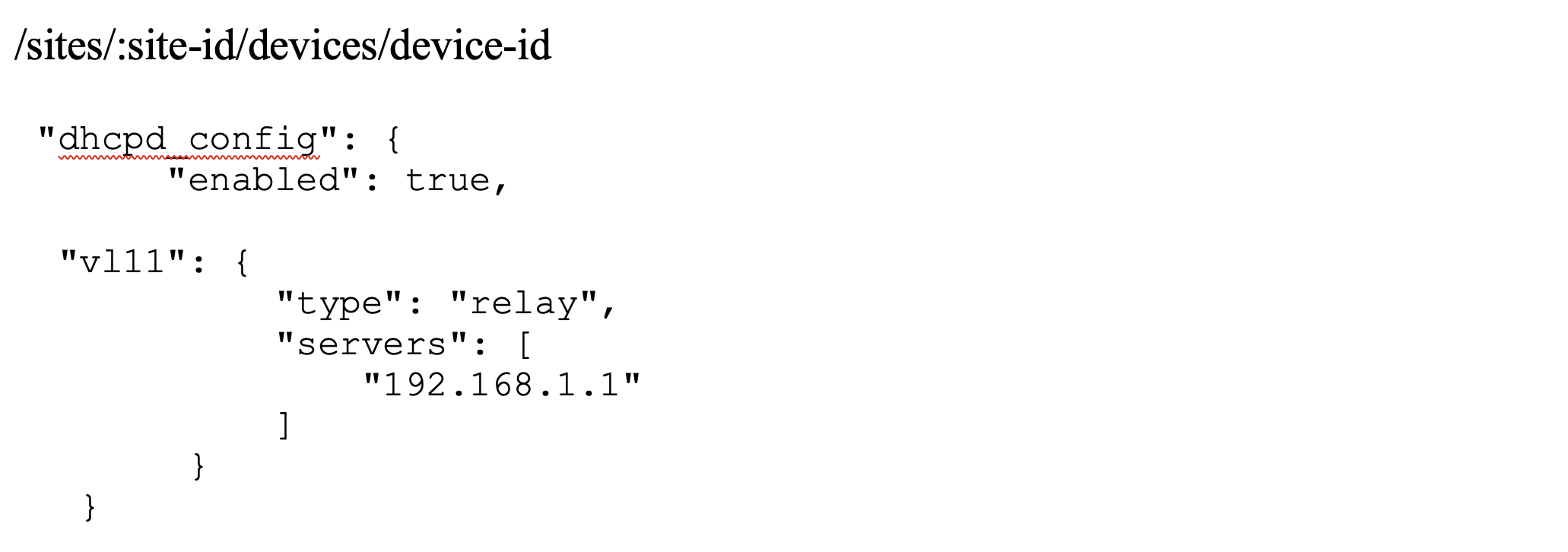
检查要在以下 API 上推送的相应预期配置:
/sites/:site-id/devices/device-id/config_cmd配置如下所示(此示例适用于 Junos 交换机):
"set groups top forwarding-options dhcp-relay server-group v111 192.168.1.1",
"set groups top forwarding-options dhcp-relay server-group v111 interface irb.11",
"set groups top forwarding-options dhcp-relay server-group v111 active server group v111",
- 使用以下 CLI 验证交换机上的配置。以下示例 CLI 命令适用于 Junos 交换机:
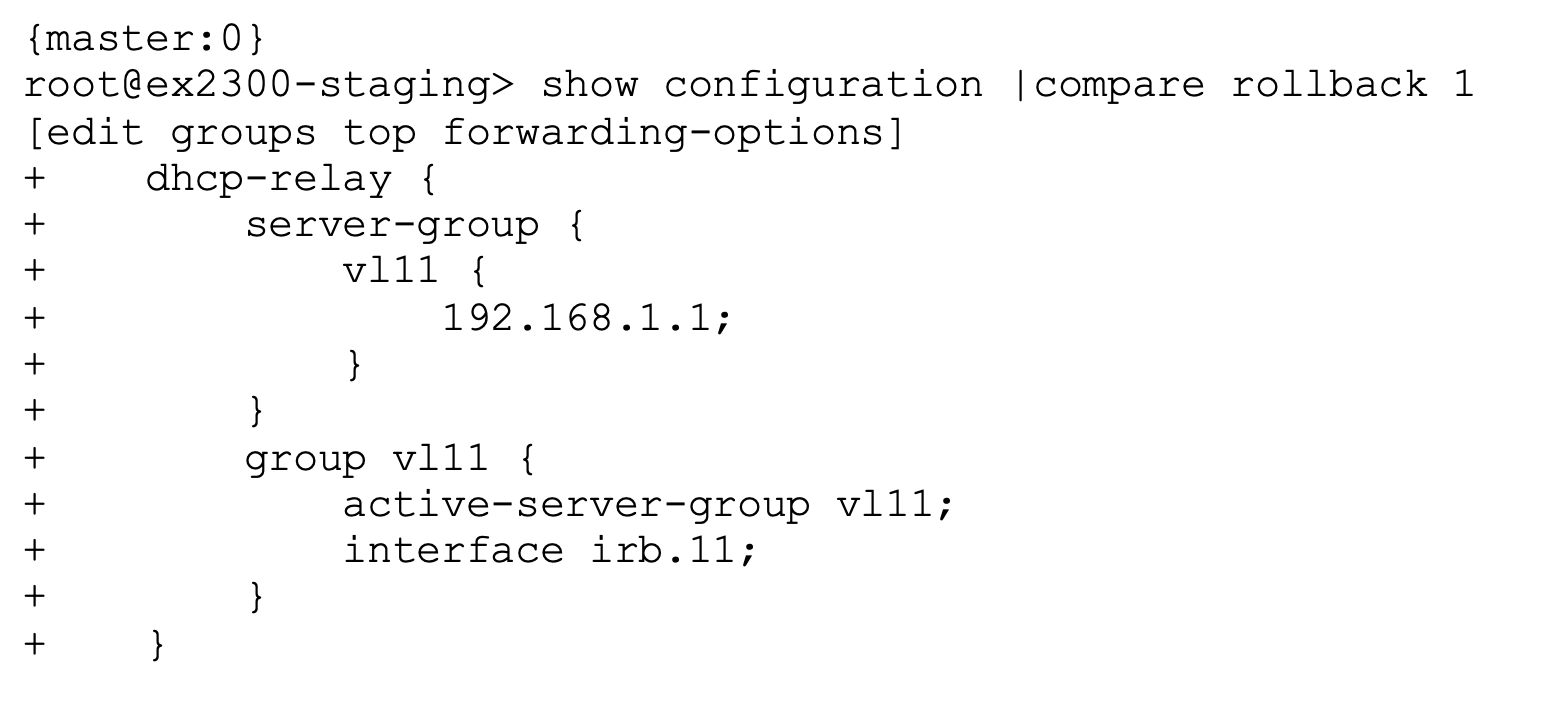
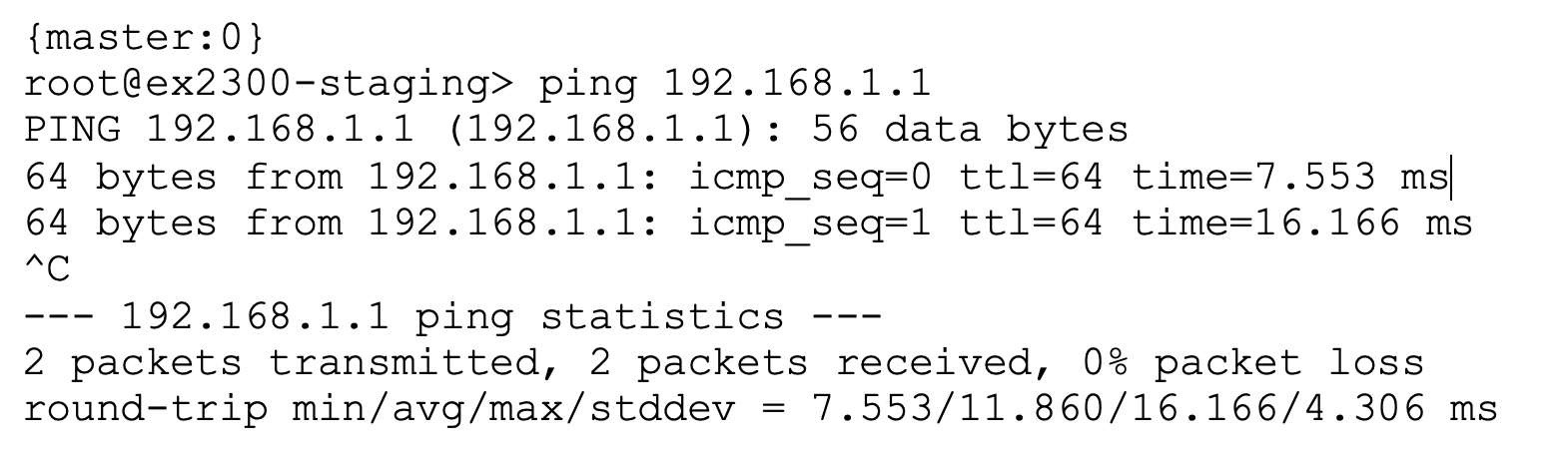
- 确保可从交换机访问远程 DHCP 服务器。以下示例 CLI 命令适用于 Junos 交换机:
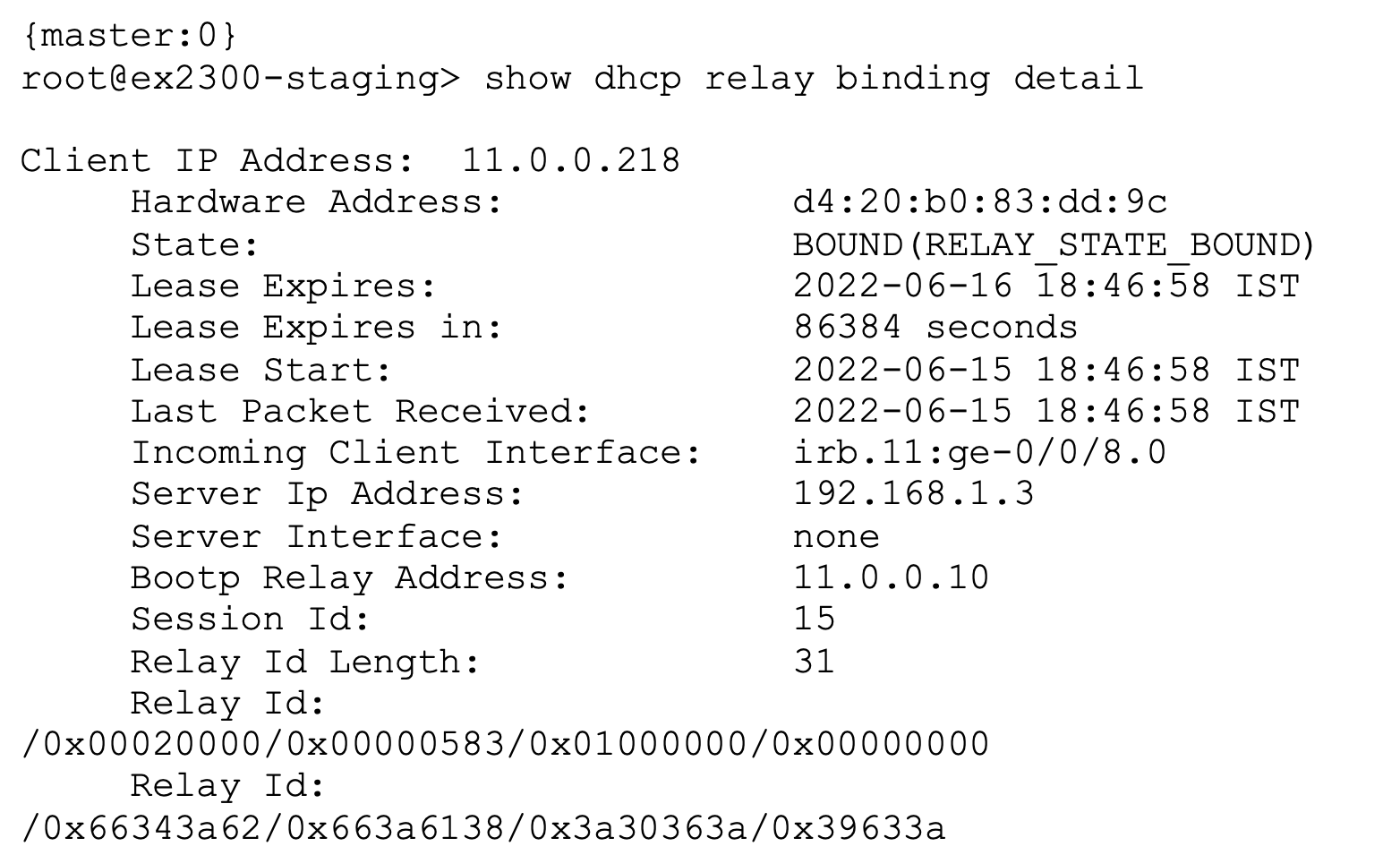
- 验证交换机上的 DHCP 中继绑定。以下示例 CLI 命令适用于 Junos 交换机:
另请参阅: DHCP 中继代理。