在 Microsoft Teams 中安装 Marvis 应用

请按照以下过程安装 Marvis 应用,将其连接到您的瞻博网络 Mist™ 组织,并将应用添加到 Teams 渠道。

只有当管理员允许 Marvis 应用在 Teams 环境中时,Teams 用户才能安装和使用 Marvis 应用。此外,管理员必须通过权限策略向用户提供应用。请参阅 在 Microsoft Teams 中启用或集成 Marvis 应用程序。

在 Teams 中安装 Marvis 应用

要在 Teams 中安装 Marvis 应用,请执行以下操作:

  1. 在 Microsoft Teams 窗口的左窗格中,选择 “应用”。
  2. 在搜索框中输入 Marvis ,然后单击搜索图标。

    您将在搜索结果中看到 Marvis 应用。

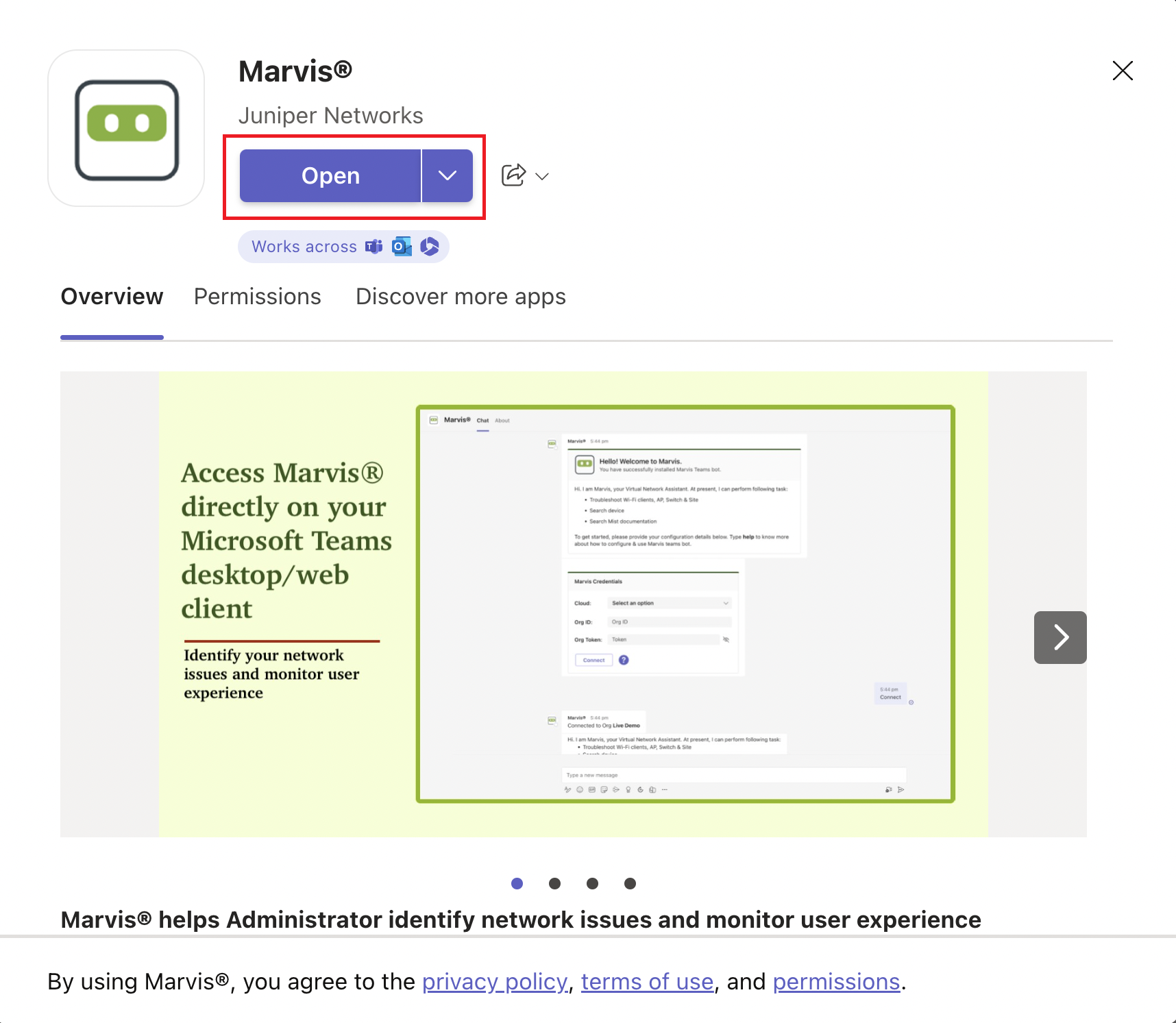
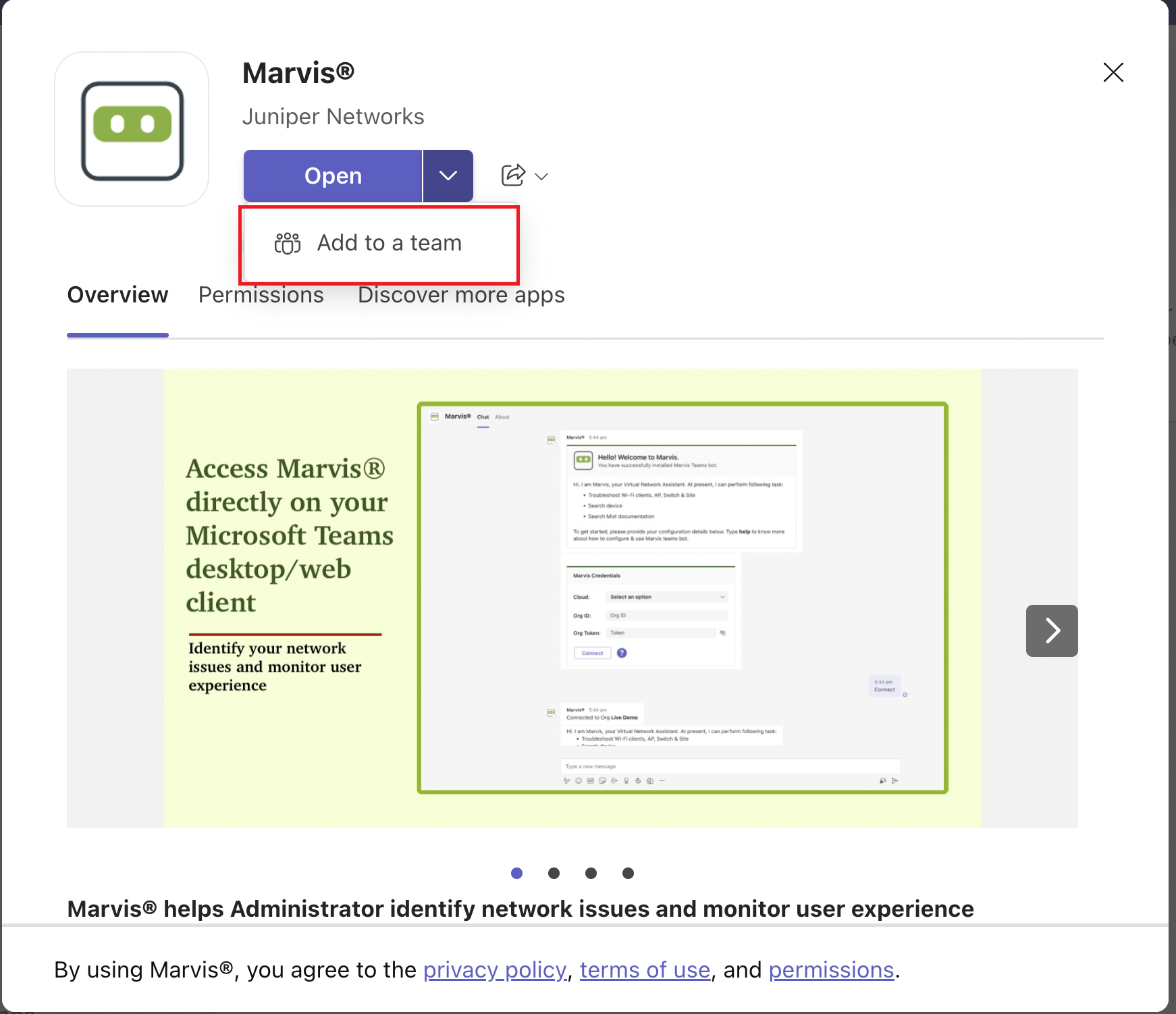
  3. 选择应用并单击 打开。

    Screenshot of Marvis by Juniper Networks app page in Microsoft Teams. Features Open button, app description, preview of Marvis interface, and footer agreement note.

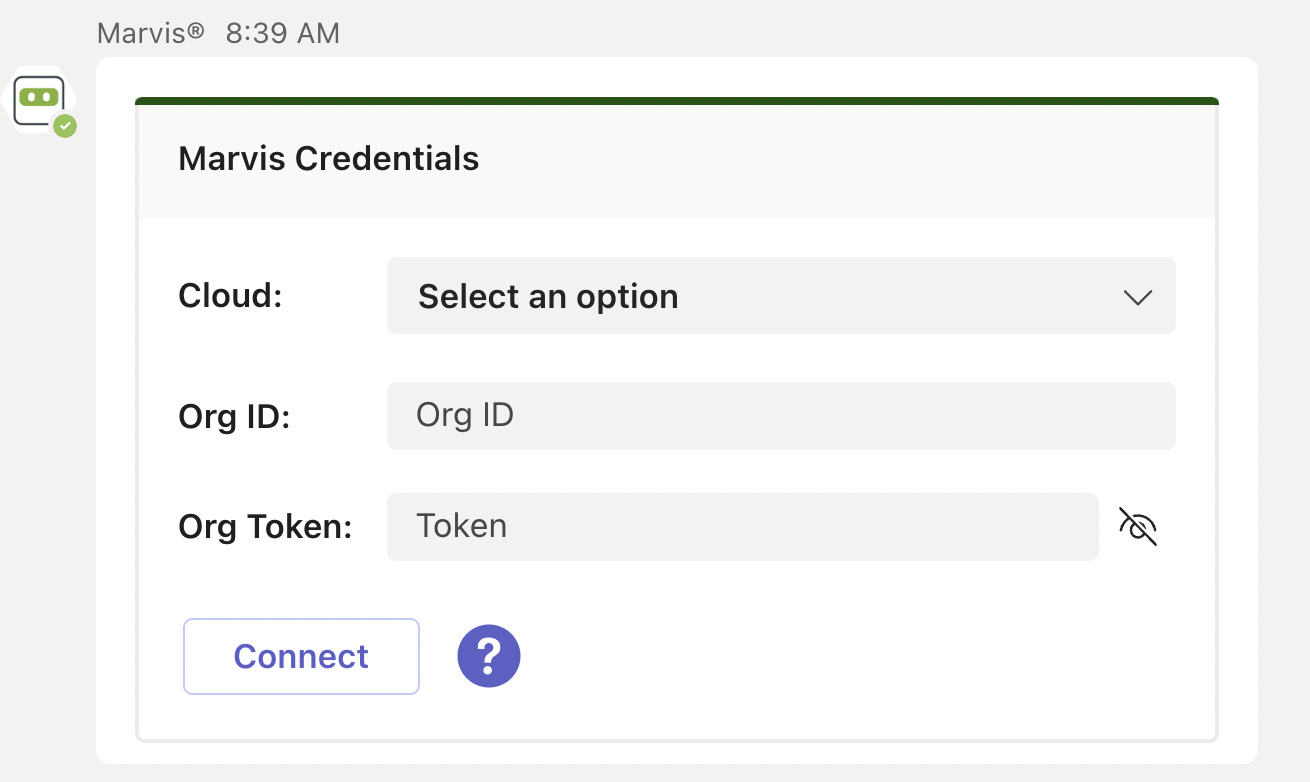
    您将看到以下窗口,表示您已成功安装该应用程序:

    User interface for entering Marvis Credentials with fields for Cloud dropdown, Org ID, Org Token with hide-show option, Connect button, and help icon.

  4. 接下来,您需要在 Mist 门户中连接到您的组织。

连接到您的 Mist 组织

要连接到您的 Mist 组织,请执行以下步骤:

  1. 输入以下详细信息以登录您的组织:
    • 云环境名称(例如,全局 01、全局 02)。您可以通过 Mist 门户登录屏幕获取此信息。
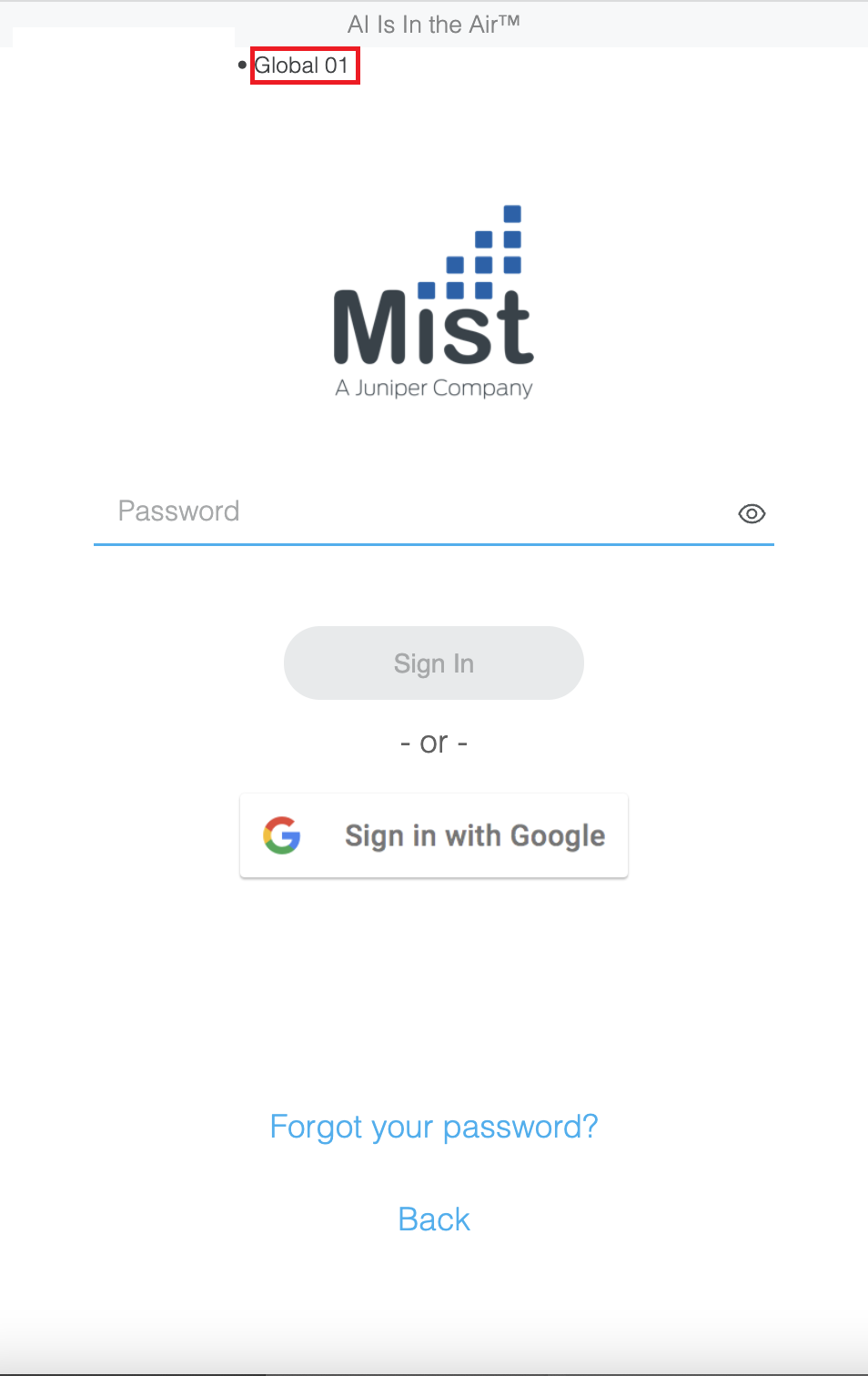
      Login page for Mist, a Juniper Networks company, with AI Is In the Air tagline, password field, Sign In and Google Sign-In buttons, and links for Forgot your password and Back.
    • 组织 ID(组织 ID)

      可以在 Mist 门户的 “组织>设置 ”页上找到组织 ID。
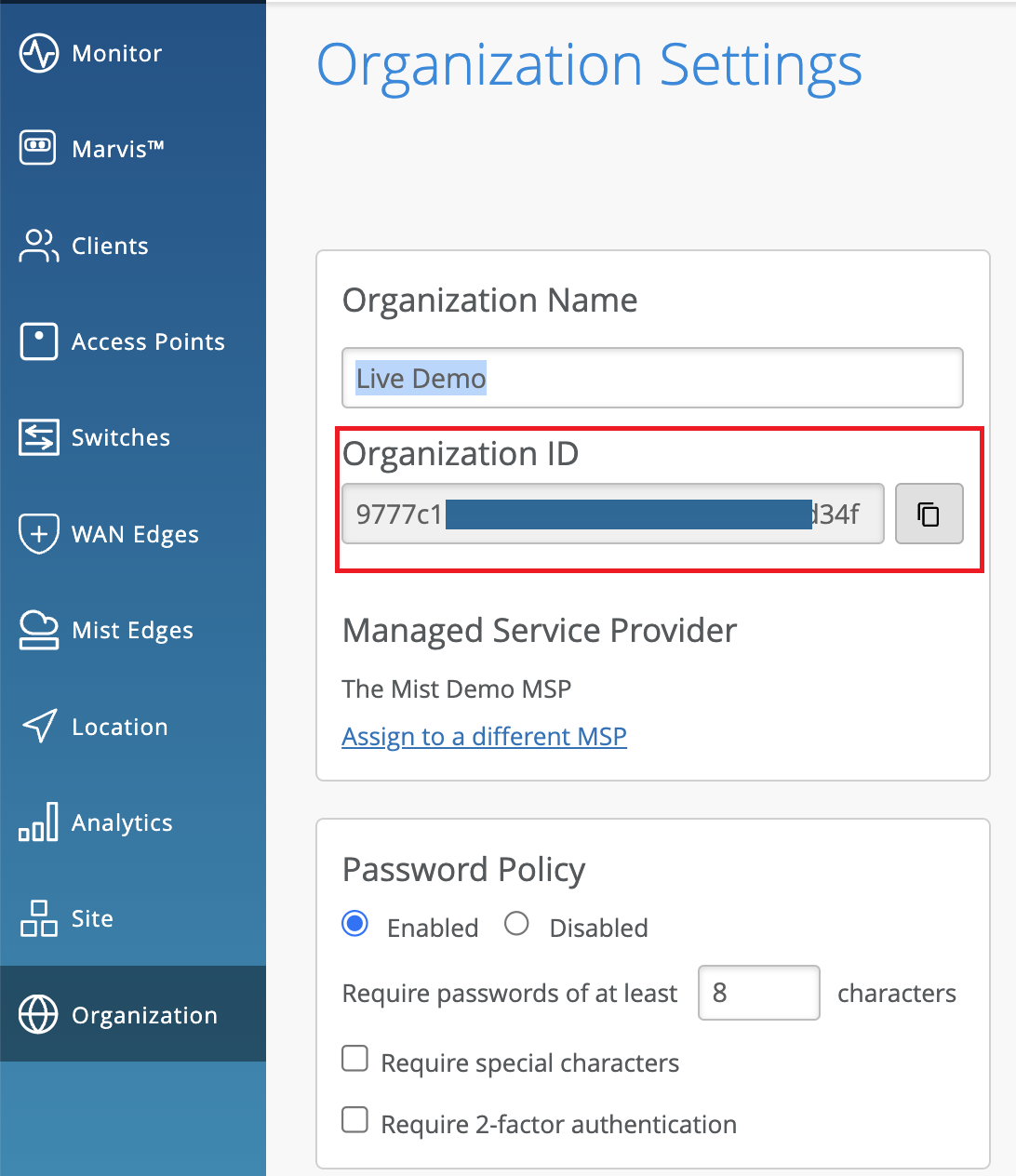
      Organization Settings page showcasing organization name Live Demo, organization ID partially visible in red, MSP set to The Mist Demo MSP, password policy enabled with 8-character minimum, no special character or 2FA requirement, and a navigation menu for IT management features like Monitor, Clients, and Access Points.
    • 组织令牌

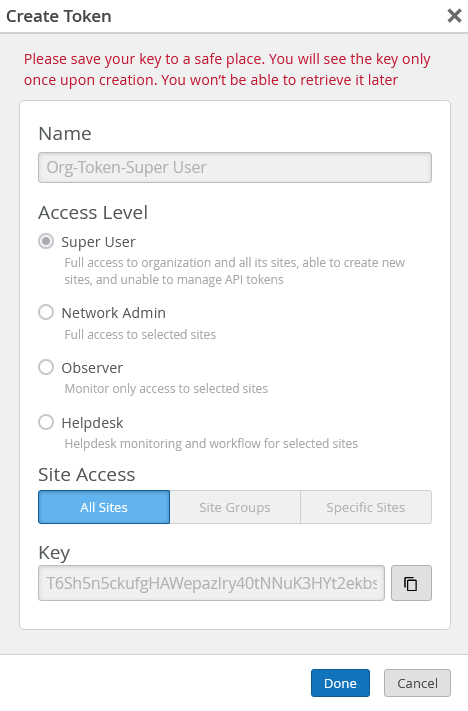
      您可以在Mist门户的组织 >设置 页面上生成组织令牌。Org 令牌的运作方式类似于基于用户的 API 令牌,但它与特定组织相关联。组织令牌权限基于您选择的 访问级别 和 站点访问 选项。

      要创建令牌,请执行以下操作:

      1. 单击“设置”页面上“API 令牌”部分下的“创建令牌”。

      2. 输入名称并单击 生成。生成的密钥是组织令牌。

      Create Token interface with fields for token name, access level options, site access scope, generated token key with copy button, and action buttons Done and Cancel. Warning to save key securely is displayed.
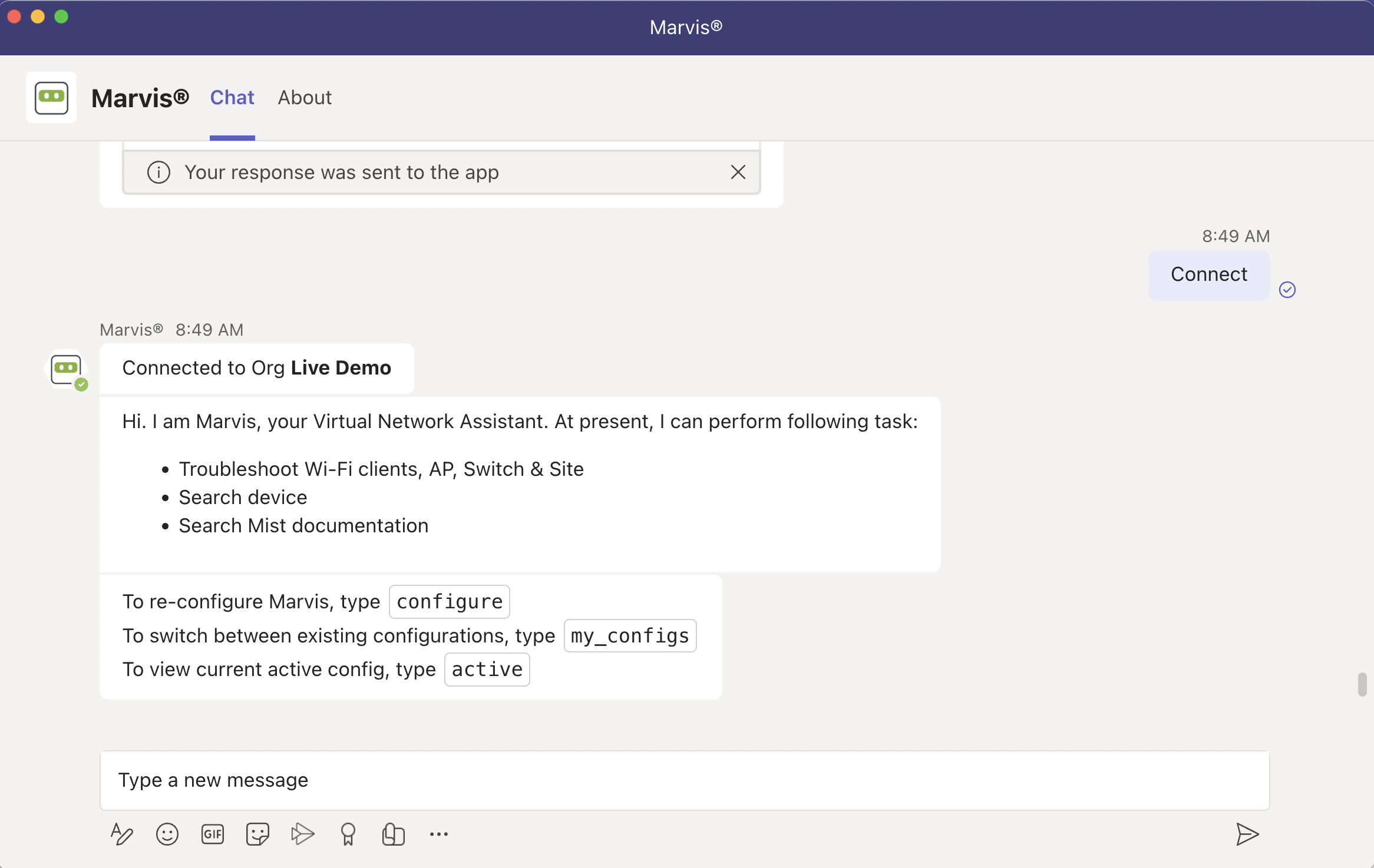
  2. 单击 连接。连接成功将显示以下窗口:
    Chat interface for Marvis virtual network assistant connected to Live Demo organization. Lists tasks like troubleshooting Wi-Fi clients and devices, searching Mist documentation, and provides configuration instructions. Text input field and icons for attachments, emojis, and options are shown.

将 Marvis 应用添加到 Microsoft Teams 频道

您可以将 Marvis 应用作为团队成员添加到 Microsoft Teams 频道。然后,该 Teams 频道的成员可以向 Marvis 查询信息。

在将 Marvis 添加到 Teams 频道之前,您必须在 Teams 中安装应用并将应用连接到组织,如前几节所述。

要将 Marvis 应用添加到 Microsoft Teams 渠道,请执行以下操作:

  1. 在 Microsoft Teams 窗口的左窗格中,选择 “应用”。
  2. 在搜索框中输入, Marvis 然后单击 搜索。
    您将在搜索结果中看到 Marvis 应用。
  3. 单击应用并选择 添加到团队。
    Marvis app by Juniper Networks on Microsoft Teams store with options to Open or Add to a team and overview detailing network issue identification and user experience monitoring.
  4. 选择 Teams 频道。
    就是这样!您和您的团队成员可以开始向 Marvis 提问。
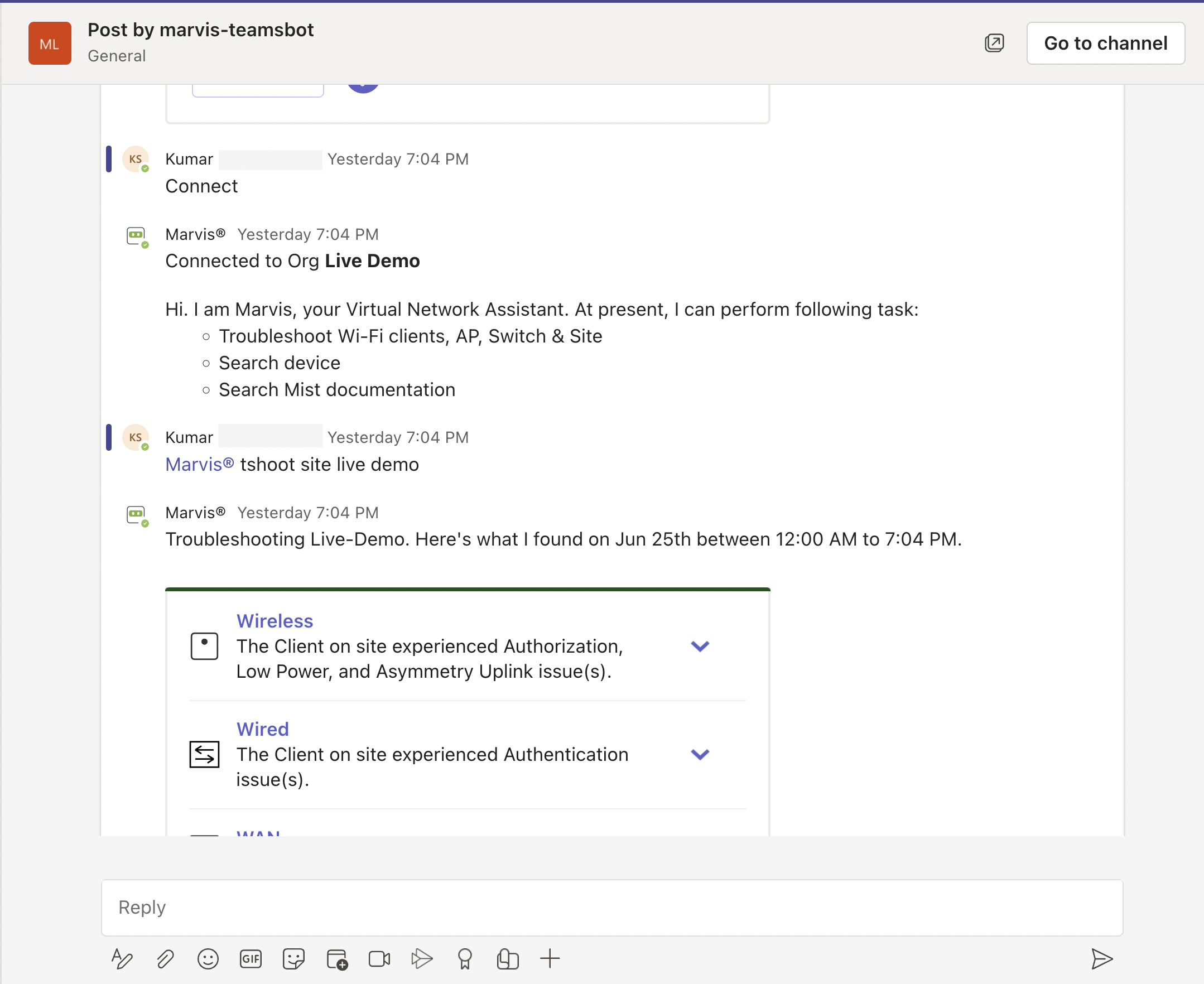
    Chat interface showing Kumar asking Marvis to troubleshoot the Live Demo site. Marvis lists its capabilities and provides a summary of issues found, categorized into Wireless, Wired, and WAN sections, with options to expand for details.

  5. 使用@marvis提示输入您的第一个问题。